How to View CCTV Cameras on Your Mobile
Learn how to view CCTV cameras on your mobile phone using Android or iPhone. Follow step-by-step instructions for app setup, QR code scanning, internet connection and remote viewing.
By virnobyte team · · 20 min read
How to View CCTV Cameras on Your Mobile Phone: Android and iPhone Setup Guide (2026)
Would you like to watch your home, shop or office CCTV cameras directly from your smartphone? Modern CCTV systems allow users to monitor their property remotely, view live video, check recorded footage and receive security alerts through a compatible mobile application.
Whether you have an analog CCTV system with a DVR, an IP camera connected to an NVR or a standalone Wi-Fi security camera, you can often access it from an Android phone or iPhone after completing the correct network and application setup.
However, the steps vary depending on the camera manufacturer and model. Hikvision, Dahua, CP PLUS and Reolink, for example, use different applications and device-registration methods.
In this guide, we explain how to connect CCTV cameras to your mobile phone, how to scan the QR code, how to view multiple cameras, how to access recorded footage and how to troubleshoot common connection problems.

1. What Do You Need to View CCTV Cameras on Your Mobile?
Before connecting your CCTV camera to your smartphone, check that you have the required equipment and access details.
- CCTV camera: A compatible analog HD camera, IP camera or Wi-Fi camera.
- DVR or NVR: Required for systems that use a recording device.
- Internet connection: A working network connection at the camera or recorder location for remote viewing.
- Smartphone: An Android phone or Apple iPhone.
- Mobile application: The correct app recommended by the CCTV manufacturer.
- Device credentials: The camera or recorder username and password.
- QR code or serial number: Required by many systems to add the device to the application.
Some standalone Wi-Fi cameras connect directly to a router. Other systems connect all cameras to a DVR or NVR, which then provides remote access to the mobile application.
2. Understand How CCTV Mobile Viewing Works
Different CCTV systems use different connection methods. Identifying your system before starting will make the setup easier.
A. Analog CCTV camera with DVR
In a traditional analog CCTV installation, cameras connect to a DVR using compatible video cabling. The DVR connects to the internet router using an Ethernet cable.
Your smartphone then communicates with the DVR through the manufacturer's supported remote-access service or another supported network configuration.
B. IP CCTV camera with NVR
IP cameras connect to an NVR through a network. Depending on the installation, the cameras may connect through a PoE switch or directly to PoE ports on the NVR.
The NVR is connected to the router or network so that authorised users can view the cameras through the mobile application.
C. Standalone Wi-Fi CCTV camera
A standalone Wi-Fi camera connects directly to a compatible wireless router. The user adds the camera to the manufacturer's mobile app, usually by scanning a QR code or following an in-app setup process.
| CCTV System | How It Connects | Mobile Viewing Method |
|---|---|---|
| Analog camera system | Camera to DVR, then DVR to router | Compatible DVR mobile app |
| IP camera system | Camera to network/NVR | IP camera or NVR application |
| Standalone Wi-Fi camera | Camera directly to Wi-Fi router | Manufacturer's camera app |
| Wireless NVR system | Wireless cameras to NVR, NVR to router | Compatible NVR application |
3. Which Mobile App Is Required for Your CCTV Camera?
Before adding your camera, identify its brand and model. Not every CCTV camera works with the same mobile application.
| Brand | Example Mobile Application | Typical Use |
|---|---|---|
| Hikvision | Hik-Connect | Compatible Hikvision cameras, DVRs and NVRs |
| Dahua | DMSS | Compatible Dahua cameras and recording devices |
| CP PLUS | gCMOB / iCMOB or model-supported app | Compatible CP PLUS CCTV systems |
| Reolink | Reolink App | Compatible Reolink cameras and NVRs |
App compatibility can depend on the exact product model, region and firmware. Always check the camera's user manual or official manufacturer support page before downloading an application.
Where can you download the application?
- Hikvision official app store
- Dahua DMSS official app information
- CP PLUS official FAQ and app information
- Reolink official support and app guides
For Android and iPhone, use the relevant official app-store listing or the manufacturer's authorised download page. Avoid downloading unknown APK files from third-party websites.
4. Step-by-Step: How to Connect CCTV Cameras to an Android Phone
The following is a general setup process for an Android smartphone. The names of menu options may differ between manufacturers and app versions.
Step 1: Connect your CCTV system to the internet
For a DVR or NVR system, connect the recorder's LAN or Ethernet port to your router using a suitable network cable.
For a standalone wireless camera, follow the manufacturer's instructions to connect it to your Wi-Fi network.
Check that the camera or recorder is powered on and has a working network connection.
Step 2: Download the correct CCTV application
Open the Google Play Store and search for the official application recommended for your CCTV model. Check the developer or publisher name before installing it.
For example, a compatible Hikvision system may use Hik-Connect, a compatible Dahua system may use DMSS, and a Reolink camera may use the Reolink App.
Step 3: Create an account or sign in
Open the application and follow the registration instructions. Depending on the app, you may need to enter your email address or mobile number, create a password and verify your account.
Some applications require a user account before devices can be added. Follow the current requirements of your manufacturer's application.
Step 4: Add your CCTV device
Look for an option such as Add Device, the plus (+) symbol, Scan QR Code or Device Manager.
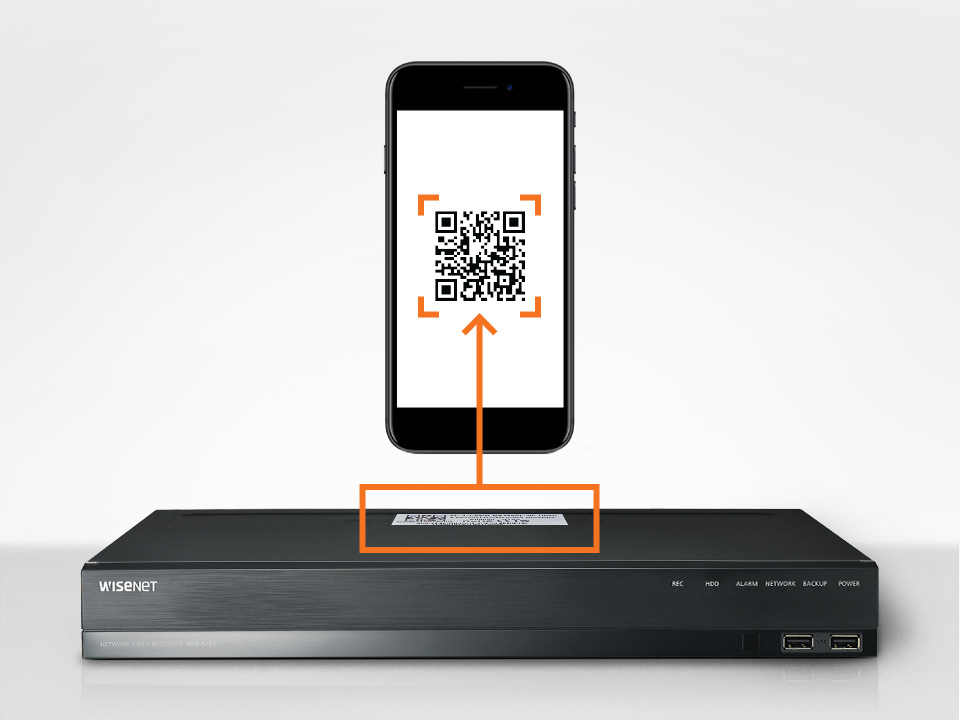
You may be asked to scan a QR code printed on the camera, DVR, NVR or product label. Some applications also allow you to enter the device serial number or UID manually.
Step 5: Enter the device details
After scanning the QR code, the application may ask for:
- Device name
- Device serial number or UID
- Device username
- Device password
- Verification code or encryption key, if enabled
Enter the credentials configured on your camera or DVR/NVR. These may be different from the email address and password used to sign in to the mobile application.
Step 6: Open Live View
Once the device has been added successfully, select it from the device list.
Choose the camera channel you want to view and tap Live View or Play. If the system has multiple cameras, you may be able to view them individually or in a multi-camera layout.
5. Step-by-Step: How to View CCTV Cameras on an iPhone
The process for an iPhone is similar to Android. The main difference is that you download the manufacturer's app from the Apple App Store and may need to enable specific iOS permissions.
Step 1: Open the Apple App Store
Search for the application compatible with your camera or DVR/NVR. Check the app name and developer before downloading.
Step 2: Register or log in
Open the app and sign in to your existing account or create a new account according to the manufacturer's instructions.
Step 3: Select Add Device
Tap the plus (+) icon or the Add Device option in the application.
Step 4: Scan the CCTV QR code
Allow camera access when iOS asks for permission. Point your iPhone at the QR code on the camera or recording device.
If scanning is unsuccessful, check whether the application supports manual serial-number entry.
Step 5: Enter the device password
Enter the correct device username, password and verification code if required. Follow the on-screen setup instructions.
Step 6: Open the live camera feed
Select the device from the application home screen and choose the camera channel. Your live CCTV feed should appear when the device is online and remote viewing is configured correctly.
Check iPhone permissions
If the application cannot scan a QR code or discover a device, check the relevant permissions in iPhone Settings.
- Camera permission for QR-code scanning.
- Local Network permission if the application uses local device discovery.
- Mobile Data permission for remote viewing over cellular networks.
- Notifications permission if you want security alerts.
Available permissions depend on the app and iOS version.
6. How to Enable Remote Viewing on a DVR or NVR
Adding a DVR or NVR to your smartphone application is not always enough. The recorder must also be connected to the network and have its supported remote-access service configured.
Many manufacturers provide a platform-access, cloud or P2P feature to simplify remote viewing.
General DVR/NVR remote-access procedure
- Connect the DVR or NVR to the router using an Ethernet cable.
- Open the recorder's network settings on a connected monitor.
- Check its IP address, gateway and DNS configuration.
- Find the manufacturer's remote-access or P2P settings.
- Enable the supported service if required.
- Wait for the connection status to show Online or Connected.
- Open the compatible mobile app.
- Scan the device QR code or enter the serial number.
- Enter the device credentials and verification code if requested.
- Save the device and test live view.
7. Brand-Specific Instructions for Viewing CCTV on Mobile
A. How to view Hikvision CCTV cameras on mobile using Hik-Connect
Hik-Connect is a mobile application and cloud service for compatible Hikvision security devices. It supports remote viewing and other supported device operations.
General setup steps:
- Download Hik-Connect from the official Hikvision app store or the relevant Apple App Store listing.
- Create a Hik-Connect account and sign in.
- Connect your Hikvision DVR, NVR or camera to the network.
- Open the recorder's Network or Platform Access settings.
- Enable Hik-Connect service and accept the applicable terms, where prompted.
- Check the service connection status.
- Open Hik-Connect on your phone and select Add Device.
- Scan the device QR code or use the supported manual method.
- Enter the device verification code if requested.
- Save the device and open Live View.
Hikvision provides a step-by-step guide here: How to Set Up Hik-Connect.
B. How to view Dahua CCTV cameras on mobile using DMSS
DMSS is Dahua's mobile application for compatible cameras, NVRs, video doorbells and other supported security devices. It supports live viewing, playback and notifications.
General setup steps:
- Download the DMSS application from the official app store.
- Register or sign in to your DMSS account.
- Connect the compatible Dahua recorder or camera to the internet.
- Check that the device's P2P or supported remote-access function is enabled and online.
- Open the DMSS app and select the Add Device option.
- Select SN/Scan or the equivalent option shown in your app version.
- Scan the QR code or enter the serial number manually.
- Enter the device username and password.
- Save the device and open Live View.
For product details, visit the official Dahua DMSS page.
C. How to view CP PLUS CCTV cameras on mobile
Compatible CP PLUS systems may use gCMOB, iCMOB or another application specified for the particular model.
General setup steps:
- Confirm the correct mobile app for your CP PLUS recorder or camera.
- Install the compatible application from an authorised source.
- Connect your DVR, NVR or Wi-Fi camera to the network.
- Open the application and select Add Device.
- Scan the QR code or enter the serial number.
- Follow the app's network configuration instructions if required.
- Enter the device username and password.
- Save the device and select Start Live View.
The CP PLUS-compatible app documentation explains QR-code, Wi-Fi, Soft AP and wired-device configuration. Read the gCMOB/iCMOB Device Manager guide for details.
D. How to view Reolink cameras on mobile
Reolink provides a dedicated mobile app for compatible cameras, NVRs and other devices.
General setup steps:
- Install the Reolink app on your Android phone or iPhone.
- Open the application and tap the plus (+) button.
- Scan the camera or NVR QR code.
- If scanning is unavailable, use Manual Input and enter the UID if supported.
- Enter the device password.
- Save the device.
- Select the camera to open Live View.
Reolink explains several supported methods, including QR code, UID, local network discovery and IP address, in its official guide to adding devices to the Reolink App.
8. How to View Multiple CCTV Cameras on One Mobile Phone
If you have multiple cameras installed at your home, office, shop or warehouse, many CCTV mobile applications allow you to view several camera channels through one account.
The available number of simultaneous camera feeds depends on the application, phone performance, recorder and network bandwidth.
Steps to view multiple cameras
- Add the DVR, NVR or supported cameras to the mobile application.
- Open the device list.
- Select the required recorder or camera group.
- Choose the Multi-View or Split-Screen layout, if supported.
- Select the cameras you want to display.
- Adjust the video quality if the streams are slow or buffering.
For example, a four-camera system may display all four cameras in a grid. Larger recording systems may offer additional viewing layouts, depending on the equipment and app.
9. How to View Recorded CCTV Footage on Your Mobile
Many compatible mobile applications allow users to view recorded footage stored on the DVR, NVR or supported camera storage.
This is helpful when you need to check an incident that occurred earlier at your home, shop or workplace.
Steps to access CCTV playback
- Open the CCTV mobile application.
- Select the connected camera or recorder.
- Open Playback, Remote Playback or the recording timeline option.
- Select the camera channel.
- Choose the date you want to check.
- Set the approximate start and end time.
- Select the available recording segment.
- Play, pause or search through the footage.
Playback availability depends on whether the recording device has stored footage and whether the app supports remote playback for that model.
Some applications allow users to download clips or capture snapshots to their mobile device. Store and share these files securely.
10. How to Receive CCTV Motion Detection Notifications on Your Phone
Many modern CCTV systems support push notifications when motion or another configured security event is detected.
For example, a compatible system may send an alert when a person or vehicle is detected at the entrance. The exact event types depend on the camera and recorder.
General notification setup
- Open the camera's or recorder's event settings.
- Enable the required motion detection or smart-event function.
- Configure the detection area and sensitivity.
- Open the mobile application.
- Find the Notifications, Alarm or Message settings.
- Enable notifications for the selected device and event types.
- Allow notifications in the Android or iPhone settings.
- Test the notification by creating a suitable detection event.
Keep in mind that motion detection and push notifications are separate functions. Enabling one does not always automatically enable the other.
11. Internet Requirements for Viewing CCTV on Mobile
Remote CCTV viewing requires a working internet connection at the camera or recorder location and a suitable connection on your smartphone.
The amount of bandwidth required depends on the number of cameras, their resolution, selected stream quality, frame rate and video compression.
Tips for smoother CCTV viewing
- Use a reliable broadband connection at the CCTV installation location.
- Check the internet upload speed because remote viewing sends video from your property to your phone.
- Use a sub-stream or lower-quality stream when viewing over mobile data.
- Check Wi-Fi signal strength for wireless cameras.
- Avoid connecting too many high-resolution streams simultaneously.
- Keep the router, recorder and cameras updated and properly configured.
Remember that local recording can continue without internet if the recorder and cameras are correctly configured. However, remote mobile viewing generally requires internet connectivity.
12. How to Share CCTV Camera Access with Family Members or Employees
Some mobile applications allow the main device owner to share camera access with another account. This is useful for families, shop owners, security staff and authorised office employees.
General device-sharing steps
- Open the CCTV mobile application using the owner account.
- Select the camera or recorder you want to share.
- Open the Device Sharing or Share Device option, if available.
- Enter the recipient's account details or use the supported sharing method.
- Select the permissions the recipient should have.
- Send the invitation and ask the recipient to accept it.
- Check that the recipient can view the permitted camera feeds.
Where possible, provide view-only access to people who do not need administrator privileges. Sharing a device through its official permission system is preferable to sharing the main administrator password.
13. Common Problems When Viewing CCTV on Mobile
If you have followed the setup steps but your cameras are not showing on your phone, check the following common issues.
| Problem | Possible Cause | Suggested Solution |
|---|---|---|
| Device Offline | Camera or recorder has lost its network connection. | Check power, router, cables and remote-access status. |
| QR code not scanning | Blurred label or disabled camera permission. | Clean the QR code and allow app camera access. |
| Incorrect password | Wrong device credentials. | Check the camera or recorder username and password. |
| Works on Wi-Fi but not mobile data | Remote access or internet configuration problem. | Check the recorder's internet and platform-access settings. |
| Live view buffering | Weak upload speed or high video quality. | Try a lower stream or fewer cameras at once. |
| No playback available | No stored footage or incorrect date/time selection. | Check local recordings and the selected timeline. |
| Device already added | Device linked to another account. | Use the manufacturer's account-transfer or unbinding process. |
| App cannot find camera | Incorrect application or network-discovery issue. | Check device compatibility and the manufacturer's setup guide. |
14. CCTV Mobile Viewing Security Tips
Viewing your security cameras through a smartphone is convenient, but remote access should be protected from unauthorised users.
- Change default device passwords where supported.
- Use a strong and unique password for your mobile account.
- Enable two-factor authentication if available.
- Use official manufacturer applications.
- Update device firmware and mobile applications through official sources.
- Restrict camera access to authorised people.
- Remove access for former employees or installers when necessary.
- Do not share QR codes, serial numbers, passwords or verification codes publicly.
- Use secure manufacturer-supported remote access.
- Avoid exposing recorder services directly to the internet without professional security configuration.
15. CCTV Mobile Viewing Setup Checklist
Before considering the installation complete, verify the following:
- Camera and recorder are powered on.
- DVR/NVR or standalone camera is connected to the network.
- Correct mobile application is installed.
- App account registration is complete where required.
- Correct device QR code or serial number has been added.
- Device username and password are correct.
- Remote-access or platform service shows Online where applicable.
- Live view works on the local network.
- Remote viewing works over mobile data.
- Playback recordings can be accessed.
- Push notifications work if configured.
- Only authorised users have device access.
16. Why Choose Virnobyte for CCTV Installation and Mobile Setup?
Virnobyte Private Limited provides CCTV surveillance, computer hardware, networking and IT support services for homes, shops, offices and businesses.
We assist customers with CCTV installation, DVR/NVR configuration, mobile application setup, remote viewing and network connectivity. Our objective is to help customers use their surveillance systems reliably and securely.
Our CCTV and IT services include:
- CCTV camera installation and configuration
- Android and iPhone mobile viewing setup
- QR code and device registration assistance
- IP camera and Wi-Fi camera installation
- DVR and NVR configuration
- Remote viewing and playback setup
- Router, switch and network configuration
- CCTV troubleshooting and maintenance
- Hardware and networking AMC services
Virnobyte has its head office in Pune, Maharashtra, a strong presence in Karnataka and Goa, and serves customers across India. On-site service availability depends on location and project requirements.
Want to View Your CCTV Cameras on Your Mobile?
Having trouble connecting your CCTV system to an Android phone or iPhone? Need help with QR-code setup, DVR/NVR configuration, mobile app installation or remote viewing?
Virnobyte can help assess your CCTV system and assist with a suitable configuration.
VIRNOBYTE PRIVATE LIMITED
Technology • Innovation • Trust
Head Office: Sadichha Complex, Sawtamali Temple Road, Jadhavwadi, Chikhali, Pune – 411062, Maharashtra, India.
Phone: 8669883332
Email: info@virnobyte.com
Website: www.virnobyte.com
Contact Virnobyte for CCTV installation, mobile connectivity and technical support.
Frequently Asked Questions (FAQs)
1. Can I view CCTV cameras on my mobile phone?
Yes. Many modern CCTV cameras, DVRs and NVRs support mobile viewing through a compatible manufacturer application. The device must be configured correctly for local or remote access.
2. How can I view CCTV on an Android phone?
Install the correct CCTV application from an authorised source, create or sign in to your account, add the camera or recorder using its QR code or serial number, enter the device credentials and open Live View.
3. How can I view CCTV on an iPhone?
Download the compatible CCTV app from the Apple App Store, sign in, add your device through QR-code scanning or another supported method and select the camera feed.
4. Can I view CCTV cameras from anywhere?
Yes, if your CCTV system supports remote access and the camera or recorder is connected to the internet. Your smartphone also needs an internet connection.
5. Can I view CCTV without an internet connection?
You may be able to view cameras locally through a connected monitor or a compatible app on the same local network. Remote viewing from a different location generally requires internet access.
6. Can I view multiple CCTV cameras on one mobile phone?
Yes. Many manufacturer applications support multiple cameras or recorder channels in one account. The number of simultaneous feeds depends on the app, device and network performance.
7. Do I need a separate app for every CCTV camera?
Not necessarily. Cameras and recorders from the same compatible system can often be managed through one application. Different manufacturers may require different apps, so check the product documentation.
8. Why does my CCTV app show Device Offline?
This may happen when the camera or recorder loses internet connectivity, its remote-access service is offline or the network configuration is incorrect.
9. Can I view CCTV recordings on my mobile?
Many compatible applications support remote playback. Select the device, camera channel, date and time range to view available recordings stored on the recorder or supported camera storage.
10. Can I connect CCTV cameras to two mobile phones?
Many systems support multiple authorised users through device-sharing functions or account-based access. Use the manufacturer's sharing feature and assign appropriate permissions.
11. Can I view CCTV using mobile data instead of Wi-Fi?
Yes, provided that remote access is configured and your CCTV device has an internet connection. Your phone can use mobile data to access the remote camera feed.
12. Is it safe to view CCTV remotely?
It can be safe when the device is configured securely. Use strong passwords, official applications, supported encryption, updated firmware and restricted user permissions.
Helpful External Resources and Official Guides
For manufacturer-specific setup instructions and additional information, use these resources:
- Hikvision – How to Set Up Hik-Connect: Official instructions for account registration, device setup and mobile remote viewing.
- Hikvision – Access Camera via Hik-Connect: Explains how to install the application, register an account and add compatible cameras by QR code.
- Dahua – Official DMSS App: Information about live viewing, remote playback, notifications and device sharing.
- Dahua – DMSS User Manual: Technical instructions for adding devices by QR code, serial number and IP/domain address.
- CP PLUS-compatible gCMOB/iCMOB – Device Manager: Explains Wi-Fi, Soft AP and wired network configuration during device setup.
- Reolink – How to Add Devices to the Reolink App: Provides QR-code, UID, local network and IP-address methods.
- Dahua – DMSS Account Registration Update for 2026: Explains the account-login requirement for new P2P device additions from 15 January 2026.
Disclaimer: App features, menu names and connection procedures vary by manufacturer, model, region and firmware. Always follow the relevant user manual. Remote access requires a compatible device and suitable network configuration. Images belong to their respective owners; obtain permission or use licensed images before commercial publication.