
CCTV Camera Not Connecting to Mobile
Learn why your CCTV camera is not connecting to your mobile phone. Discover solutions for Wi-Fi issues, network errors, app settings, QR code scanning and remote viewing problems.
By virnobyte team · · 19 min read

CCTV Camera Not Connecting to Mobile: Causes and Solutions (2026)
Is your CCTV camera not connecting to your mobile phone? Are you seeing messages such as "Device Offline", "Connection Failed", "Network Error" or "Login Timeout" in your CCTV application? These problems can prevent you from watching live footage or accessing recordings when you are away from your property.
Mobile viewing is an important feature of modern CCTV systems. It allows homeowners and business owners to monitor their premises through a smartphone, access playback recordings and receive security notifications when supported by the camera system.
However, a CCTV camera may fail to connect to a mobile phone because of Wi-Fi problems, an incorrect password, a disconnected DVR or NVR, incorrect app settings, QR-code scanning errors, weak internet connectivity or disabled remote-access services.
In this guide, we explain the common reasons why CCTV cameras do not connect to mobile phones and provide practical troubleshooting steps for Wi-Fi cameras, IP cameras, DVRs and NVRs.
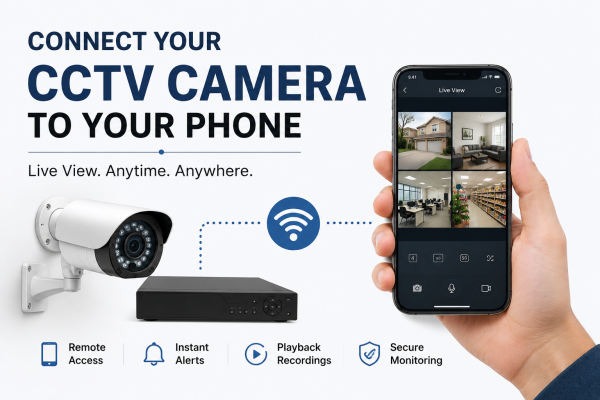
1. Why Is My CCTV Camera Not Connecting to My Mobile Phone?
There are several reasons why a CCTV camera may not connect to a smartphone. The first step is to identify whether the problem is with the camera, recorder, router, internet connection or mobile application.
Here are some common problems and their possible solutions.
| Problem | Possible Cause | Suggested Solution |
|---|---|---|
| Device Offline | Recorder or camera has lost its internet connection. | Check the router, Ethernet cable and device network status. |
| Connection Failed | Incorrect network settings or app connection problem. | Check Wi-Fi, phone network and application settings. |
| QR code not scanning | Blurred QR code or missing camera permission. | Clean the label, improve lighting or enter the serial number manually if supported. |
| Incorrect password | Wrong device credentials or verification code. | Confirm the correct device username and password. |
| Works on Wi-Fi but not mobile data | Remote-access or internet configuration issue. | Check P2P, platform access and network connectivity. |
| Live view keeps buffering | Weak internet connection or insufficient bandwidth. | Try a lower video stream or improve network connectivity. |
| Camera cannot connect to Wi-Fi | Incorrect Wi-Fi password, unsupported band or weak signal. | Check the camera's network specifications and router settings. |
2. Check Whether Your CCTV System Is Connected to the Internet
One of the most common reasons for mobile connection problems is that the CCTV camera or recorder is not connected to the internet.
For a traditional analog CCTV system, the cameras normally connect to a DVR. For an IP CCTV system, cameras may connect to an NVR or network switch. In both arrangements, the recorder or camera that provides remote access must have a working network connection.
How to check the internet connection
- Check whether your internet router is switched on and working.
- Confirm that the DVR, NVR or IP camera is powered on.
- For wired systems, inspect the Ethernet cable connecting the recorder to the router or network switch.
- Open the recorder's Network Settings menu.
- Check the network status and confirm that the device has valid IP, gateway and DNS settings.
- Check whether the recorder's remote-access or P2P service shows Online, where supported.
After checking the connection, restart the router and recorder if necessary. Allow both devices to reconnect before opening the mobile application again.
3. Incorrect Wi-Fi Password or Network Name
Wireless CCTV cameras need the correct Wi-Fi network name (SSID) and password to connect to a router. An incorrect password or a typing mistake can prevent the camera from joining the network.
Wi-Fi passwords are case-sensitive. Extra spaces, special characters or an incorrect network selection can also cause configuration problems.
How to fix Wi-Fi password problems
- Open your smartphone's Wi-Fi settings.
- Connect to the network you want the CCTV camera to use.
- Confirm that the network name is correct.
- Check the Wi-Fi password carefully.
- Enter the same network name and password in the CCTV camera application.
- Save the settings and wait for the camera to connect.
- Open the application again and test live viewing.
Some cameras also support Ethernet or access-point setup as an alternative to standard wireless configuration.
For a model-specific example, read Reolink's Wi-Fi connection troubleshooting guide. It explains how incorrect passwords, router settings and weak signals can affect camera connectivity.
4. Your CCTV Camera Supports 2.4GHz Wi-Fi but Not 5GHz
Some wireless CCTV cameras support only 2.4GHz Wi-Fi, while others support both 2.4GHz and 5GHz. If your camera supports only 2.4GHz and your router is configured in a way that prevents it from joining that band, setup may fail.
This can happen with dual-band routers, combined Wi-Fi network names or router settings that are incompatible with the camera.
How to resolve Wi-Fi band problems
- Check the camera's user manual to confirm supported Wi-Fi frequencies.
- Check whether your router broadcasts a 2.4GHz network.
- If necessary, ask your internet provider or network administrator to make the 2.4GHz band available separately for setup.
- Connect your phone to the compatible Wi-Fi network during configuration.
- Enter the correct password and complete pairing.
- Test the camera connection after setup.
Do not assume that every CCTV camera supports only 2.4GHz. Always check the specifications of your exact model.
5. CCTV App Is Incorrect or Outdated
Every CCTV manufacturer may use a different mobile application. Installing an incompatible application can prevent the device from being added or accessed correctly.
For example, compatible product ranges may use applications such as:
| Manufacturer or Product Family | Example Mobile Application |
|---|---|
| Hikvision | Hik-Connect |
| Dahua | DMSS |
| CP PLUS | Compatible apps may include gCMOB or iCMOB, depending on the device |
| Reolink | Reolink App |
These are examples, not universal app assignments. Always check the model's official user manual, product documentation or manufacturer support page before downloading an application.
How to fix mobile application problems
- Check the CCTV camera or recorder model.
- Identify the application recommended by the manufacturer.
- Download the correct app from the official app store or manufacturer website.
- Update the app if an update is available.
- Close the application and reopen it.
- Log in using the correct account.
- Check whether your CCTV device is still listed in the device manager.
For CP PLUS-compatible gCMOB/iCMOB devices, refer to the gCMOB and iCMOB troubleshooting FAQ.
6. QR Code Is Not Scanning in the CCTV App
Many modern CCTV cameras and recording systems allow users to add a device by scanning a QR code. The QR code may be printed on the camera, DVR, NVR, product label or quick-start guide.
However, a QR code may not scan if it is damaged, blurred, dirty, too small or not displayed clearly on the phone screen.

How to fix QR code scanning problems
- Clean the QR code label gently with a soft, dry cloth.
- Use sufficient lighting while scanning.
- Hold the smartphone camera steady and adjust the scanning distance.
- Make sure the CCTV application has permission to use your phone's camera.
- Check whether the QR code belongs to the correct camera or recorder.
- If supported, enter the device serial number manually instead.
- Enter the required device verification code if the application requests one.
Some systems use a QR code to download the mobile app, while another code or serial number is used to add the device. Make sure you are scanning the correct code for the intended operation.
See Hik-Connect's official guide to connecting an offline device for device network setup options.
7. Device Shows Offline in the Mobile Application
If your mobile CCTV application displays "Device Offline", the camera or recorder may not be communicating with the remote-access service.
For example, Hikvision devices added through Hik-Connect use a service called Platform Access. When this service is offline, remote viewing through the app may stop working.
How to troubleshoot an offline device
- Connect a monitor to the DVR or NVR if necessary.
- Open the recorder's network settings.
- Check whether the Ethernet connection is active.
- Confirm that the device has valid network settings.
- Check whether the manufacturer's remote-access or P2P service is enabled.
- Review the service status and confirm whether it reports Online.
- Restart the recorder and router if appropriate.
- Test mobile viewing again.
For supported Hikvision products, the platform access status can be checked in the recorder's network settings.
Read the official Hikvision Platform Access Offline troubleshooting guide.
8. CCTV Works on Wi-Fi but Not on Mobile Data
This problem usually indicates that the CCTV system is accessible on the local network but remote viewing is not working correctly.
For example, you may be able to watch the camera when your phone is connected to the same office or home Wi-Fi network. However, when you switch to mobile data, the application displays an offline message.
Possible causes
- The recorder does not have a working internet connection.
- The remote-access or P2P service is disabled or offline.
- The router or firewall is blocking the required service.
- The device has incorrect gateway or DNS settings.
- The internet service is experiencing an interruption.
- The application does not have permission to use mobile data.
How to fix remote viewing problems
- First, confirm that local viewing works on the same Wi-Fi network.
- Disconnect your phone from Wi-Fi and enable mobile data.
- Open the CCTV application and test the live feed.
- If it fails, check the recorder's internet and remote-access status.
- Check whether the router or firewall is blocking remote connections.
- Confirm that the mobile app has permission to use mobile data.
- Contact your internet provider or CCTV technician if the connection remains unavailable.
For additional guidance, read Reolink's guide to cameras that connect to the router but cannot be accessed through the app.
9. Incorrect Username, Password or Verification Code
Sometimes the CCTV camera is online, but the mobile application cannot connect because the login information is incorrect.
Many CCTV applications require users to enter two different sets of credentials:
- App account: The account used to log in to the mobile application or cloud service.
- Device account: The username and password configured on the camera, DVR or NVR.
Some systems also request a separate verification code or video-encryption password.
How to fix login problems
- Check that you are entering the correct app account details.
- Confirm the device username and password.
- Enter the device verification code if requested.
- Check for extra spaces or typing errors.
- Wait if the account has temporarily locked after repeated incorrect attempts.
- Use the manufacturer's official password recovery process if credentials are forgotten.
Do not repeatedly guess passwords. Some systems temporarily lock accounts after multiple failed attempts. Refer to the CP PLUS-compatible gCMOB/iCMOB FAQ for examples of login and account-lock issues.
10. Mobile Phone App Permissions Are Disabled
A CCTV application may require permissions to access your camera, local network, Wi-Fi or mobile data. If some permissions are disabled, device setup or remote viewing may not work correctly.
Android phone settings
- Open Settings on your Android phone.
- Go to Apps or Application Management.
- Select the CCTV application.
- Open Permissions.
- Allow Camera access if you need to scan QR codes.
- Check network access, mobile data and background-data settings where available.
- Reopen the CCTV application and test the connection.
iPhone settings
- Open Settings on your iPhone.
- Find the CCTV application in the app settings.
- Check Camera permission if QR-code scanning is required.
- Check Local Network permission if the app uses local device discovery.
- Make sure mobile data access is enabled for the app.
- Close and reopen the application.
The exact permission names and locations depend on your mobile operating system and version. Reolink's mobile device access troubleshooting guide specifically discusses network permissions and testing with different phone networks.
11. VPN, Firewall or Router Settings May Be Blocking Remote Access
Some CCTV remote-viewing systems use manufacturer cloud services or peer-to-peer (P2P) connections. A VPN, restrictive firewall, network isolation setting or router configuration may interfere with device discovery or remote access.
Possible network-related causes
- VPN software interfering with the connection.
- Router firewall restrictions.
- Guest Wi-Fi network isolation.
- VLAN or access-point isolation between devices.
- Internet provider restrictions on certain network connections.
- Incorrect IP address, gateway or DNS configuration.
How to troubleshoot the router
- Test the CCTV application on another network, such as a trusted mobile hotspot.
- Check whether a VPN is enabled on your phone.
- Confirm that the recorder is connected to the correct router or network segment.
- Ask your network administrator to check firewall or isolation settings.
- Review the manufacturer's documented remote-access requirements.
Do not permanently disable your router firewall or expose DVR/NVR ports directly to the internet as a quick fix. Use manufacturer-supported remote access or a properly configured secure VPN, and ask a qualified network administrator to review advanced settings.
12. CCTV Live View Is Slow or Keeps Buffering on Mobile
Sometimes the CCTV camera connects to the phone but the video takes too long to load, freezes or repeatedly disconnects.
This can happen when the internet upload speed is insufficient, several cameras are streaming at once or the mobile phone is trying to decode a high-resolution video stream.
How to improve mobile CCTV viewing
- Move to an area with a stronger mobile or Wi-Fi signal.
- Try viewing one camera at a time.
- Switch from the main stream to the sub-stream if the recorder supports it.
- Reduce the live-view quality from HD to SD or a lower setting.
- Check the upload bandwidth at the property where the CCTV recorder is installed.
- Close other applications using significant network bandwidth.
- Check whether multiple users are connected to the recorder simultaneously.
For example, CP PLUS-compatible gCMOB/iCMOB documentation recommends using a sub-stream or reducing the number of live-view windows when bandwidth or mobile decoding capacity is limited. See its official troubleshooting FAQ.
13. CCTV Device Is Already Linked to Another Account
Some CCTV manufacturers restrict a device from being registered to multiple primary accounts at the same time. If a camera or recorder was previously installed by another technician or owner, it may still be linked to that person's account.
When you try to add it to your own application, the system may display messages such as "Device Already Exists", "Device Bound" or "Already Added".
How to resolve an account-binding problem
- Confirm whether the camera or recorder was previously added to another account.
- Contact the previous owner or installer if possible.
- Ask them to remove or unbind the device using the official manufacturer procedure.
- Follow the brand's account-transfer or ownership-verification process.
- Add the device to your account after the release is completed.
Do not factory-reset the device without checking the manufacturer's procedure. A reset may not remove cloud-account binding and can also erase network settings or other configuration.
14. Step-by-Step Checklist to Connect CCTV to Your Mobile
Follow this checklist when setting up a new CCTV camera or troubleshooting a device that has stopped connecting.
| Step | Action | What to Confirm |
|---|---|---|
| 1 | Identify camera or recorder model | Correct manufacturer application |
| 2 | Check device power | Camera and recorder are switched on |
| 3 | Check network connection | Ethernet or Wi-Fi connection is working |
| 4 | Check internet access | Recorder or camera can reach the internet |
| 5 | Install the official app | Correct app and updated version |
| 6 | Scan QR code or enter serial number | Correct device identification details |
| 7 | Enter device credentials | Correct username, password and verification code |
| 8 | Check remote-access status | P2P or platform service is online, where supported |
| 9 | Test on Wi-Fi and mobile data | Local and remote access both work |
| 10 | Test live view and playback | Video loads and recordings can be accessed |
15. Security Tips When Accessing CCTV Cameras from Mobile
Remote viewing is convenient, but CCTV systems should be protected against unauthorised access.
- Change default usernames and passwords where supported.
- Use a strong, unique device password.
- Enable two-factor authentication if available.
- Download applications only from official sources.
- Keep camera and recorder firmware updated.
- Limit access to authorised users.
- Remove access for former employees or installers when appropriate.
- Avoid sharing QR codes, serial numbers and verification codes publicly.
- Use encrypted, manufacturer-supported remote access.
- Review device access and account-sharing settings regularly.
16. When Should You Contact a CCTV Technician?
Basic Wi-Fi and application issues can often be resolved by checking settings. However, some problems require technical assistance.
Contact a qualified CCTV technician when:
- The DVR or NVR does not connect to the router.
- The recorder repeatedly shows an offline status.
- The device has incorrect or conflicting network settings.
- Multiple cameras stop connecting simultaneously.
- The camera requires advanced IP or network configuration.
- The remote-access service remains offline despite a working internet connection.
- The device is locked to a previous account.
- The camera or recorder has a hardware fault.
A technician can inspect the camera, recorder, router, cabling, network configuration and remote-access settings to identify the source of the problem.
17. Why Choose Virnobyte for CCTV Installation and Troubleshooting?
Virnobyte Private Limited provides CCTV surveillance, computer hardware, networking and IT support solutions for homes, shops, offices and businesses.
We help customers with CCTV installation, DVR/NVR configuration, mobile viewing setup, network connectivity and troubleshooting. Our approach is to identify the underlying problem before recommending repairs or equipment replacement.
Our CCTV and IT services include:
- CCTV camera installation and configuration
- Mobile app setup and remote viewing
- IP camera and Wi-Fi camera installation
- DVR and NVR configuration
- Network cabling and router configuration
- PoE switch installation
- CCTV troubleshooting and maintenance
- Hardware and networking AMC services
Virnobyte has its head office in Pune, Maharashtra, a strong presence in Karnataka and Goa, and serves customers across India. On-site service availability depends on location and project requirements.
CCTV Camera Not Connecting to Your Mobile?
Unable to view your CCTV cameras from your smartphone? Whether you are facing a Wi-Fi issue, QR-code scanning error, device-offline message or remote-viewing problem, Virnobyte can help you assess the system and find a suitable solution.
VIRNOBYTE PRIVATE LIMITED
Technology • Innovation • Trust
Head Office: Sadichha Complex, Sawtamali Temple Road, Jadhavwadi, Chikhali, Pune – 411062, Maharashtra, India.
Phone: 8669883332
Email: info@virnobyte.com
Website: www.virnobyte.com
Contact Virnobyte for CCTV installation, mobile connectivity and technical support.
Frequently Asked Questions (FAQs)
1. Why is my CCTV camera not connecting to my mobile phone?
Your CCTV camera may not connect because of weak Wi-Fi, an incorrect password, an internet interruption, an outdated mobile app, disabled permissions or incorrect remote-access settings.
2. Why does my CCTV app show Device Offline?
The camera or recorder may have lost its internet connection, or its P2P or platform-access service may be offline. Check the device's network connection and remote-access status.
3. Can I view my CCTV camera outside my home or office?
Yes, provided that your camera or recorder supports remote viewing, has a working internet connection and has been configured correctly with the compatible mobile application.
4. Why does my CCTV work on Wi-Fi but not on mobile data?
The local connection may be working while remote access is unavailable. Check internet connectivity at the camera location, P2P or cloud status, firewall settings and the mobile app's data permissions.
5. Why is my CCTV QR code not scanning?
The QR code may be damaged, blurred or poorly lit. Check the app's camera permission, improve the lighting and try manual serial-number entry if the manufacturer supports it.
6. Does every CCTV camera need Wi-Fi to connect to a mobile phone?
No. Many CCTV systems use wired Ethernet connections between the recorder and router. The important requirement for remote viewing is that the device supports mobile access and has an appropriate network connection.
7. Why is my CCTV camera not connecting to 5GHz Wi-Fi?
Some cameras support only 2.4GHz Wi-Fi. Check the camera's specifications and use a compatible router band during setup.
8. Can I connect multiple CCTV cameras to one mobile phone?
Yes, many manufacturer applications allow multiple cameras or recording devices to be added to one account. The number of supported devices and simultaneous live-view channels depends on the application and equipment.
9. Why does my CCTV live view keep buffering?
Buffering may be caused by poor internet upload speed, weak mobile reception, high video resolution or too many simultaneous streams. Try using a lower stream quality or viewing fewer cameras at once.
10. Can a CCTV technician connect my existing cameras to my mobile?
Yes, if the camera or recorder supports mobile viewing and the required network and account access are available. A technician can check compatibility and configure remote access.
Helpful External Resources and Technical Guides
For additional troubleshooting steps, refer to these manufacturer and technical support resources:
- Hikvision – Why Can I No Longer See My Cameras on My Phone?: Explains common Hik-Connect remote-access and network problems.
- Hikvision – Why Is My Platform Access Offline?: Shows how to check recorder network and platform-access status.
- CP PLUS-compatible gCMOB/iCMOB – Device Manager: Explains adding devices through QR codes, serial numbers, Wi-Fi and wired connections.
- CP PLUS-compatible gCMOB/iCMOB – FAQ: Covers login problems, connection failures, Wi-Fi configuration and live-view performance.
- Reolink – Why Won't My Security Camera Connect to Wi-Fi?: Provides troubleshooting for Wi-Fi passwords, router settings, signal strength and firmware.
- Reolink – Troubleshooting Access Issues on a Specific Phone or PC: Discusses app permissions, phone networks and VPN-related issues.
- Dahua – Pan and Tilt Wi-Fi Camera Quick Start Guide: Provides an example of adding a compatible camera through the DMSS app and QR-code setup.
Disclaimer: App names, setup menus, remote-access services and Wi-Fi requirements vary by manufacturer and model. Always follow the relevant product manual. Do not share passwords or verification codes, disable network security permanently or perform a factory reset without checking the consequences first. Images belong to their respective owners; obtain permission or use licensed images before commercial publication.