
LAN Networking Setup for Small Offices
Learn how to set up a reliable LAN network for small offices. Explore network switches, routers, Ethernet cabling, IP configuration, security and professional installation tips.
By virnobyte team · · 14 min read

LAN Networking Setup for Small Offices: Complete Installation Guide
A reliable Local Area Network (LAN) helps a small office connect computers, printers, servers and other devices so employees can share resources and work efficiently. Whether you operate a startup, consultancy, retail office or small business, a properly planned LAN can improve connectivity, simplify file sharing and support future growth.
Setting up an office LAN involves more than connecting a few Ethernet cables. It requires suitable network equipment, proper cabling, IP address configuration, network security and testing. A well-organised network also makes it easier to add computers and other devices as your business grows.
In this guide, we explain how to set up a LAN network for a small office, which equipment you need, how the devices connect and what you should consider before installation.

What Is a LAN Network?
A Local Area Network (LAN) is a computer network that connects devices within a limited geographical area, such as an office, shop, school, factory or building.
Through a LAN, connected devices can communicate with each other and share authorised resources. For example, employees can print documents using a shared network printer, access files stored on a central server or NAS device, and use the same internet connection.
A typical small office LAN may connect:
- Desktop computers and laptops.
- Network printers and scanners.
- File servers and NAS storage devices.
- Routers and network switches.
- Wireless access points.
- IP phones and compatible CCTV cameras.
- Other network-enabled office equipment.
Benefits of LAN Networking for Small Offices
1. Share Files and Business Resources
A LAN allows authorised employees to access shared folders, documents and other business resources. This can reduce the need to transfer files manually using USB drives or email attachments.
2. Share Printers and Scanners
Instead of connecting a separate printer to every computer, an office can use a network printer that authorised employees can access from their workstations.
3. Improve Internal Connectivity
Wired Ethernet connections provide predictable connectivity for fixed desktop computers, servers and other important office devices.
4. Support Business Applications
Accounting software, inventory systems, file-sharing applications and other business tools may require reliable communication between computers and servers.
5. Improve Network Management
A properly designed network makes it easier to identify devices, manage IP addresses, troubleshoot connectivity and introduce additional equipment.
6. Prepare for Business Growth
A scalable LAN design can accommodate additional computers, access points, IP cameras and other network devices without requiring a complete redesign.
Equipment Required for a Small Office LAN Setup
Before installation, identify how many devices need network connectivity and select equipment according to your requirements.
| Equipment | Purpose |
|---|---|
| Internet modem or ONT | Terminates the internet service provided by the ISP, depending on the connection type. |
| Router or firewall | Connects the office LAN to other networks and provides routing and security functions. |
| Network switch | Connects multiple wired devices within the LAN. |
| Cat6 Ethernet cable | Provides wired connections between computers, switches and other network equipment. |
| RJ45 connectors and keystone jacks | Provide the required Ethernet cable termination points. |
| Patch panel | Organises permanent network cable runs in a central location. |
| Network rack or cabinet | Houses switches, patch panels and related equipment. |
| UPS | Provides temporary backup power to supported network equipment. |
| Wireless access point | Provides Wi-Fi connectivity for wireless devices. |
1. Router: The Main Network Gateway
A router connects your office network to the internet and routes data between different networks. It may also provide DHCP, firewall, VPN and other functions, depending on the model.
When selecting a router for a small office, consider:
- Number of connected users and devices.
- Internet connection speed and WAN port requirements.
- Firewall and security features.
- DHCP and IP address management.
- VPN support if remote access is required.
- VLAN support if separate network segments are needed.
- Availability of firmware updates and technical support.
2. Network Switch: Connecting Office Computers
A network switch connects multiple wired devices within a LAN. Computers, printers, servers, access points and other compatible devices can connect to the switch through Ethernet cables.
Common switch options include:
- Unmanaged switch: Suitable for simple networks where advanced configuration and monitoring are not required.
- Managed switch: Provides features such as VLANs, port monitoring, traffic management and other administrative controls.
- PoE switch: Supplies power and data through compatible Ethernet connections, reducing the need for separate power adapters for supported devices.
For a growing office, a managed switch may provide more flexibility. Select the port count according to the number of current devices and allow suitable capacity for future expansion.
3. Ethernet Cabling: Cat5e vs Cat6 vs Cat6A
Ethernet cabling is an important part of office network infrastructure. It connects computers and other wired devices to the network switch.
| Cable Type | General Characteristics | Typical Considerations |
|---|---|---|
| Cat5e | Supports Gigabit Ethernet over standard channel distances when correctly installed. | Can be suitable for existing basic office networks. |
| Cat6 | Supports Gigabit Ethernet and can support 10 Gigabit Ethernet over shorter distances under specified conditions. | A common choice for new office LAN installations. |
| Cat6A | Designed to support 10 Gigabit Ethernet up to 100 metres under compliant installation conditions. | Useful where higher bandwidth and additional headroom are required. |
For many new small office installations, Cat6 is a practical option. Cat6A may be appropriate where 10GbE requirements or future expansion justify it. The choice should consider equipment compatibility, cable route, installation environment and budget.
How to Set Up a LAN Network for a Small Office
Step 1: Identify the Number of Devices
Start by preparing a list of all devices that require a wired network connection.
For example:
- 10 desktop computers.
- 1 network printer.
- 1 NAS or file server.
- 2 wireless access points.
- 1 network video recorder, if required.
This example has 15 wired connections. A switch should have enough ports for the current devices and reasonable expansion capacity. Also consider uplink ports and PoE requirements for access points or cameras.
Step 2: Prepare an Office Network Layout
Identify where computers, printers, servers and network equipment will be located. Plan the cable routes from the central network rack or cabinet to each workstation.
Consider:
- Office floor plan and desk locations.
- Location of the ISP connection.
- Central location for the router and switch.
- Network outlet positions.
- Wall, ceiling and floor cable pathways.
- Ventilation and power availability for equipment.
Step 3: Install the Router and Network Switch
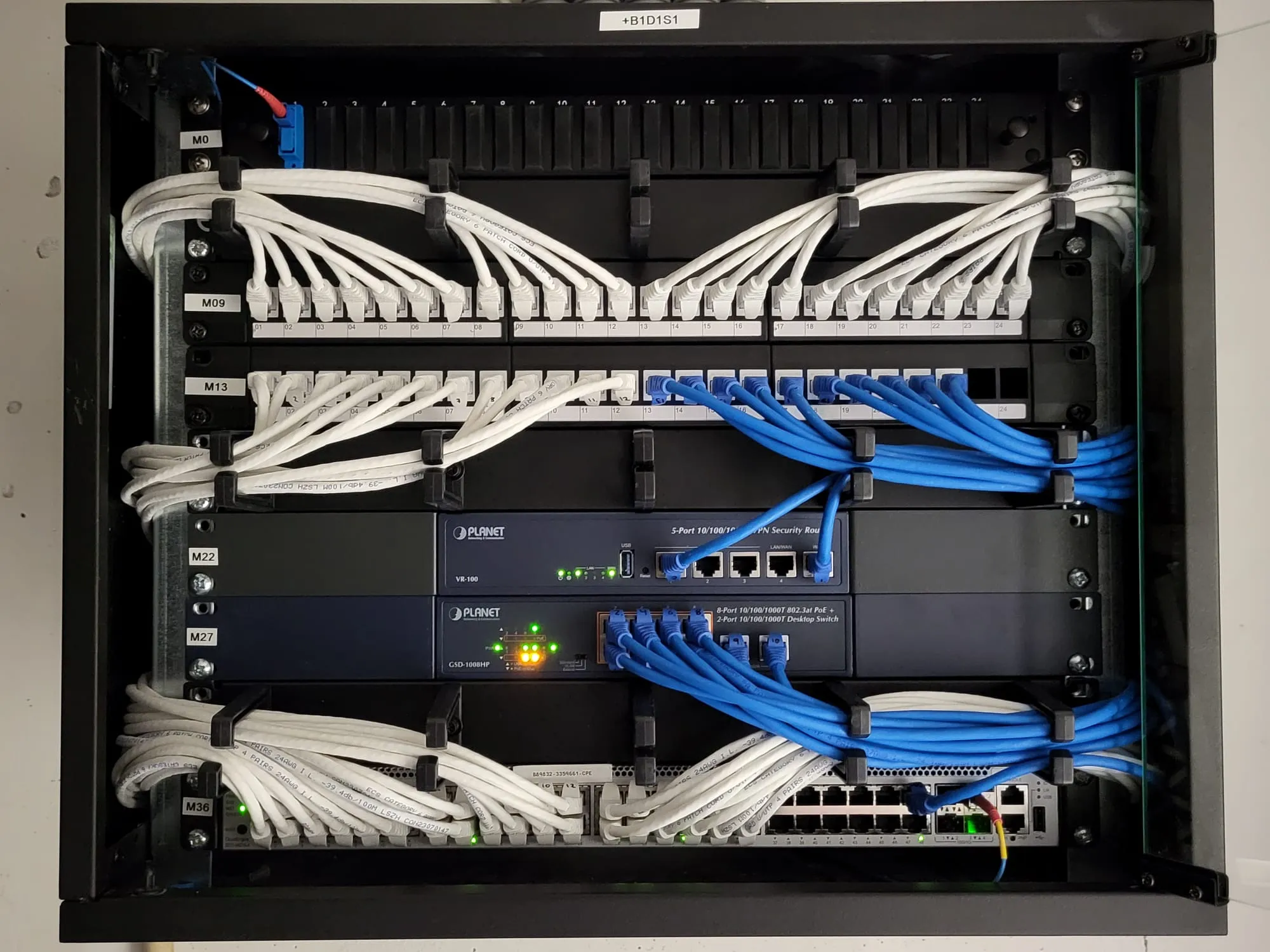
Install the router and switch in a suitable, secure and ventilated location. A wall-mounted or floor-standing network rack can help organise the equipment in larger installations.
The usual connection sequence is:
- Connect the ISP modem or ONT to the router's WAN port, where applicable.
- Connect a router LAN port to the network switch.
- Connect the office computer cables to the switch.
- Connect network printers and other devices.
- Connect compatible wireless access points to the switch.
Step 4: Install and Terminate Ethernet Cables
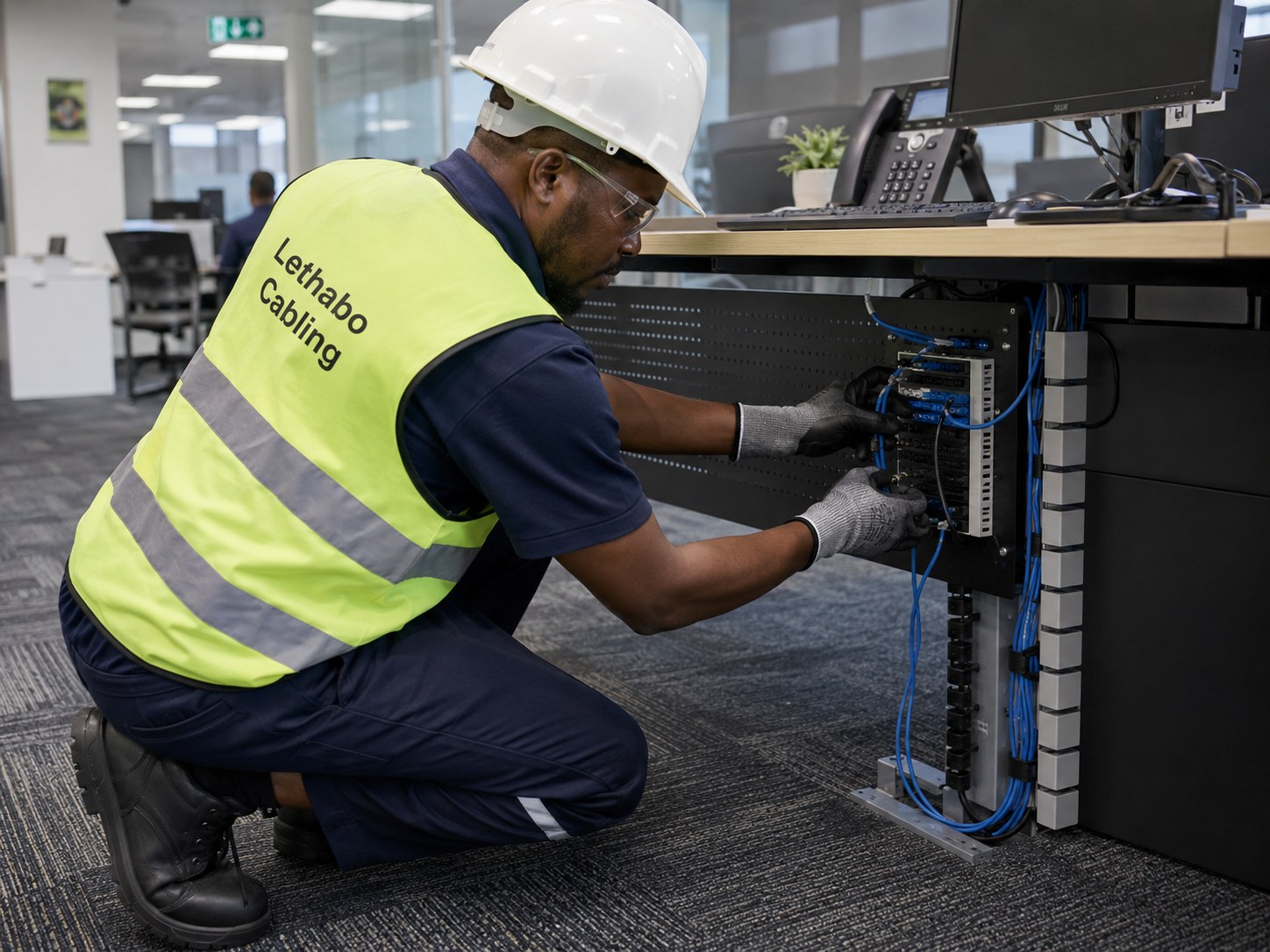
Run the required Ethernet cables from the network rack to each workstation and device location. Use appropriate conduits, cable trays or trunking to protect and organise the cabling.
For a professional installation:
- Use suitable cable categories for the required network speed.
- Keep data cables separated from electrical wiring according to applicable installation practices.
- Avoid sharp bends, crushing and excessive pulling tension.
- Terminate cables correctly at both ends.
- Use patch panels and labelled network outlets where appropriate.
- Test every installed cable run using a suitable cable tester.
Step 5: Configure IP Addresses
Every device on an IP network needs a valid IP address. Most small offices use DHCP, where the router or a designated DHCP server automatically assigns IP addresses to connected devices.
For example, a small office could use a private network such as:
Network: 192.168.10.0/24
Router or gateway: 192.168.10.1
DHCP range: 192.168.10.100 – 192.168.10.200
Printer reservation: 192.168.10.20
NAS reservation: 192.168.10.30
This is only an example. The actual network range should be checked against existing networks, VPN connections and other site requirements before use.
For printers, NAS devices and other equipment that employees need to access consistently, DHCP reservations are often convenient. They allow the device to receive the same IP address while keeping address management centralised.
Static IP addresses can also be used where appropriate, but they must be planned carefully to avoid conflicts with the DHCP address pool.
Step 6: Configure Shared Printers and Folders
Once network connectivity is working, configure shared resources according to business requirements.
- Connect the printer to the LAN and configure its network address.
- Install the correct printer drivers on authorised computers.
- Set up shared folders on a server or NAS device if required.
- Assign user permissions according to job responsibilities.
- Test printing, file access and other required services.
Avoid giving every employee unrestricted access to all company folders. Use individual accounts and appropriate permissions.
Step 7: Test the Network
Before handing over the installation, test the network from multiple workstations.
- Confirm that every network point has a working link.
- Check that computers receive valid IP addresses.
- Test communication with the default gateway.
- Verify internet access.
- Test shared printer connectivity.
- Test authorised file and server access.
- Check Wi-Fi coverage in required work areas.
- Confirm that network security settings are active.
Basic Small Office LAN Network Diagram
The following simplified layout shows how the main network devices can be connected in a small office.
This is a conceptual diagram. The actual network may use separate switches, VLANs, PoE equipment, additional access points or a dedicated firewall depending on the office requirements.
LAN Network Security for Small Offices
Network security is essential because office computers may contain customer information, financial records, business documents and other confidential data.
Follow these important security practices:
- Change default passwords: Replace default administrator credentials on routers, switches and access points.
- Use strong passwords: Use unique credentials for network administration and wireless access.
- Update firmware: Install security updates from the equipment manufacturer.
- Use a firewall: Configure suitable rules to control network traffic.
- Separate guest Wi-Fi: Prevent visitor devices from accessing internal business systems.
- Use VLANs where appropriate: Separate staff computers, guest devices, CCTV and other equipment.
- Control user permissions: Give employees access only to the resources they need.
- Back up important data: Maintain suitable backups of business files and network configurations.
- Secure remote access: Use properly configured VPN or other approved secure access methods.
For additional security guidance, visit the CISA Cybersecurity Resources website.
Common LAN Networking Problems and Solutions
| Problem | Possible Cause | Suggested Solution |
|---|---|---|
| Computer cannot connect to LAN | Loose cable, faulty port or incorrect IP configuration | Check the cable, switch port and IP settings. |
| Slow file transfer | Network congestion, faulty cabling or slow storage | Check link speed, cable quality and server performance. |
| Printer not detected | Incorrect IP address or printer network settings | Check printer connectivity and address configuration. |
| Duplicate IP address | Overlapping static and DHCP addresses | Review the DHCP pool and static address plan. |
| Frequent disconnections | Damaged cable, unstable power or faulty hardware | Inspect cable runs, equipment and power supply. |
| Wi-Fi not available in some areas | Poor access point placement or signal obstruction | Review coverage and add or reposition access points if required. |
How Much Does LAN Networking Setup Cost for a Small Office?
The cost of installing a LAN network depends on the number of computers, cable length, building layout, equipment selection and installation complexity. There is no single price that applies to every office.
Important cost factors include:
- Number of LAN points required.
- Cat5e, Cat6 or Cat6A cable selection.
- Router and firewall specifications.
- Number and type of network switches.
- Managed or unmanaged switch requirements.
- Patch panels, racks and cable management accessories.
- Conduit, trunking and ceiling or wall installation work.
- Testing, configuration and documentation.
- Additional Wi-Fi access points, UPS and other equipment.
Why Choose Professional LAN Installation?
Improper cable termination, unplanned IP addresses, poor equipment placement and weak security settings can create problems after installation. Professional network planning helps avoid these issues and makes future maintenance easier.
A professional installation can include:
- Office network requirement assessment.
- LAN layout and network point planning.
- Router and switch installation.
- Ethernet cable routing and termination.
- Patch panel and network rack setup.
- IP address and DHCP configuration.
- Printer and shared resource connectivity.
- Network testing and troubleshooting.
- Network documentation and maintenance support.
LAN Networking Setup by Virnobyte Private Limited
Virnobyte Private Limited provides computer networking and IT infrastructure solutions for small offices, shops, commercial premises and businesses. We help organisations plan and maintain reliable network infrastructure according to their operational requirements.
Our Networking Services
- LAN network installation and configuration.
- Office Wi-Fi installation and setup.
- Router and firewall configuration.
- Network switch installation.
- Cat5e, Cat6 and structured cabling solutions.
- Network rack and patch panel installation.
- Network troubleshooting and repair.
- Office network expansion and upgrades.
- Networking AMC and IT support.
- Connectivity support for compatible CCTV and other network devices.
Our Service Coverage
Virnobyte has its head office in Pune, Maharashtra, and provides services across Maharashtra. We also have a strong presence in Karnataka and Goa, and serve customers across Pan India.
On-site installation and support depend on the project location, technical requirements and service feasibility. Remote assistance and other service arrangements can be discussed according to customer requirements.
Looking for LAN Networking Setup for Your Office?
Planning a new office network or upgrading your existing LAN infrastructure? Contact Virnobyte Private Limited for networking installation, configuration, troubleshooting and IT support.
Virnobyte Private Limited
Technology • Innovation • Trust
Head Office:
Sadichha Complex, Sawtamali Temple Road, Jadhavwadi, Chikhali, Pune – 411062, Maharashtra, India
Phone: 8669883332
Email: info@virnobyte.com
Website: www.virnobyte.com
Frequently Asked Questions (FAQs)
1. What is required to set up a LAN network in a small office?
A basic LAN setup generally requires a router, network switch, Ethernet cables, network adapters and suitable network configuration. Larger installations may also require patch panels, network racks, access points and a UPS.
2. How many computers can connect to a LAN network?
The number depends on the router, switch capacity, IP address plan and network design. Additional switches can be used to connect more devices when the network is properly planned.
3. Which cable is best for small office LAN networking?
Cat6 is a common choice for new small office installations. Cat6A may be suitable for higher bandwidth requirements. The correct cable should be selected according to equipment, distance and installation conditions.
4. What is the difference between a router and a switch?
A router connects different networks and commonly provides internet access. A switch connects multiple devices within a local area network so they can communicate with one another.
5. Can I connect a printer to the office LAN?
Yes. A compatible network printer can connect directly to the router or switch through Ethernet, or connect through Wi-Fi. Authorised computers can then use the printer over the network.
6. Should a small office use a managed or unmanaged switch?
An unmanaged switch may be sufficient for a simple network. A managed switch is useful when the business needs VLANs, traffic monitoring, network segmentation or more advanced administration.
7. Can CCTV cameras work on the same LAN network?
Compatible IP cameras can use the office network. However, CCTV devices should be placed on an appropriately secured network segment where practical, with restricted access and suitable bandwidth planning.
8. Does Virnobyte provide LAN installation outside Pune?
Yes, Virnobyte serves customers across Maharashtra, has a strong presence in Karnataka and Goa, and serves customers across Pan India. On-site availability depends on the project location and feasibility.
Useful External Resources
- Cisco: How to Set Up a Small Business Network – Understand routers, switches and small business network planning.
- Microsoft Learn: Set Up Your Small Business Network – Learn about wired, wireless and hybrid networks.
- Cisco: Best Practices for Setting Static IP Addresses – Understand private IP addressing and address planning.
- CISA Cybersecurity Resources – Explore cybersecurity and network protection guidance.
- CPWD: Data Network Infrastructure Reference – Background on network racks, patch panels and cable management.
Note: This article is intended for general educational purposes. Actual network design, equipment selection and installation should be based on the site layout, device requirements, applicable standards and manufacturer specifications.