
Network Troubleshooting Checklist
Use this network troubleshooting checklist to diagnose internet, Wi-Fi, LAN, router and switch problems. Follow practical steps to identify faults and restore reliable office network connectivity.
By virnobyte team · · 23 min read

Network Troubleshooting Checklist: Complete Guide to Fix Office Network Problems
A reliable computer network is essential for smooth business operations. Offices depend on internet connectivity, Wi-Fi, LAN connections, routers, switches, printers, servers and other network equipment to perform daily tasks.
However, network problems can occur unexpectedly. Employees may experience slow internet, disconnected computers, unstable Wi-Fi, printer connectivity issues, IP address conflicts or problems accessing shared files.
Finding the exact cause of a network problem is important before replacing equipment or changing network settings. A systematic troubleshooting process helps identify whether the issue is related to cabling, hardware, IP configuration, DNS, wireless signals, network congestion or the internet service provider.
This network troubleshooting checklist explains how to diagnose common office network issues, use basic Windows commands, inspect routers and switches, identify connectivity problems and restore normal network operations.
1. What Is Network Troubleshooting?
Network troubleshooting is the process of identifying, diagnosing and resolving problems that affect computer network connectivity, performance, communication and security.
It involves checking the physical connections, network devices, IP addresses, routing, DNS settings, wireless connectivity and other network services.
For example, when a computer cannot access the internet, the cause could be:
- A damaged Ethernet cable.
- A disconnected router or network switch.
- An incorrect IP address.
- A DHCP configuration problem.
- A DNS resolution failure.
- A Wi-Fi signal or interference issue.
- A firewall or network access restriction.
- An internet service provider outage.
Network troubleshooting helps narrow down the problem instead of changing multiple settings without understanding the cause.
Read Cisco's Network Troubleshooting Guide for an overview of diagnostic methods, IP configuration checks, ping, traceroute and DNS troubleshooting.
2. Complete Network Troubleshooting Checklist
Before performing advanced tests, begin with a basic inspection of the network and connected devices.
Basic network inspection
- Check whether the problem affects one computer or multiple computers.
- Check whether wired devices, wireless devices or both are affected.
- Confirm that the router and modem or fibre ONT are powered on.
- Check network switch power and connection indicators.
- Inspect Ethernet cables for loose connectors or visible damage.
- Check whether the Wi-Fi network is available.
- Confirm that airplane mode is disabled on affected laptops.
- Check whether the internet service provider has reported an outage.
- Record when the problem started and whether any recent changes were made.
Network troubleshooting master checklist
| Checklist Item | What to Check |
|---|---|
| Internet connection | ISP status, modem or ONT and router connectivity |
| Ethernet connection | Cables, ports and link indicators |
| Wi-Fi connectivity | Signal strength, password and interference |
| IP configuration | IP address, subnet mask and gateway |
| DHCP | IP address assignment and available address pool |
| DNS | DNS server and domain name resolution |
| Router | WAN connection, routing and configuration |
| Network switch | Power, port status, VLAN and uplink connectivity |
| Printer connectivity | Printer IP address, network connection and driver |
| Network security | Firewall, access permissions and suspicious devices |
| Performance | Latency, packet loss and network congestion |
| Documentation | Network diagram, device inventory and configuration records |
3. Step 1: Check Physical Network Connections
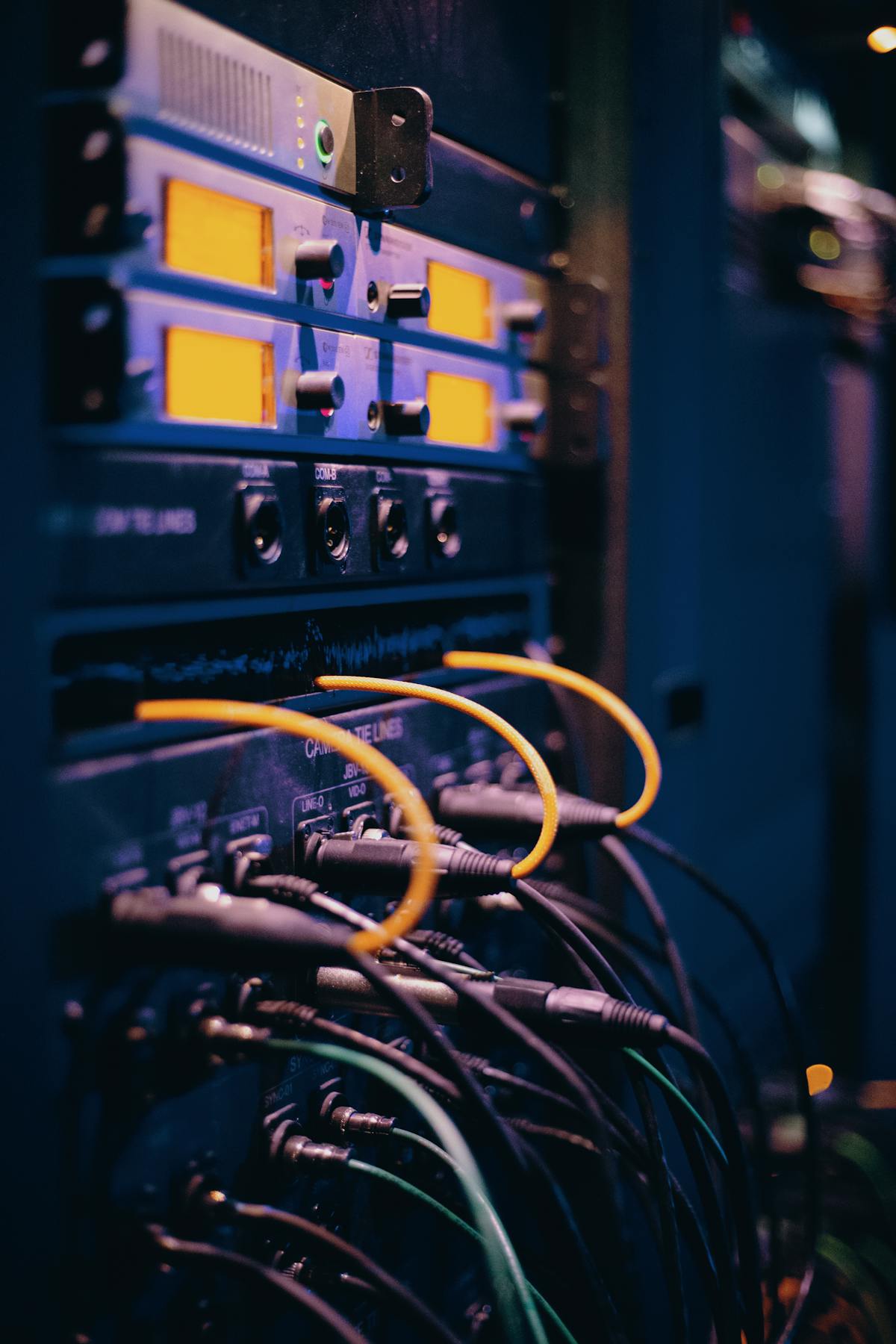
Physical connectivity is one of the first things to inspect when troubleshooting a network. A loose Ethernet connector, damaged cable or disconnected power supply can interrupt communication.
Physical connection checklist
- Check that the Ethernet cable is securely connected at both ends.
- Inspect RJ45 connectors for damage or loose clips.
- Check the router and switch power indicators.
- Inspect the Ethernet port link LEDs, if available.
- Try a known-good Ethernet cable.
- Test the device using another working switch port.
- Check the power adapter and UPS supplying network equipment.
- Inspect patch panels and cable terminations if several connections are affected.
Understanding network port LEDs
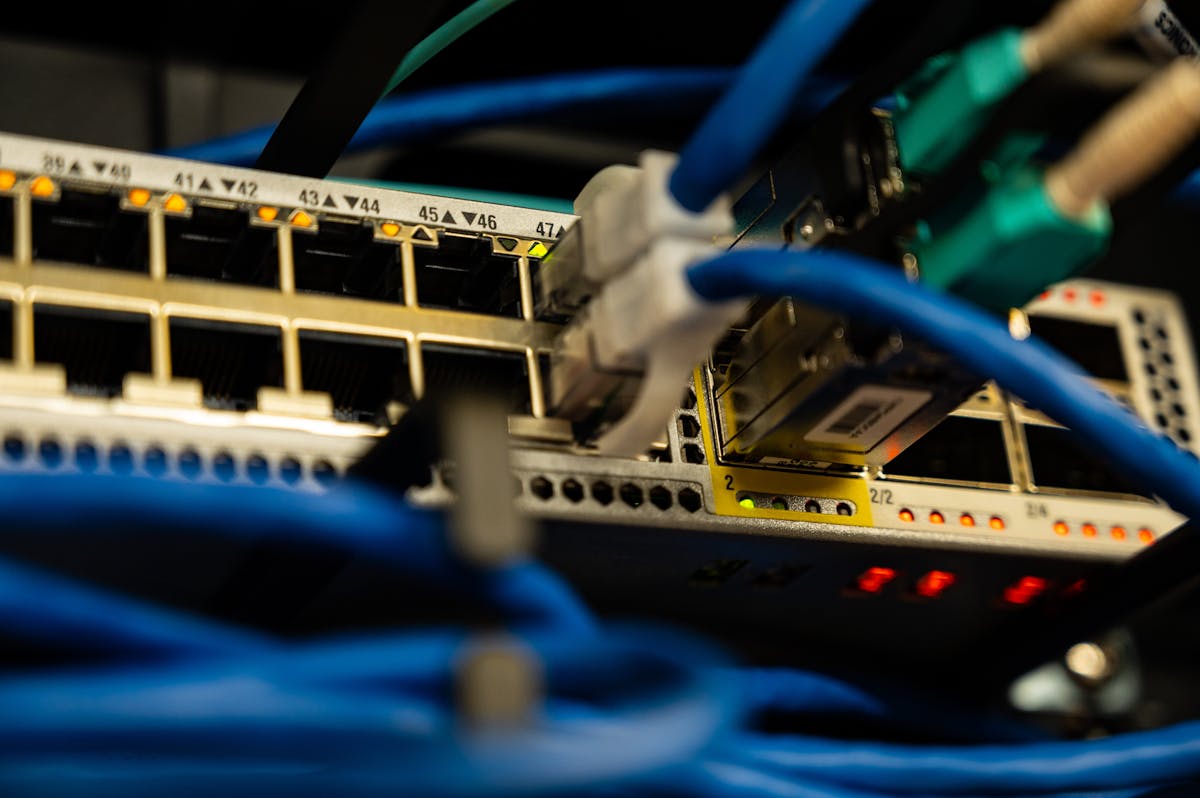
Many routers and switches have LEDs that indicate link status, activity and sometimes connection speed.
| LED Condition | Possible Meaning |
|---|---|
| Link light on | A physical link has been detected |
| Activity light blinking | Network traffic is passing through the port |
| No link light | Possible cable, port, power or device problem |
| Different LED colour | May indicate a different link speed on some models |
| Warning or fault light | Check the manufacturer's device manual |
LED meanings vary by manufacturer and model. Always refer to the hardware documentation instead of assuming that a particular colour means the same thing on every device.
4. Step 2: Check Whether the Problem Affects One Device or the Entire Network
Identifying the scope of the issue can save time during troubleshooting.
Test with another computer or smartphone
- Connect another computer to the same network.
- Test the internet connection.
- Try another Ethernet cable or Wi-Fi connection if available.
- Compare the result with the affected device.
| Observation | Likely Area to Investigate |
|---|---|
| Only one computer has no connection | Computer network adapter, cable, driver or IP settings |
| Several wired computers are disconnected | Switch, uplink, router or common cabling |
| Only Wi-Fi devices are affected | Wireless router, access point or radio settings |
| Wired and wireless devices are affected | Router, modem/ONT or ISP connection |
| Network works but one website does not | DNS, website availability, browser, firewall or routing |
5. Step 3: Check IP Address Configuration
An IP address allows devices to communicate across a computer network. If a device has an incorrect IP configuration, it may fail to access local network resources or the internet.
Incorrect subnet masks, duplicate IP addresses and invalid gateway settings can also cause communication problems.
How to check an IP address in Windows
- Press Windows + R.
- Type
cmd. - Press Enter.
- Type the following command.
ipconfigThe command displays the network adapter's IPv4 or IPv6 configuration, including the IP address and default gateway where available.
Detailed network configuration
For more information, run:
ipconfig /allCheck the following information:
- IPv4 address.
- Subnet mask.
- Default gateway.
- DNS servers.
- DHCP enabled status.
- Network adapter information.
Example of a valid private network configuration
| Network Setting | Example |
|---|---|
| Computer IP | 192.168.1.25 |
| Subnet Mask | 255.255.255.0 |
| Default Gateway | 192.168.1.1 |
| DNS Server | 192.168.1.1 |
These are example values only. Your actual network may use another private IP address range.
What is an APIPA address?
If a Windows computer receives an IP address beginning with 169.254, it may indicate that the computer could not obtain an address from the DHCP server and assigned itself an automatic private address.
Check the Ethernet or Wi-Fi connection, DHCP server, router configuration and network availability.
6. Step 4: Test Network Connectivity Using the Ping Command
The ping command is a basic diagnostic tool used to test whether a destination responds to network packets.
It can help determine whether a computer can communicate with the router, another network device or a remote host.
Test 1: Ping the local gateway
First, find your default gateway by running:
ipconfigAssume the gateway is 192.168.1.1. Run:
ping 192.168.1.1If the gateway responds, this is evidence that the device can reach the local router at the IP layer.
Test 2: Ping an external IP address
Try a public IP address:
ping 1.1.1.1If the local gateway responds but the external address does not, investigate the router's WAN connection, routing, firewall rules or ISP connection.
Test 3: Ping a domain name
Try:
ping example.comIf an external IP responds but the domain name cannot be resolved, investigate DNS configuration.
7. Step 5: Troubleshoot DNS Problems
DNS stands for Domain Name System. It translates domain names such as example.com into IP addresses that computers can use to connect to services.
When DNS is not working properly, users may be connected to the network but unable to open websites or reach services by domain name.
Common DNS symptoms
- Internet connection appears active, but websites do not open.
- Some websites work while others fail.
- Applications report server or name resolution errors.
- Network services work by IP address but not by hostname.
Step 1: Check DNS server information
ipconfig /allLocate the DNS Servers entry for your active adapter.
Step 2: Test domain name resolution
nslookup example.comThe output can show which DNS server is being queried and whether it returns an IP address.
Step 3: Clear the Windows DNS cache
ipconfig /flushdnsThis clears the local DNS resolver cache. It may help if the computer has retained an outdated or incorrect cached record.
For more DNS diagnostics, consult Google Public DNS Troubleshooting.
8. Step 6: Check DHCP Configuration
DHCP stands for Dynamic Host Configuration Protocol. It automatically provides network devices with IP addresses and other network settings such as the subnet mask, gateway and DNS server.
If DHCP is not working properly, computers may fail to obtain a valid IP configuration.
Signs of DHCP problems
- Computers receive an IP address beginning with 169.254.
- New devices cannot connect to the network.
- Some devices work while others fail.
- IP address conflicts appear.
- The DHCP address pool may be exhausted.
Renew the IP address on Windows
For a device configured to obtain its address automatically through DHCP, open Command Prompt and run:
ipconfig /release
ipconfig /renew
These commands release and request the computer's DHCP configuration again.
What should an administrator check?
- Whether the DHCP server is running.
- Whether DHCP is enabled on the intended network.
- Whether the address pool has free IP addresses.
- Whether the correct DHCP scope is configured.
- Whether the default gateway and DNS options are correct.
- Whether DHCP relay or VLAN configuration is required.
- Whether another DHCP server is incorrectly distributing addresses.
9. Step 7: Troubleshoot Slow Internet and Network Performance
Slow internet is a common problem in offices. Employees may experience delayed websites, slow downloads, interrupted video meetings and difficulties using cloud software.
The cause could be the ISP connection, router performance, wireless interference, network congestion, background downloads or a particular application.
Slow internet troubleshooting checklist
- Run an internet speed test using a wired connection.
- Repeat the speed test on Wi-Fi.
- Compare results from another computer.
- Check whether multiple employees are affected.
- Review router and switch traffic statistics.
- Check whether downloads or backups are consuming bandwidth.
- Check for wireless interference or poor signal strength.
- Review ISP service status and connection quality.
- Check whether the router is overloaded or overheating.
Understand the difference between speed, latency and packet loss
| Metric | Meaning | Why It Matters |
|---|---|---|
| Bandwidth / Throughput | Amount of data transferred per unit of time | Affects file transfers and downloads |
| Latency | Time required for data to travel between endpoints | Affects calls, gaming and interactive applications |
| Packet Loss | Packets that fail to reach the destination | Can cause interruptions and retransmissions |
| Jitter | Variation in packet delay | Can affect voice and video quality |
For example, an office may have a high-speed broadband connection but still experience poor video calls because of high latency, packet loss or Wi-Fi interference.
10. Step 8: Fix Wi-Fi Connection Problems
Wireless connectivity issues can affect individual devices or an entire office. Common causes include weak signal coverage, incorrect passwords, channel interference and outdated wireless adapter drivers.
Wi-Fi troubleshooting checklist
- Check whether Wi-Fi is enabled on the computer.
- Confirm that airplane mode is turned off.
- Check that the correct wireless network is selected.
- Verify the Wi-Fi password.
- Move closer to the wireless access point to test signal strength.
- Check whether the problem occurs in specific rooms.
- Inspect router and access point status indicators.
- Review wireless channels and interference.
- Update the wireless adapter driver from the computer manufacturer.
- Check whether the device supports the frequency band in use.
Forget and reconnect to a Wi-Fi network
On Windows 11:
- Open Settings.
- Select Network & Internet.
- Choose Wi-Fi.
- Open Manage known networks.
- Select the affected network.
- Choose Forget.
- Reconnect using the correct wireless password.
For more instructions, read Microsoft's Fix Wi-Fi Connection Issues in Windows.
11. Step 9: Troubleshoot Network Switch Problems
A network switch connects multiple devices in a local area network (LAN). If a switch experiences a hardware, configuration or power problem, several computers or devices may lose connectivity.
Common network switch problems
- Damaged or disconnected Ethernet cables.
- Faulty switch ports.
- Power supply or overheating problems.
- Incorrect VLAN configuration.
- Switching loops caused by incorrect cabling.
- Insufficient PoE power budget.
- Incorrect trunk or access port configuration.
- Disconnected uplink between switches.
Network switch troubleshooting checklist
- Check that the switch is powered on.
- Inspect port link and activity LEDs.
- Try a known-good Ethernet cable.
- Test the connection using another switch port.
- Check the switch uplink to the router or core switch.
- Review VLAN membership and port configuration on managed switches.
- Check logs and port statistics where available.
- Check for switching loops or spanning-tree events.
- Verify PoE power consumption on switches connected to cameras or access points.
- Check device temperature and ventilation.
For additional technical guidance, read Cisco's Network Troubleshooting Guide.
12. Step 10: Troubleshoot Router and Modem / ONT Problems
The router connects the local office network to other networks, including the internet. A modem or fibre ONT provides the connection to the internet service provider.
Problems with these devices can affect the entire office.
Router troubleshooting checklist
- Check the router power supply.
- Inspect WAN and LAN cable connections.
- Check the WAN or internet status indicator.
- Verify the router's WAN configuration.
- Check DHCP settings and gateway configuration.
- Review firewall and routing policies.
- Check for firmware updates and known hardware faults.
- Inspect router temperature and ventilation.
- Check for unusual traffic or device activity.
Modem or fibre ONT troubleshooting checklist
- Check the device power indicator.
- Check the internet, optical or broadband status indicators.
- Inspect the Ethernet connection from the ONT to the router.
- Check whether the ISP reports an outage.
- Contact the provider if an optical or broadband link fault is indicated.
- Do not disturb fibre connectors or stare into optical fibre ports.
13. Step 11: Troubleshoot Ethernet and LAN Connectivity
Wired network connections are generally more consistent than Wi-Fi, but they can still develop problems due to faulty cables, network ports, adapters and configuration errors.
Ethernet troubleshooting checklist
- Check the Ethernet cable at the computer and switch.
- Test the connection using another known-good cable.
- Try another network switch port.
- Check the link speed and duplex settings.
- Verify the network adapter is enabled.
- Update the Ethernet adapter driver where required.
- Check for IP address conflicts.
- Verify VLAN assignment and switch port configuration.
- Check network outlet and patch panel terminations.
Test Ethernet using Windows
Open Command Prompt and run:
ipconfig /allCheck whether the Ethernet adapter is enabled and has received a valid network configuration.
For additional help, see Microsoft's Fix Ethernet Connection Problems in Windows.
14. Step 12: Troubleshoot Printer and Shared Network Devices
Network printers, scanners, NAS devices and shared folders depend on correct network communication and access permissions.
Network printer troubleshooting checklist
- Check that the printer is powered on.
- Check its Ethernet or Wi-Fi connection.
- Verify that the computer and printer can communicate.
- Check the printer IP address.
- Check whether the IP address has changed.
- Clear stuck print jobs where necessary.
- Check the printer driver.
- Check Windows printer sharing and permissions.
Network shared folder troubleshooting
- Confirm that both computers are connected to the intended network.
- Check whether network discovery is enabled where required.
- Check the folder's sharing and access permissions.
- Verify that the relevant file-sharing services are running.
- Check firewall rules and network profile settings.
- Use hostname or IP address tests to isolate name-resolution issues.
15. Step 13: Use Traceroute to Identify Network Path Problems
Traceroute helps identify the network path packets take between a computer and a remote destination. It can help diagnose routing problems, delays and connection timeouts.
On Windows, use the tracert command.
tracert example.comThe output displays the intermediate hops between the source computer and the destination, along with measured response times where available.
What can traceroute help identify?
- Where a network path begins to show increased latency.
- Whether packets appear to stop progressing through the expected route.
- Potential routing or connectivity problems beyond the local router.
- Differences between network paths to different destinations.
Read Cloudflare's Guide to Gathering Troubleshooting Information for traceroute, MTR and connection diagnostics.
16. Useful Windows Network Troubleshooting Commands
Windows includes several built-in networking commands that help diagnose common connectivity problems.
| Command | Purpose |
|---|---|
ipconfig |
Displays IP configuration |
ipconfig /all |
Displays detailed adapter and network configuration |
ipconfig /release |
Releases the DHCP-assigned IPv4 address |
ipconfig /renew |
Requests a new DHCP configuration |
ipconfig /flushdns |
Clears the local DNS resolver cache |
ping |
Tests IP-level reachability and response time |
tracert |
Shows the path towards a destination |
nslookup |
Tests DNS name resolution |
arp -a |
Displays the local ARP cache |
netstat -ano |
Displays network connections and listening ports |
Example: Basic network diagnostic sequence
For a Windows computer that cannot access the internet, an administrator can start with the following sequence:
ipconfig /all
ping 127.0.0.1
ping YOUR_DEFAULT_GATEWAY
ping 1.1.1.1
nslookup example.com
tracert example.com
Replace YOUR_DEFAULT_GATEWAY with the gateway address shown in the computer's own ipconfig output.
Each test checks a different aspect of networking. Interpret the results together rather than relying on one command alone.
Optional network reset commands
If routine checks fail, Windows provides commands to reset certain network components:
netsh winsock reset
netsh int ip reset
ipconfig /release
ipconfig /renew
ipconfig /flushdns
These commands may require Administrator privileges. They can affect network configuration and connectivity. Save work, record relevant settings and use them only when appropriate. A restart may be required after some reset operations.
Microsoft explains these commands in its Windows Wi-Fi troubleshooting guide.
17. Network Troubleshooting Flowchart
Use this simplified troubleshooting flow to identify the likely source of an office network problem.
The flowchart is a simplified starting point. If only one application or website fails, also check the application, endpoint security, browser and remote service availability.
18. Common Network Problems and Their Solutions
| Network Problem | Possible Cause | Recommended Action |
|---|---|---|
| No internet access | ISP outage, router failure or WAN configuration | Check ONT, router WAN status and provider service |
| Slow internet | Congestion, interference or ISP limitation | Compare wired and wireless tests and inspect traffic |
| Computer cannot connect to LAN | Damaged cable or switch port | Test a known-good cable and port |
| Wi-Fi disconnects frequently | Weak signal or interference | Inspect access point placement and radio settings |
| Invalid IP address | DHCP issue or incorrect static setting | Review IP configuration and DHCP server |
| Websites do not open | DNS or application issue | Check DNS with nslookup and test another site |
| Network printer offline | Changed IP address or disconnected link | Check printer IP and physical connection |
| Intermittent network outage | Faulty cable, power issue or network loop | Inspect switch logs, power and cabling |
| Shared folder inaccessible | Permissions, firewall or name resolution | Check sharing permissions and network policy |
| CCTV cameras disconnect | PoE power issue or cable problem | Check PoE budget, port status and cabling |
19. Network Security Checks During Troubleshooting
Network troubleshooting should also consider security. Unexpected network activity or unauthorised configuration changes may indicate a security issue rather than an ordinary connectivity fault.
Security troubleshooting checklist
- Check for unknown devices connected to the office network.
- Review failed login attempts on routers and switches.
- Check recent firewall and access-control changes.
- Review suspicious DNS or traffic patterns.
- Check whether network equipment firmware is updated.
- Verify that guest and employee networks are appropriately separated.
- Ensure default administrator passwords have been changed.
- Inspect for unauthorised routers or access points.
- Preserve relevant logs if suspicious activity is detected.
CERT-In recommends security monitoring, timely patching, logging and incident response procedures. Refer to its official advisory on detecting and mitigating cyber attacks and its 15 Elemental Cyber Defense Controls.
20. When Should You Contact a Network Technician?
Basic troubleshooting can resolve many simple issues. However, some network problems require professional tools, configuration knowledge and access to managed equipment.
Consider professional assistance when:
- Multiple office computers lose connectivity.
- Internet service frequently disconnects.
- Managed switch or VLAN configuration is incorrect.
- Network loops or IP address conflicts keep recurring.
- Wi-Fi coverage is poor across multiple rooms or floors.
- Network printers or servers remain unavailable.
- Network cabling needs inspection or certification.
- CCTV cameras disconnect frequently.
- Router, firewall or switch configuration requires changes.
- There are signs of unauthorised access or suspicious network activity.
21. Prevent Network Problems with Regular Maintenance
Preventive network maintenance can help identify potential issues before they interrupt business operations.
Recommended network maintenance activities
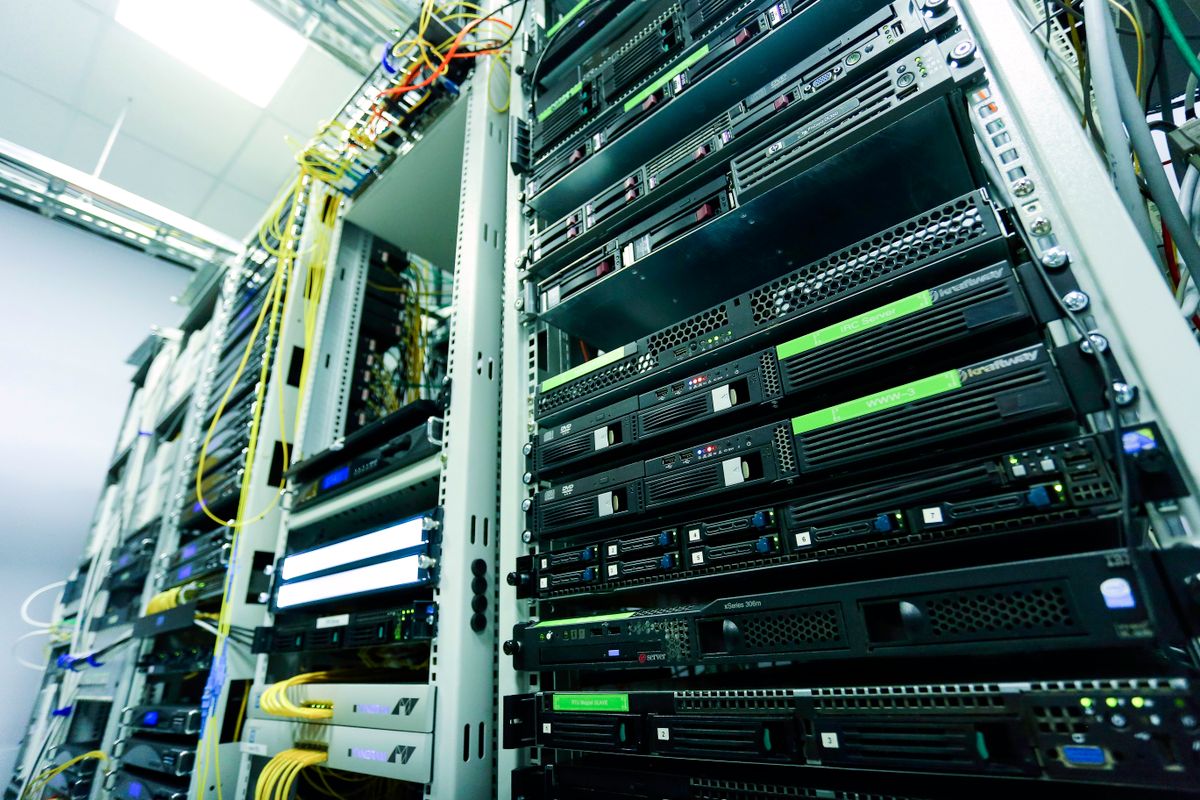
- Inspect routers, switches and access points.
- Check Ethernet cables, patch panels and network racks.
- Review network performance and device utilisation.
- Install approved firmware and security updates.
- Back up router, firewall and switch configurations.
- Check UPS operation and power supply conditions.
- Review Wi-Fi coverage and interference.
- Maintain an updated network diagram.
- Document IP addresses and device inventory.
- Review user access and security policies.
- Keep records of recurring faults and their resolution.
Suggested maintenance schedule
| Maintenance Activity | Suggested Frequency |
|---|---|
| Check internet connectivity | Daily or through monitoring tools |
| Review network alerts | Daily or as alerts arise |
| Inspect cabling and rack conditions | Monthly or according to site conditions |
| Review connected devices | Monthly and after network changes |
| Check firmware and security advisories | Monthly and when critical updates are released |
| Back up network configurations | After approved changes and on a planned schedule |
| Review network documentation | After every significant network change |
22. Network Troubleshooting Record Template
Maintaining a troubleshooting record helps IT teams identify recurring faults and understand what was changed to resolve them.
| Record Field | Information to Document |
|---|---|
| Date and time | When the problem started and was reported |
| Affected location | Office, floor, room or workstation |
| Affected device | Computer, printer, router, switch or access point |
| Problem description | Error message and observed symptoms |
| Scope | Single device, department or entire office |
| Tests performed | Ping, IP configuration, DNS, cable checks and other tests |
| Root cause | Confirmed cause, if identified |
| Corrective action | Changes made to resolve the issue |
| Final result | Resolution confirmed or further work required |
| Technician | Person responsible for the work |
23. Frequently Asked Questions (FAQs)
Q1. What is the first step in network troubleshooting?
Identify the scope of the problem. Check whether it affects one computer, multiple wired devices, Wi-Fi users or the entire office. Then inspect physical connections, device power and network status.
Q2. Why is my computer connected to Wi-Fi but has no internet?
The computer may be connected to the wireless router but unable to reach the internet. Possible causes include an ISP outage, DHCP issue, DNS failure, incorrect gateway or router problem.
Q3. Which command checks an IP address in Windows?
Run ipconfig in Command Prompt. Use ipconfig /all to view detailed network adapter information.
Q4. How do I check whether a network is working?
Check physical connections, verify IP settings and test communication with the default gateway using ping. You can then test external IP connectivity and DNS resolution.
Q5. What does a 169.254 IP address mean?
It often indicates that Windows could not obtain an IPv4 address from a DHCP server and assigned itself an automatic private address. Check DHCP and physical connectivity.
Q6. What is the difference between ping and tracert?
Ping tests reachability and response time to a destination. Tracert displays the network path and intermediate hops towards a destination.
Q7. Why is my office internet slow?
Possible reasons include network congestion, Wi-Fi interference, ISP problems, faulty cables, router limitations, bandwidth-heavy applications and high latency or packet loss.
Q8. Why is my network printer not connecting?
Check its power, Ethernet or Wi-Fi connection, IP address, driver, print queue and user permissions. A changed IP address may cause a previously configured printer connection to fail.
Q9. When should I replace a network switch?
Consider replacement when the switch has recurring hardware faults, damaged ports, insufficient capacity, unsupported firmware or cannot meet the required network speed and features.
Q10. How often should an office network be checked?
Use continuous monitoring for important network equipment where possible, routine physical and configuration checks, and scheduled reviews based on business size, equipment and operational requirements.
Conclusion: Keep Your Office Network Reliable with Regular Troubleshooting
Network issues can affect productivity, communication and business operations. A systematic troubleshooting process helps identify problems with internet connectivity, Wi-Fi, LAN cabling, routers, switches, DNS, DHCP, printers and connected devices.
Start with basic physical checks, understand whether one device or the entire office is affected, verify IP configuration and use tools such as ping, nslookup and tracert to investigate further.
For long-term reliability, maintain updated network equipment, document configuration changes, monitor performance and follow a regular preventive maintenance schedule.
Need Professional Network Troubleshooting or IT Support?
Virnobyte Private Limited provides computer networking and IT infrastructure solutions for offices, businesses, shops, factories and other organisations.
Our networking services include:
- Office network troubleshooting and fault diagnosis.
- Internet, LAN and Wi-Fi connectivity support.
- Router, firewall and network switch configuration.
- Structured cabling and network rack installation.
- Network printer configuration and troubleshooting.
- CCTV networking and PoE switch installation.
- Wi-Fi access point installation and coverage planning.
- Network maintenance and Hardware & Networking AMC.
- IT support and network infrastructure consulting.
Head Office:
Sadichha Complex, Sawtamali Temple Road, Jadhavwadi, Chikhali, Pune – 411062, Maharashtra, India.
Service Coverage:
Virnobyte has its head office in Pune, Maharashtra, provides services across Maharashtra, has a strong presence in Karnataka and Goa, and serves customers across Pan India. On-site service availability depends on location and project requirements; remote support and other service arrangements can be discussed.
Call: 8669883332
Email: info@virnobyte.com
Website: www.virnobyte.com
Virnobyte Private Limited – Technology • Innovation • Trust