
Server Installation for Small Businesses
Learn about server installation for small businesses, including server selection, hardware setup, network configuration, data storage, security and backup solutions for reliable business operations.
By virnobyte team · · 27 min read

Server Installation for Small Businesses: Complete Guide to Hardware, Network Setup, Storage and Security
As a business grows, managing files, employee computers, applications and important company information can become increasingly difficult. Storing business documents on individual computers may create problems with access permissions, data organisation, backup management and information sharing.
A dedicated business server can help solve these challenges by providing centralised storage, application hosting, user management, shared resources and backup services.
However, successful server installation requires proper planning. Businesses need to select suitable hardware, choose the right server operating system, configure the network, organise storage, implement security controls and establish a reliable backup system.
In this guide, we explain server installation for small businesses, including server types, hardware requirements, network configuration, storage options, operating systems, security and ongoing maintenance.

1. What Is a Business Server?
A server is a physical computer or virtual computing system that provides services, applications, storage or other resources to connected devices called clients.
In a small business, employees can use a server to access shared files, business software, databases, network printers and other centralised resources.
Example of a small business server
Consider an office with 15 employees. Each employee uses a computer, and the business needs to share documents, invoices, spreadsheets and other company records.
Instead of storing every important document on individual computers, the company can configure a central file server. Employees connect to authorised shared folders through the office LAN.
The administrator can manage:
- Employee accounts and authentication.
- Shared folders and file permissions.
- Business documents and project data.
- Network printers and shared resources.
- Data backup and recovery.
- Application access and server maintenance.
A properly configured server helps centralise business IT resources. It does not automatically make data secure or eliminate downtime; those benefits depend on configuration, maintenance and backup planning.
2. Why Does a Small Business Need a Server?
Not every business needs an on-premises server. However, a server may be useful when several employees need shared access to files, applications or centralised IT services.
Benefits of installing a business server
1. Centralised data storage
Employees can save business files in shared locations instead of maintaining separate copies across multiple computers.
2. User and access management
Administrators can create user accounts and assign permissions according to departments, job responsibilities and business requirements.
3. File sharing
Teams can share invoices, reports, project files, documents and other business information through authorised network folders.
4. Application hosting
Some business applications, databases and internal services can run on a server, depending on the application's compatibility and licensing requirements.
5. Centralised backup
Server data and selected business systems can be included in a managed backup process. Backups should be stored separately from the production server.
6. Network resource management
Depending on the server roles and network design, a server may provide services such as directory authentication, DNS, DHCP, file services and other infrastructure functions.
7. Future expansion
A suitably selected server can provide room to increase memory, storage, processing capacity or virtual workloads as business requirements grow.
For an overview, read HPE – What Is a Small Business Server?.
3. Different Types of Servers for Small Businesses
Before purchasing hardware, identify what the server needs to do. Different workloads may require different server configurations.
1. File Server
A file server provides centralised storage for company documents, spreadsheets, invoices, reports and project files.
It can support access permissions, shared folders, quotas and controlled access for authorised employees.
2. Application Server
An application server hosts business applications used by employees. Examples may include inventory systems, ERP applications, CRM platforms and other business software.
The application vendor should specify supported operating systems, CPU, RAM, storage and database requirements.
3. Database Server
A database server stores and manages structured business information. It may be used for inventory, customer records, accounting applications or internal business software.
Database workloads need careful consideration of memory, storage performance, data protection and recovery requirements.
4. Domain Controller
A domain controller can provide centralised authentication and directory services in a Windows domain environment using Active Directory Domain Services.
It allows authorised administrators to manage user accounts, computers, security policies and access to supported domain resources.
5. Backup Server
A backup server manages copies of business data and system information. It should be protected from failures or attacks affecting the production network.
A backup server connected to the same network is useful, but it should not be the only backup destination.
6. Virtualisation Server
A virtualisation server runs multiple virtual machines on one physical server. It can help consolidate workloads such as file services, applications, databases and test environments.
Virtualisation requires suitable hardware capacity, licensing and management. It also introduces a need to protect the host and all virtual machines.
7. NAS Storage Server
A Network Attached Storage (NAS) device provides shared network storage. It may be suitable for file sharing, backup storage and selected business workloads.
A NAS is not automatically a replacement for every application or domain server. Select it based on supported protocols, performance, access controls and backup features.
| Server Type | Main Purpose | Typical Business Use |
|---|---|---|
| File Server | Centralised file storage | Shared invoices and company documents |
| Application Server | Run business applications | ERP, CRM and inventory software |
| Database Server | Store structured data | Customer and transaction records |
| Domain Controller | Identity and authentication services | Central employee account management |
| Backup Server | Manage backup copies | Business continuity and recovery |
| Virtualisation Host | Run virtual machines | Multiple server workloads |
| NAS | Network storage | Shared folders and backup targets |
4. Tower Server vs Rack Server vs NAS: Which Is Suitable?
Small businesses can choose from different server form factors and storage platforms.
Tower Server
A tower server resembles a desktop computer but is designed for server workloads, with suitable processors, memory support, storage bays and remote management features depending on the model.
It is useful for businesses with limited space that do not require a large server rack.
- Suitable for small offices.
- Can be installed in a secure equipment area.
- Available in different storage and memory configurations.
- May be easier to deploy for a first server installation.
Rack Server
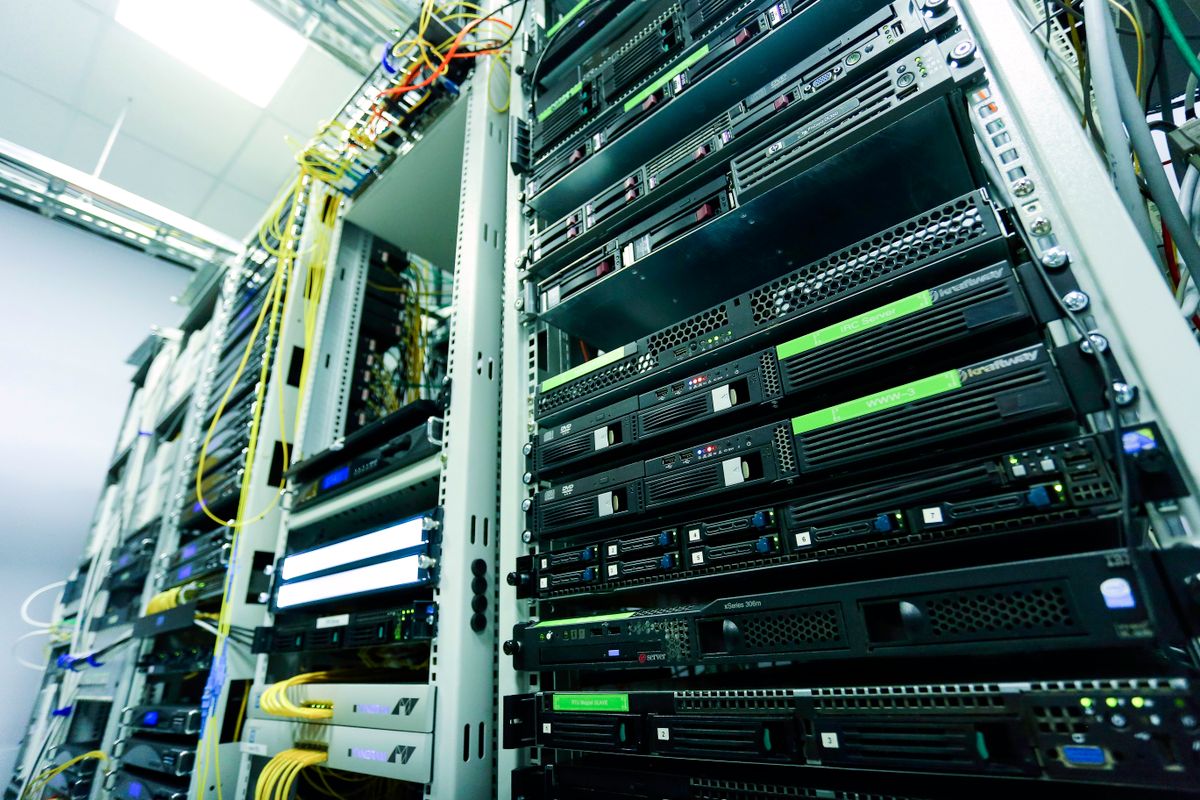
A rack server is designed to be installed inside a standard server rack. It is often used where multiple networking and computing devices need to be organised centrally.
- Suitable for dedicated IT rooms.
- Can fit alongside switches, patch panels and UPS equipment.
- Supports more structured equipment management.
- Can be expanded with additional rack-mounted systems where required.
NAS Device
A NAS is a dedicated network storage appliance. It is often simpler to deploy for shared file storage and backup than a general-purpose server, depending on the workload.
- Suitable for centralised file storage.
- May provide snapshots and backup features.
- Can support multiple user accounts and shared folders.
- Not a complete replacement for every Windows Server or application requirement.
| Equipment | Best Suited For | Considerations |
|---|---|---|
| Tower Server | Small and growing offices | Space, cooling, expansion and hardware support |
| Rack Server | Dedicated server rooms and larger IT deployments | Rack space, power, cooling and noise |
| NAS | File storage and backup workloads | Application compatibility and storage protection |
| Cloud Server | Remote and hosted workloads | Internet dependency, recurring cost and data governance |
| Hybrid Infrastructure | Businesses combining local and cloud services | Integration, identity and backup planning |
For more guidance, see Lenovo's Small Business Server Buying Guide.
5. How to Choose the Right Server Hardware
Server hardware should be selected according to the applications, number of users, storage requirements and expected workload.
Buying an unnecessarily powerful server increases costs, while selecting an underpowered system can result in slow performance and limited expansion options.
1. Processor (CPU)
The processor performs the calculations required by applications and server services. The appropriate CPU depends on the workload.
Consider:
- Number of simultaneous users.
- Application CPU requirements.
- Database and virtualisation workloads.
- Required number of CPU cores.
- Supported processor generation and server platform.
2. RAM (Memory)
RAM is used for active applications, databases, caching and virtual machines. Insufficient memory can slow down applications and server performance.
Consider ECC memory where supported and appropriate for business server workloads. Check the server manufacturer's supported memory configurations and maximum capacity.
3. Storage Drives
Storage selection affects capacity, performance and data availability.
| Storage Type | Characteristics | Typical Use |
|---|---|---|
| HDD | Higher capacity at generally lower cost per TB | Large file storage and archive workloads |
| SATA SSD | Faster access than traditional HDDs | Operating system and general workloads |
| NVMe SSD | High-performance solid-state storage | Databases, virtualisation and intensive workloads |
| Enterprise SSD | Designed for appropriate server workload and endurance requirements | Business-critical server applications |
4. RAID Controller or Storage Protection
Some servers support RAID configurations that combine multiple drives to provide performance, redundancy or both, depending on the RAID level.
For example, RAID 1 mirrors data across two drives, while RAID 5 uses distributed parity across a minimum of three drives.
5. Network Interface Card (NIC)
The server network adapter connects the server to the office LAN and other systems.
Depending on the workload, a server may use 1GbE, 2.5GbE, 10GbE or higher-speed networking. Consider file transfer requirements, switch capacity, storage traffic and the number of connected users.
6. Power Supply and Hardware Redundancy
Some business servers support redundant power supplies and hot-swappable components. These features may reduce the impact of certain hardware failures, depending on the server design.
Check power supply ratings, compatibility, electrical supply and the availability of replacement components.
7. Remote Server Management
Server platforms may provide remote management systems such as Dell iDRAC, HPE iLO or equivalent vendor tools.
These interfaces can provide server health monitoring, hardware diagnostics and remote administration. Protect their credentials and place management interfaces on a restricted network.
6. What Server Configuration Does a Small Business Need?
There is no single hardware configuration suitable for every small business. A file server for ten employees has different requirements from a database server or a system running several virtual machines.
Before purchasing a server, prepare a workload assessment.
Server sizing checklist
- How many employees will connect to the server?
- How many users will access it simultaneously?
- What applications need to run?
- How much existing business data needs to be stored?
- How quickly is data expected to grow?
- Are databases or virtual machines required?
- What backup retention period is needed?
- Is remote access required?
- What level of hardware redundancy is required?
- What future expansion is expected?
Illustrative server workload planning
| Business Requirement | Hardware Planning Considerations |
|---|---|
| Basic shared files | Suitable CPU, adequate RAM, redundant storage where justified and a reliable backup plan |
| File server plus directory services | More memory, appropriate storage, network reliability and separate backup protection |
| Business applications | Application-vendor CPU, RAM, storage and software requirements |
| Database workloads | Memory capacity, fast storage, disk endurance and tested recovery |
| Multiple virtual machines | Additional CPU cores, RAM, storage performance and virtualisation licensing |
Ask the application software vendor for its recommended infrastructure requirements before finalising hardware specifications.
HPE provides useful guidance on server selection, storage capacity, scalability and business requirements in its Small Business Server Guide.
7. Choose the Right Server Operating System
The server operating system manages hardware resources, users, storage, network services and applications.
Common options include Windows Server and supported Linux distributions.
Windows Server
Windows Server is widely used in business environments that rely on Microsoft technologies and compatible applications.
It can support server roles such as:
- Active Directory Domain Services.
- File and storage services.
- DNS and DHCP.
- Remote Desktop Services, subject to licensing and configuration requirements.
- Application and web services.
- Hyper-V virtualisation.
Linux Server
Linux server distributions are used for web hosting, databases, file sharing, application hosting, backup and other workloads.
Examples include supported distributions such as Ubuntu Server, Red Hat Enterprise Linux and SUSE Linux Enterprise Server.
Choose a distribution based on application compatibility, support availability, administrator skills and update policies.
Virtualisation platforms
A hypervisor can run multiple virtual machines on a single physical server. It may help consolidate several workloads into one hardware platform.
Virtualisation requires appropriate hardware, storage, networking, licensing and backup protection for both the host and virtual machines.
| Operating System / Platform | Suitable Workloads |
|---|---|
| Windows Server | Windows file services, Active Directory and compatible business applications |
| Ubuntu Server | Linux applications, web services, databases and development workloads |
| Red Hat Enterprise Linux | Supported enterprise Linux applications and infrastructure |
| Hyper-V | Virtual machine hosting on compatible Windows Server installations |
| Other supported hypervisors | Consolidated virtual server environments |
Official reference: Microsoft Windows Server Documentation.
8. Prepare the Server Room or Equipment Area
A server needs a suitable physical location. Installing business equipment in a hot, dusty or unsecured area can increase the risk of hardware failure and downtime.
Important server room requirements
- Ventilation and cooling: Maintain temperature and airflow according to the equipment manufacturer's specifications.
- Dust control: Keep the equipment area clean and reduce dust accumulation.
- Physical security: Restrict access to authorised employees and technicians.
- Power supply: Use a suitable electrical circuit and protective arrangements.
- UPS: Provide battery backup for controlled shutdown and continuity during short outages.
- Grounding: Follow appropriate electrical grounding and bonding requirements.
- Network connectivity: Provide suitable LAN connections and organised cabling.
- Fire safety: Follow building safety requirements and install appropriate fire detection and protection systems.
- Equipment access: Leave room for maintenance, drive replacement and airflow.
Why is a UPS important?
A UPS provides temporary battery power when the electrical supply is interrupted. It can provide enough time for a controlled shutdown or allow the equipment to continue operating for its supported runtime.
UPS selection should consider the total equipment load, required runtime, battery condition, output capacity and connectivity for automated shutdown.
A UPS does not replace a generator or eliminate all electrical risks. It should form part of a wider power protection plan.
9. Plan the Server Network Configuration
Once the hardware and operating system have been selected, plan how the server will communicate with office computers and other network devices.
A typical network installation connects the server to a network switch, which then connects authorised computers and other business devices.
Example small business server network
Network settings to plan
- Server hostname.
- Server static IP address or DHCP reservation.
- Subnet mask and default gateway.
- DNS configuration.
- DHCP scope, if the server provides DHCP services.
- Firewall rules and network segmentation.
- Server management network access.
- Remote access method and authentication requirements.
Example server IP configuration
| Network Setting | Example Value |
|---|---|
| Server Name | OFFICE-SERVER01 |
| Server IP Address | 192.168.10.10 |
| Subnet Mask | 255.255.255.0 |
| Default Gateway | 192.168.10.1 |
| DNS Server | 192.168.10.10, if this server is configured to provide DNS |
These values are illustrative only. Your network addressing plan may be different.
10. How to Install a Server: Step-by-Step Process
A professional server installation should follow a planned process to reduce downtime and configuration errors.
Step 1: Assess business requirements
Identify the applications, users, storage requirements and network services the server must support.
Step 2: Select server hardware
Choose a compatible server platform with sufficient CPU, RAM, storage, networking and hardware support.
Step 3: Prepare the installation location
Prepare the rack or secure equipment area, power, UPS, cooling, network connectivity and physical security.
Step 4: Install hardware components
Install supported memory, storage drives, RAID controllers and other components according to the server manufacturer's procedures.
Step 5: Configure firmware and storage
Check BIOS or UEFI settings, storage controller configuration, hardware monitoring and supported boot options.
Step 6: Update firmware
Apply approved server firmware and hardware management updates. Review compatibility and release notes before updating.
Step 7: Install the operating system
Use supported installation media for Windows Server or the selected Linux distribution. Select the correct edition, installation mode and licence for the intended workload.
Step 8: Configure the network
Set the server hostname, network adapter, stable IP address, gateway and DNS settings.
Step 9: Configure server roles and applications
Install only the services the business requires, such as file services, directory services, DNS, DHCP or application hosting.
Step 10: Create users and permissions
Create the required accounts, security groups and access permissions. Use least-privilege access rather than providing administrative rights to every employee.
Step 11: Configure backup and security
Set up backup jobs, encryption, monitoring, firewall rules, endpoint protection and secure administration.
Step 12: Test and document the installation
Test file access, authentication, application functionality, backup restoration and network connectivity. Document the completed server setup.
Microsoft provides a detailed installation process in Install Windows Server from Installation Media.
11. Configure File Sharing and User Permissions
One of the most common reasons small businesses install a server is to centralise company files.
A file server can provide shared folders for different departments, such as Accounts, Sales, HR, Administration and Projects.
Example shared folder structure
D:\CompanyData
    |
    |-- Accounts
    |
    |-- Sales
    |
    |-- HR
    |
    |-- Administration
    |
    |-- Projects
    |
    |-- Common
Each folder should have access permissions based on employee roles and business requirements.
Example permissions
| Department | Allowed Access |
|---|---|
| Accounts | Accounts staff and authorised management |
| Sales | Sales team and authorised management |
| HR | HR staff and authorised management |
| Administration | Approved administrative employees |
| Common | Authorised employees with defined permissions |
Important file server security practices
- Use separate user accounts for employees.
- Assign permissions through security groups wherever practical.
- Apply least-privilege access.
- Restrict confidential folders.
- Review permissions when employees change roles or leave.
- Keep audit and access logs where supported.
- Back up shared folders regularly.
Microsoft's Windows Server File Server Management Guide covers NTFS permissions, file sharing, storage management and SMB security.
12. Server Storage and RAID Configuration
Storage is an important part of server planning because businesses depend on reliable access to their files and applications.
Before selecting drives, estimate the amount of data stored today, expected annual growth, application performance requirements and backup retention needs.
Storage planning considerations
- Current business data volume.
- Expected storage growth.
- Number of simultaneous users.
- Database performance requirements.
- Backup capacity and retention.
- Drive endurance and warranty.
- Storage expansion options.
Common RAID configurations
| RAID Level | Minimum Drives | General Characteristics |
|---|---|---|
| RAID 0 | 2 | Striping for performance; no drive-failure redundancy |
| RAID 1 | 2 | Mirroring; can tolerate one drive failure in a two-drive mirror |
| RAID 5 | 3 | Distributed parity; can tolerate one drive failure |
| RAID 6 | 4 | Dual parity; can tolerate two drive failures |
| RAID 10 | 4 | Striping across mirrored pairs; performance and redundancy |
Usable storage capacity depends on drive count, drive size, RAID configuration and the storage controller or software implementation.
For more information about Windows Server storage, see Microsoft Windows Server Storage Documentation.
13. Server Backup and Disaster Recovery
A server may store important business documents, databases, accounting information, customer details and application data. Losing access to this information can interrupt operations and create financial or operational problems.
A reliable backup and recovery plan is therefore one of the most important parts of server installation.
What should be backed up?
- Shared business folders.
- Important databases.
- Application data and configurations.
- Server operating system and system state where appropriate.
- Virtual machine data and configurations.
- Network and server configuration backups.
- Critical user and business information.
Understand the 3-2-1 backup principle
The 3-2-1 backup principle is a useful starting point for business data protection:
- 3 copies: Keep the original data and two additional copies.
- 2 types of storage: Use different storage media or systems where practical.
- 1 off-site copy: Keep at least one copy separate from the primary business location.
Modern backup planning should also consider offline or immutable backups to reduce the risk that ransomware or compromised administrator accounts can alter or delete every backup copy.
Backup protection checklist
- Schedule automatic backups according to business needs.
- Encrypt backup data where appropriate.
- Protect backup credentials separately from production administrator accounts.
- Keep an offline or immutable backup copy.
- Maintain an off-site or separate-location copy.
- Monitor failed backup jobs.
- Test file and full-system restoration regularly.
- Document the recovery process and responsible personnel.
CISA recommends keeping multiple copies of important data, maintaining offline backups and regularly testing recovery. See its StopRansomware Guide.
For a detailed backup design reference, see the ENISA Technical Implementation Guidance.
14. Secure Your Business Server
Servers often contain important company information and provide services used by multiple employees. A secure configuration helps reduce the risk of unauthorised access, malware and data loss.
Server security checklist
- Change default administrator credentials.
- Use strong authentication and MFA where supported.
- Install operating system security updates.
- Install supported firmware updates.
- Configure host and network firewall rules.
- Restrict administrator access to authorised personnel.
- Disable unnecessary services and server roles.
- Use secure remote administration methods.
- Encrypt sensitive data and backups where appropriate.
- Use endpoint protection and security monitoring.
- Review user permissions regularly.
- Disable outdated and insecure protocols such as SMB 1.0 unless a documented compatibility requirement has been assessed.
- Maintain secure backup copies.
Protect remote access
Employees or administrators may need to access server resources from outside the office. Remote access should be secured through an appropriate VPN, zero-trust access solution or another supported secure method.
Avoid exposing administrative services such as RDP directly to the public internet. Use restricted access policies and MFA wherever supported.
Physical server security
- Keep servers in a locked room or rack.
- Restrict physical access to authorised personnel.
- Maintain suitable cooling and ventilation.
- Protect power and network connections.
- Keep a record of hardware serial numbers and warranty details.
15. Windows Server Installation and Configuration
For businesses that use Windows-based applications and computers, Windows Server may be an appropriate platform.
The exact configuration depends on the selected Windows Server edition, business workload, licensing and network design.
General Windows Server installation sequence
- Check server hardware compatibility.
- Prepare supported Windows Server installation media.
- Configure firmware and boot settings.
- Install the selected Windows Server edition.
- Activate the software according to the purchased licence.
- Set a secure administrator password.
- Install required driver and firmware updates.
- Configure the server hostname and IP address.
- Configure storage volumes and server roles.
- Set up user accounts and security permissions.
- Configure backup and monitoring.
- Test business applications and network access.
Official instructions: Microsoft – Install Windows Server.
16. Configure DHCP, DNS and Active Directory Where Required
Some businesses need more than file sharing. They may also require centralised user authentication and network services.
Active Directory Domain Services
Active Directory Domain Services (AD DS) provides centralised directory and authentication services for Windows domain environments.
It can help administrators manage:
- Employee user accounts.
- Computer accounts.
- Security groups.
- Domain authentication.
- Group Policy settings.
- Access to authorised network resources.
DNS Server
DNS translates domain names and hostnames into IP addresses. In an Active Directory environment, correctly configured DNS is particularly important for domain operations.
DHCP Server
DHCP automatically assigns network settings such as IP addresses, subnet masks, gateways and DNS server information to client devices.
Windows Server can provide DHCP services where the network is designed to use it.
Microsoft documentation:
- Active Directory Domain Services Overview
- Install and Configure DHCP Server
- Windows Server DNS Documentation
17. Virtualisation: Run Multiple Servers on One Physical Machine
Virtualisation allows one physical server to run multiple virtual machines, each with its own operating system and applications.
For example, one physical server could host separate virtual machines for:
- File services.
- Directory and authentication services.
- Business applications.
- Database services.
- Testing and development.
Benefits of server virtualisation
- Improves hardware utilisation for compatible workloads.
- Allows different server roles to run in separate virtual machines.
- Can simplify workload migration and recovery.
- Provides flexibility for development and testing.
- May reduce the number of physical servers required.
Virtualisation considerations
- Provide enough RAM and CPU capacity.
- Use storage suitable for the virtual machine workload.
- Plan virtual networking and VLANs.
- Check hypervisor licensing and supported guest operating systems.
- Protect virtual machines using an appropriate backup system.
- Consider what happens if the physical host fails.
Virtualisation does not automatically create high availability. If the only physical host fails, its virtual machines may become unavailable until the hardware or recovery process is restored.
18. Server Maintenance and Monitoring
After installation, a server needs regular maintenance to maintain performance, security and data availability.
Routine server maintenance checklist
- Check server CPU, RAM and storage utilisation.
- Review hardware health and drive status.
- Check system and application event logs.
- Monitor backup completion and failures.
- Apply approved security updates.
- Review user accounts and permissions.
- Check UPS condition and battery health.
- Inspect cooling and ventilation.
- Review network connectivity and performance.
- Test restoration of important data.
- Keep configuration and asset documentation updated.
- Check warranty and support coverage.
Suggested server maintenance schedule
| Maintenance Task | Suggested Frequency |
|---|---|
| Monitor server availability | Daily or continuously where supported |
| Review backup jobs | Daily |
| Review hardware alerts | Daily or when alerts occur |
| Review system logs | Weekly or according to risk |
| Check available storage | Weekly |
| Apply approved patches | According to risk and patch schedule |
| Review access permissions | Periodically and after employee changes |
| Test recovery procedures | On a planned schedule |
| Inspect physical equipment | Monthly or as site conditions require |
19. How Much Does Server Installation Cost for a Small Business?
Server installation costs depend on hardware specifications, storage capacity, operating system licensing, software requirements, networking, backup systems and installation complexity.
There is no single server price suitable for every business. A basic file server and a multi-application virtualisation server have very different requirements.
Factors that affect server installation cost
- Server manufacturer and hardware configuration.
- Processor and memory requirements.
- Storage type, capacity and RAID controller.
- Operating system and software licensing.
- Backup software and storage destination.
- Rack, UPS and power requirements.
- Network switch and cabling infrastructure.
- Server installation and configuration services.
- Migration of existing data and applications.
- Maintenance and technical support.
When comparing quotations, consider the complete solution rather than just the server hardware price. Backup, licensing, installation, support and recovery capability can materially affect the total cost of ownership.
20. Common Server Installation Mistakes to Avoid
Incorrect server planning can create performance problems, security risks and unexpected downtime.
- Buying an underpowered server: Estimate CPU, RAM and storage requirements using real workloads.
- Ignoring future expansion: Consider expected business growth and upgrade options.
- Using RAID as the only data protection: Maintain independent backups.
- Installing the server in a hot location: Provide appropriate cooling and ventilation.
- Skipping software licensing: Verify operating system and application licensing requirements.
- Using weak administrator passwords: Protect privileged accounts and enable MFA where supported.
- Exposing remote access directly to the internet: Use secure remote access methods.
- Not configuring user permissions: Apply least-privilege access.
- Ignoring firmware and security updates: Maintain a patching process.
- Not testing backups: Test actual restoration, not only successful backup-job messages.
- Failing to document the setup: Record network addresses, server roles, configurations and recovery procedures.
21. Frequently Asked Questions (FAQs)
Q1. Does a small business need a server?
Not every small business needs an on-premises server. A server may be useful when the business requires centralised file storage, shared applications, databases, directory services or locally managed IT resources. Cloud services may be a better fit for some companies.
Q2. Which server is best for a small business?
A tower server may be suitable for a small office, while a rack server may suit a dedicated IT room. A NAS can be appropriate for file storage and backup. The choice depends on user count, applications, storage and support requirements.
Q3. How much RAM does a small business server need?
RAM requirements depend on the operating system, number of users, applications and virtual machines. Use the server and application vendors' recommendations, then allow suitable capacity for peak workloads and growth.
Q4. Is Windows Server necessary for a small office?
No. Some businesses use Windows Server, while others use Linux, NAS systems or cloud-based services. Select the platform based on software compatibility, access management, cost and technical support needs.
Q5. What is the difference between a server and a NAS?
A general-purpose server can run multiple roles and applications. A NAS is primarily a network storage appliance, although some models provide additional applications and services. They are not interchangeable for every business workload.
Q6. Is RAID enough to protect business data?
No. RAID can provide protection against certain drive failures, depending on the RAID level, but it is not a backup. Maintain separate, protected backup copies and test restoration regularly.
Q7. Does a business server need a UPS?
A UPS is recommended for business-critical server equipment. It can provide temporary power during an outage and support controlled shutdown, depending on the UPS capacity and battery condition.
Q8. Can one server run multiple applications?
Yes, if the hardware, operating system, application compatibility and licensing allow it. Virtualisation may provide better separation of workloads, but resource capacity and recovery planning are important.
Q9. Can employees access a company server remotely?
Yes, using an appropriately secured remote access solution. Use VPN or another supported secure access method, MFA where possible and restricted user permissions. Avoid exposing administrative services directly to the internet.
Q10. How often should server backups be performed?
Backup frequency depends on how much data the business can afford to lose. Important data may need multiple backups per day, while other data may use a daily schedule. Define recovery point and recovery time objectives, then test the restoration process.
Conclusion: Build a Reliable Server Infrastructure for Your Business
Server installation can help small businesses centralise files, manage users, run applications, store important information and support everyday IT operations.
However, a successful server deployment requires careful planning. Select hardware based on real workloads, prepare a suitable installation area, configure the network correctly, protect data with independent backups and maintain the server regularly.
Whether your business needs a file server, application server, database system, NAS storage or virtualisation platform, choose an infrastructure that supports present requirements and allows for future expansion.
Need Server Installation or IT Infrastructure Support?
Virnobyte Private Limited provides computer networking and IT infrastructure solutions for offices, businesses, shops, factories and other organisations.
Our services include:
- Small business server selection and installation.
- Windows Server installation and configuration.
- Linux server setup and administration support.
- File server and shared folder configuration.
- Network storage and NAS setup.
- Server networking and LAN configuration.
- Network rack and structured cabling installation.
- Data backup and storage planning.
- Server troubleshooting and maintenance.
- Hardware and Networking AMC support.
Head Office:
Sadichha Complex, Sawtamali Temple Road, Jadhavwadi, Chikhali, Pune – 411062, Maharashtra, India.
Service Coverage:
Virnobyte has its head office in Pune, Maharashtra, provides services across Maharashtra, has a strong presence in Karnataka and Goa, and serves customers across Pan India. On-site service availability depends on location and project requirements; remote support and other service arrangements can be discussed.
Call: 8669883332
Email: info@virnobyte.com
Website: www.virnobyte.com
Virnobyte Private Limited – Technology • Innovation • Trust