
Office Wi-Fi Dead Zones: How to Fix Them
Learn how to identify and fix office Wi-Fi dead zones. Explore router placement, access points, Wi-Fi extenders and practical solutions to improve wireless coverage and eliminate weak signals.
By virnobyte team · · 21 min read

Office Wi-Fi Dead Zones: How to Fix Them – Complete Guide to Better Wireless Coverage
Office Wi-Fi dead zones are areas where wireless signals become too weak or unreliable for everyday work. Employees may experience disconnected video calls, slow downloads, buffering, failed cloud applications or difficulty connecting laptops and mobile devices.
These problems are not always caused by a slow internet plan. Thick walls, metal partitions, poor router placement, wireless interference, overcrowded access points and insufficient network capacity can all contribute to weak Wi-Fi coverage.
The most reliable solution is to identify where coverage fails, understand why it happens and then choose the right fix—whether that means repositioning the router, changing wireless settings, installing wired access points or upgrading the wireless network.
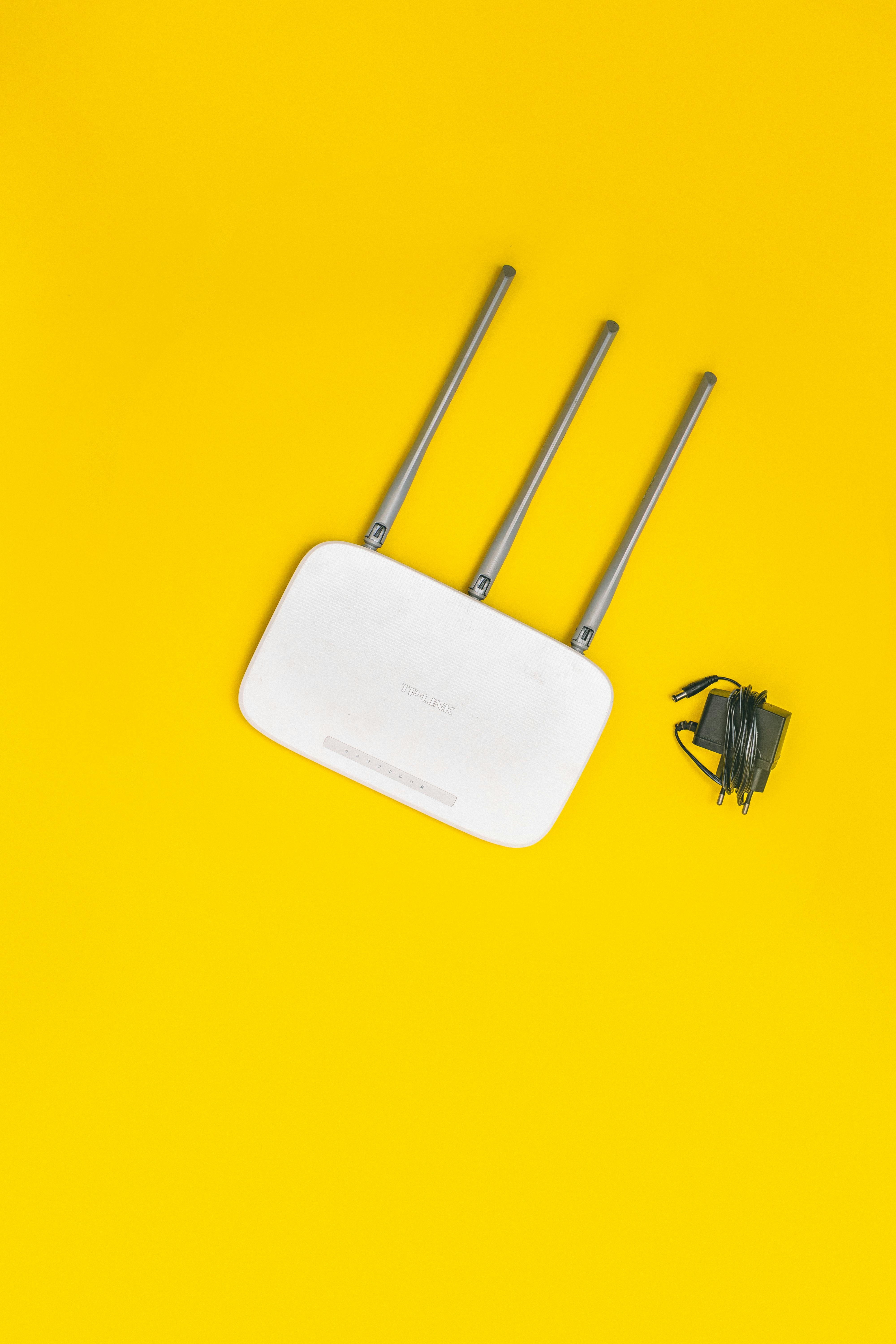
1. What Is an Office Wi-Fi Dead Zone?
A Wi-Fi dead zone is an area inside or around a building where the wireless signal is too weak, unstable or inconsistent to provide a reliable connection.
In an office, this can happen in meeting rooms, cabins, reception areas, storage rooms, corners of open workspaces or on different floors of the building.
A dead zone does not always mean that Wi-Fi is completely unavailable. Sometimes a device shows that it is connected to the wireless network, but the connection is too weak or congested to support normal business activities.
Common symptoms of Wi-Fi dead zones
- Wi-Fi disconnects when employees move between rooms.
- Video meetings freeze or lose audio.
- Websites and cloud applications load slowly.
- Files take a long time to upload or download.
- Employees experience poor connectivity in particular cabins.
- Mobile phones switch between Wi-Fi and mobile data.
- Wireless printers or other network devices become unreachable.
- Wi-Fi works near the router but becomes unreliable farther away.
Identifying these symptoms helps distinguish a Wi-Fi coverage problem from an internet service provider outage or another network issue.
2. What Causes Wi-Fi Dead Zones in Offices?
Several factors can weaken wireless signals. In many offices, more than one cause contributes to the problem.
1. Poor router placement
A router installed in a corner, inside a closed cabinet, below a desk or behind other equipment may not provide effective coverage throughout the office.
Wireless coverage is generally easier to distribute when the router or access point is positioned centrally, elevated and away from major obstructions.
2. Thick walls and physical barriers
Concrete walls, brick walls, metal doors, elevator shafts, glass with special coatings and large storage cabinets can reduce wireless signal strength.
The effect depends on the material, thickness, frequency band and installation environment.
3. Interference from other electronic devices
Wi-Fi shares radio-frequency spectrum with other devices. Nearby wireless networks and certain electronic equipment can create interference or increase channel congestion.
Potential sources include:
- Nearby Wi-Fi routers and access points.
- Microwave ovens operating in the 2.4 GHz band.
- Some cordless phones and wireless devices.
- Bluetooth devices and other radio-frequency equipment.
- Electrical equipment and machinery that generate electromagnetic noise.
4. Too many connected devices
A router may provide coverage across an office but still struggle to handle a large number of active users.
Video calls, cloud applications, file transfers, wireless printers and mobile devices all compete for network capacity. This can result in slow performance, high latency and unstable connections.
5. Incorrect access point placement
Access points hidden behind metal objects, placed too close together or installed inside unsuitable ceiling spaces may not deliver the intended coverage.
6. Outdated wireless equipment
Older routers and access points may lack the capacity, radio performance and management features required for a modern office with many connected devices.
Cisco's wireless design guidance discusses how building materials, office partitions, conference rooms and interference affect Wi-Fi performance. Read Cisco's wireless deployment guide.
3. How to Identify Wi-Fi Dead Zones in Your Office
Before buying a new router, extender or access point, identify exactly where wireless performance becomes unreliable.
A basic office Wi-Fi survey can help determine whether the issue is signal strength, interference, user capacity or internet connectivity.
Step 1: Create an office floor plan
Prepare a simple floor plan showing:
- Workstations and employee seating areas.
- Cabins and meeting rooms.
- Reception and waiting areas.
- Storage rooms and server rooms.
- Existing routers and access points.
- Major walls, partitions and metal structures.
Step 2: Test Wi-Fi in different locations
Use the same laptop or mobile device to test connectivity near the router and in different office areas.
Record the following information at each location:
- Wi-Fi signal strength.
- Download and upload speeds.
- Ping or latency.
- Connection stability.
- Frequency band being used, where visible.
- Number of active devices during testing.
Step 3: Use a Wi-Fi analyser application
A Wi-Fi analyser can help inspect nearby networks, signal strength and channel utilisation. For more complex business networks, professional wireless survey tools can identify coverage gaps and interference.
Step 4: Compare wireless and wired performance
Connect a computer directly to the router or switch using Ethernet and perform a speed test. Compare this with the Wi-Fi result from the same internet connection.
If wired performance is normal but wireless performance is poor in specific areas, the issue may be related to wireless coverage or interference rather than the ISP connection.
Understanding Wi-Fi signal strength
Wi-Fi signal strength is commonly measured in dBm. The closer the number is to zero, the stronger the received signal.
| Signal reading | General interpretation |
|---|---|
| Approximately -30 to -50 dBm | Very strong signal |
| Approximately -51 to -60 dBm | Strong signal |
| Approximately -61 to -67 dBm | Often suitable for many business applications, subject to noise and workload |
| Approximately -68 to -75 dBm | Weaker signal; performance may become less consistent |
| Below approximately -75 dBm | Potentially unreliable for demanding applications |
These are practical reference ranges, not universal pass/fail limits. Device capability, noise level, application requirements and wireless design all matter.
4. Fix Wi-Fi Dead Zones by Repositioning Your Router
Before purchasing additional networking equipment, check whether the existing router is installed in a suitable location.
Best practices for router placement
- Place the router in a central area of the office where practical.
- Position it at a suitable height rather than directly on the floor.
- Keep it in an open location with fewer physical obstructions.
- Avoid closed metal cabinets and enclosed equipment boxes.
- Keep it away from large metal objects and major electrical equipment.
- Do not hide wireless access points above ceilings containing metal structures or ducts unless the design specifically allows for it.
- Follow the manufacturer's antenna orientation and mounting instructions.
Moving a router can improve coverage, but it cannot always overcome thick walls, multiple floors or high user density.

5. Choose the Correct Wi-Fi Frequency Band
Modern Wi-Fi equipment may use 2.4 GHz, 5 GHz and, on compatible systems, 6 GHz frequency bands.
Each band offers different coverage and performance characteristics.
| Wi-Fi band | General characteristics | Office use |
|---|---|---|
| 2.4 GHz | Longer range and better penetration through many obstacles, but fewer channels and often more congestion | Devices farther from access points and compatible older equipment |
| 5 GHz | Higher potential throughput and more channel choices in many deployments, but generally shorter range through walls | Modern laptops, video calls and higher-speed connections |
| 6 GHz | Additional spectrum on compatible Wi-Fi 6E and Wi-Fi 7 equipment, typically with shorter practical range through obstacles | Compatible high-performance devices in suitable environments |
When should you use 2.4 GHz?
The 2.4 GHz band may be useful for devices that need wider coverage or do not support newer Wi-Fi bands. However, it can experience congestion because many nearby devices and networks use this frequency range.
When should you use 5 GHz?
5 GHz can provide higher throughput and more channel choices in many environments. It is often useful for laptops, video meetings and applications that need higher data rates.
When should you use 6 GHz?
6 GHz can provide additional capacity for compatible devices and access points, subject to local regulations and supported operating modes. Its higher frequency usually requires closer access point placement than 2.4 GHz for similar coverage through obstacles.
Read Cisco's Wireless RF Reference Guide for technical information about frequency bands, propagation and wireless design.
6. Change Wi-Fi Channels to Reduce Interference
Wireless networks share radio-frequency channels. If many nearby routers and access points use the same or overlapping channels, congestion and interference can affect performance.
Changing the wireless channel may help when neighbouring networks create excessive interference.
How to improve channel selection
- Open your router or access point administration interface.
- Check the wireless channel settings.
- Use the automatic channel-selection option as an initial setting if appropriate.
- For complex networks, use a Wi-Fi analyser or spectrum survey to identify suitable channels.
- Configure a channel plan for multiple access points to reduce unnecessary co-channel interference.
- Test the wireless network again after changing the configuration.
In busy offices, automatic channel selection may be adequate for simpler deployments. Larger installations may benefit from centrally managed channel and power planning.
Do not select channels based on guesswork. Channel availability and allowed operation depend on the country, frequency band, channel width and device regulatory settings.
7. Install Additional Wi-Fi Access Points
If moving the router and adjusting settings do not solve the problem, installing additional wireless access points may be the most reliable solution.
A wireless access point connects to the existing wired network and provides Wi-Fi coverage in another part of the office.
Unlike a basic wireless extender, a wired access point receives its network connection through Ethernet. This can provide more consistent throughput and capacity in busy office environments.
Benefits of additional access points
- Extends Wi-Fi coverage to weak areas.
- Supports more connected devices when designed correctly.
- Provides better wireless coverage across multiple rooms.
- Can improve connectivity in meeting rooms and employee workspaces.
- Allows centralised management on compatible business systems.
- Can use a wired Ethernet backhaul for consistent performance.
Where should office access points be installed?
- Near central areas of workspaces.
- In or near busy meeting rooms, according to capacity requirements.
- Across separate floors where required.
- In office areas separated by thick walls or partitions.
- Near locations where employees regularly use wireless devices.
- In suitable positions away from major metal obstructions.
Access point locations should be planned using the building layout and wireless survey results. Avoid installing all access points in one corner or placing them too close together without a channel and power plan.
Ceiling-mounted access points
Ceiling-mounted access points are commonly used in offices because their position can provide a suitable radio coverage pattern over workspaces. Follow the manufacturer's mounting instructions and consider the antenna design and ceiling construction.
WatchGuard provides practical recommendations about access point location, ceiling mounting, interference and coverage planning in its Access Point Placement and Channel Plan Guide.
8. Wi-Fi Extender vs Mesh Wi-Fi vs Access Point
Different devices can extend wireless coverage, but they do not work in exactly the same way.
| Device | How it works | Best suited for |
|---|---|---|
| Wi-Fi extender | Receives and rebroadcasts the existing wireless signal | One isolated weak area with modest usage |
| Mesh Wi-Fi | Uses coordinated nodes with wireless or wired backhaul | Flexible multi-room or small office coverage |
| Wired access point | Connects to the LAN through Ethernet and provides a new Wi-Fi coverage point | Busy offices, multiple rooms and larger deployments |
When should you use a Wi-Fi extender?
A Wi-Fi extender may be suitable when there is only one small weak area and running Ethernet cable is not practical.
Place the extender where it can still receive a reliable signal from the main router. Installing it inside the dead zone usually does not solve the problem because the extender also needs a good connection back to the router.
Some single-radio extenders can reduce available throughput because they use the same channel to receive and retransmit traffic. Dual-band and tri-band designs may behave differently.
When should you use mesh Wi-Fi?
Mesh systems coordinate multiple nodes to provide coverage across several spaces. They can be useful in smaller offices where running Ethernet cabling is difficult.
For mesh equipment that supports wired backhaul, connecting the nodes through Ethernet can improve consistency and reduce the wireless traffic required to link the nodes together.
When should you use wired access points?
Wired access points are generally the stronger choice for a busy business network that needs dependable coverage, consistent performance and future expansion.
For detailed comparisons, read:
- TP-Link – How Does a Wi-Fi Extender Work?
- TP-Link – What Is an Access Point? Business Wi-Fi Guide
- TP-Link – Access Point vs Extender
9. Office Wi-Fi Access Point Placement Diagram
The following simplified floor plan illustrates how multiple access points can be placed to provide coverage across different areas of an office.
The diagram is an example, not a fixed access point count. Actual placement depends on building materials, office dimensions, ceiling height, AP model, user density, wireless bands and required application performance.
10. Use Ethernet and PoE for Business Access Points
For larger offices, connecting access points using Ethernet is often more reliable than extending Wi-Fi wirelessly from one device to another.
Power over Ethernet (PoE) allows a compatible network switch to provide both data and electrical power through a single Ethernet cable.
Benefits of PoE networking
- Reduces the need for separate power adapters near access points.
- Allows flexible ceiling and wall mounting.
- Centralises power management through compatible PoE switches.
- Supports easier installation in suitable office environments.
- Can simplify UPS backup for network equipment.
Check the power requirements of each access point and the total PoE budget of the switch before installation. Not all switches or access points support the same PoE standard.
11. Upgrade Your Office Wi-Fi Router or Access Points
Older wireless devices may not provide sufficient capacity for modern office usage. An upgrade may be appropriate when equipment is outdated, no longer receives security updates or cannot handle the number of connected devices.
Features to consider when upgrading
- Wi-Fi 6, Wi-Fi 6E or Wi-Fi 7 support, depending on device requirements.
- Suitable 2.4 GHz, 5 GHz and compatible 6 GHz operation.
- MU-MIMO and OFDMA on supported equipment.
- Gigabit or multi-gigabit Ethernet uplinks, where required.
- Power over Ethernet support for access points.
- Centralised wireless management for larger installations.
- Guest network and VLAN support.
- Security updates and manufacturer support.
Newer Wi-Fi standards can improve capacity and efficiency, especially in busy environments. However, replacing an old router with a newer model will not automatically remove dead zones caused by thick walls, poor placement or large building layouts.
12. Configure Multiple Access Points for Better Coverage
When an office uses multiple wireless access points, they should be planned as one coordinated network rather than installed independently without configuration.
Important configuration practices
- Use consistent security settings across managed access points.
- Configure a suitable channel plan to reduce interference.
- Avoid unnecessarily high transmit power.
- Plan appropriate coverage overlap so devices can move between access points.
- Use compatible roaming features when supported by both APs and client devices.
- Separate guest Wi-Fi from internal office resources where required.
- Monitor access point load and wireless performance.
Using the same network name (SSID) and security settings across compatible access points can help support roaming, but it does not guarantee seamless movement. Client devices make roaming decisions, and supported roaming assistance features depend on the network equipment and clients.
13. Wi-Fi Dead Zones in Meeting Rooms and Conference Areas
Meeting rooms can be challenging wireless environments because several users may connect simultaneously for video conferencing, cloud presentations and file sharing.
A wireless network that works well for one person may become unreliable when a meeting room is full of active devices.
Solutions for meeting room Wi-Fi
- Assess wireless signal and capacity inside the room during normal use.
- Install an access point near the meeting space when required by the design.
- Use suitable wired connectivity for fixed conferencing equipment.
- Review channel congestion and neighbouring access points.
- Check the router, switch and internet connection capacity.
- Provide sufficient network capacity for expected simultaneous users.
For busy conference rooms, plan for device density and application requirements, not only signal strength.
14. How to Fix Wi-Fi Dead Zones in Multi-Floor Offices
Multi-floor offices often have more complicated coverage requirements because signals must travel through floors, walls, stairways and other building structures.
Recommended approach
- Prepare a separate floor plan for every level.
- Identify existing access points and network cabling routes.
- Test signal strength in stairways, cabins, meeting rooms and corridors.
- Plan suitable access point locations on each floor.
- Use Ethernet or fibre backbone connectivity where appropriate.
- Configure channels and transmit power to reduce interference between floors.
- Test roaming and connectivity while walking between floors.
Do not assume that an access point installed on one floor will reliably cover every room on another floor. Actual coverage depends on the building materials and wireless environment.
15. Common Wi-Fi Dead Zone Problems and Their Solutions
| Problem | Possible reason | Recommended solution |
|---|---|---|
| Wi-Fi is weak in the far corner | Distance from router | Reposition router or add a suitable access point |
| No Wi-Fi in meeting room | Thick walls or high user density | Assess room coverage and add an AP if required |
| Wi-Fi disconnects frequently | Interference or unstable wireless link | Review channels, firmware and coverage |
| Internet is slow in some cabins | Weak signal or congested AP | Check signal quality, AP load and channel utilisation |
| Extender gives poor speed | Weak backhaul connection | Move extender closer to router or use wired AP |
| Wi-Fi is poor across multiple floors | Insufficient AP placement | Plan floor-wise wireless coverage with suitable backhaul |
| Wi-Fi is slow even near router | ISP, equipment or network capacity issue | Compare wired and wireless tests and inspect equipment |
16. Office Wi-Fi Security Best Practices
Improving Wi-Fi coverage should not come at the expense of network security. As more access points are installed, the wireless network must remain properly protected.
- Use WPA2-AES or WPA3 security where supported and appropriate.
- Change default router and access point administrator passwords.
- Keep firmware updated.
- Use a separate guest Wi-Fi network.
- Apply VLAN segmentation where required.
- Restrict access to network administration interfaces.
- Disable unused management services and insecure protocols.
- Use strong authentication for employee access.
- Monitor connected devices and investigate unknown clients.
17. Step-by-Step Office Wi-Fi Improvement Plan
Use this checklist to approach a Wi-Fi coverage problem systematically.
- Inspect the office: Identify rooms and areas where Wi-Fi is unreliable.
- Check the internet connection: Compare wired and wireless performance.
- Map signal coverage: Test signal strength and network performance across the floor.
- Inspect router placement: Move equipment away from major obstructions when possible.
- Review wireless channels: Check interference and choose suitable channel settings.
- Assess user capacity: Identify high-density areas such as meeting rooms.
- Choose the right solution: Decide whether repositioning, an extender, mesh or wired access points are appropriate.
- Install and configure: Set up the equipment, backhaul, security and roaming features.
- Test again: Repeat the walk-through and performance tests after installation.
- Document the network: Record access point locations, IP addresses, SSIDs and configuration details securely.
18. Frequently Asked Questions (FAQs)
Q1. What causes Wi-Fi dead zones in an office?
Common causes include poor router placement, thick concrete walls, metal structures, wireless interference, insufficient access points and too many active devices sharing the same wireless network.
Q2. How can I fix a Wi-Fi dead zone without buying new equipment?
Try repositioning the router to a central and elevated location, reducing obstructions, checking wireless channels and updating device firmware. These steps can improve coverage where placement or configuration is the main problem.
Q3. Is a Wi-Fi extender good for an office?
A Wi-Fi extender can help with one isolated weak area where usage is modest and running Ethernet is difficult. For multiple rooms or busy office networks, wired access points are generally a more scalable solution.
Q4. Are access points better than Wi-Fi extenders?
Wired access points generally provide more consistent performance because they connect directly to the LAN through Ethernet. Extenders depend on the wireless signal they receive from the main router.
Q5. How many Wi-Fi access points does an office need?
It depends on building size, walls, floor layout, access point model, user density and application requirements. A wireless site survey is more reliable than selecting an access point count based only on square footage.
Q6. Does upgrading to Wi-Fi 6 fix dead zones?
Wi-Fi 6 can improve wireless efficiency and capacity with compatible equipment. However, it cannot automatically overcome thick walls, poor placement or insufficient access point coverage.
Q7. Does 5 GHz Wi-Fi have less range than 2.4 GHz?
Generally, 2.4 GHz travels farther and penetrates many obstacles more effectively, while 5 GHz offers more potential throughput but typically has shorter practical range through walls.
Q8. Should office access points be installed on the ceiling?
Ceiling mounting is common in office deployments, but the correct location depends on the access point's antenna pattern, room layout and building construction. Follow manufacturer mounting instructions and verify coverage through testing.
Q9. Can Ethernet cables improve office Wi-Fi?
Ethernet cabling can connect additional wireless access points directly to the office network. This provides a wired backhaul rather than relying on a weak wireless connection to extend the network.
Q10. Why does Wi-Fi work near the router but not in other rooms?
Distance, walls, metal partitions, interference and the building layout can weaken wireless signals. Additional access points or better equipment placement may be needed.
Conclusion: Build Reliable Wi-Fi Coverage Across Your Office
Office Wi-Fi dead zones can affect employee productivity, video meetings, cloud applications and everyday business operations. The solution starts with identifying where the wireless network is failing and understanding whether the issue is signal strength, interference, capacity or the internet connection itself.
Start by repositioning the router, reviewing channels and checking the office environment. For larger workspaces, multi-floor offices and high-density areas, a professionally designed network with wired access points and suitable PoE switches can provide more reliable coverage.
A properly planned wireless network should deliver suitable coverage, capacity and security across the spaces where employees need connectivity.
Need Professional Office Wi-Fi Installation or Networking Support?
Virnobyte Private Limited provides computer networking and IT infrastructure solutions for offices, businesses, shops, factories and other organisations.
Our networking services include:
- Office Wi-Fi installation and configuration.
- Wi-Fi dead zone detection and troubleshooting.
- Wireless access point installation.
- Router and firewall configuration.
- LAN networking and structured cabling.
- Managed and PoE network switch installation.
- Office network expansion and Wi-Fi coverage planning.
- Network troubleshooting and IT AMC support.
Head Office:
Sadichha Complex, Sawtamali Temple Road, Jadhavwadi, Chikhali, Pune – 411062, Maharashtra, India.
Service Coverage:
Virnobyte has its head office in Pune, Maharashtra, provides services across Maharashtra, has a strong presence in Karnataka and Goa, and serves customers across Pan India. On-site service availability depends on location and project requirements; remote support and other service arrangements can be discussed.
Call: 8669883332
Email: info@virnobyte.com
Website: www.virnobyte.com
Virnobyte Private Limited – Technology • Innovation • Trust