
Slow Internet in Office: How to Fix It
Learn how to fix slow internet in your office. Discover common causes, router issues, network congestion, Wi-Fi problems and practical solutions to improve business internet speed and connectivity.
By virnobyte team · · 16 min read

Slow Internet in Office: How to Fix It
A reliable internet connection is essential for modern offices. Employees depend on the internet for email, video conferencing, cloud software, online payments, customer communication, file sharing and business operations.
When office internet becomes slow, even simple tasks can take longer than expected. Video meetings may freeze, websites may take several seconds to load, files may take hours to upload, and cloud applications may stop responding.
The problem is not always your broadband plan. It could be caused by an overloaded router, poor Wi-Fi coverage, too many connected devices, damaged network cables, background downloads or incorrect network configuration.
In this article, we explain how to identify the cause of slow internet and improve network performance without unnecessarily spending money on a new broadband connection.

1. Common Signs of Slow Office Internet
Slow internet can affect different applications and devices in different ways. Look for these common symptoms:
- Slow website loading: Websites and online dashboards take longer to open.
- Video meeting interruptions: Microsoft Teams, Google Meet or Zoom calls freeze or lose quality.
- Slow file transfers: Uploading and downloading documents takes too much time.
- Cloud software delays: Accounting, CRM, ERP and other cloud applications respond slowly.
- Frequent disconnections: Employees repeatedly lose internet access.
- Slow internet during office hours: Performance becomes worse when many employees are working simultaneously.
- Different speeds in different rooms: Some employees receive good Wi-Fi while others experience weak connectivity.
2. Why Is the Internet Slow in Your Office?
1. Too many devices connected to the network
One of the most common causes of slow office internet is excessive network usage. Employees may simultaneously use video conferencing, cloud applications, email, online storage, streaming services and large downloads.
For example, an office with 15 employees may have considerably more than 15 connected devices. Each employee may use a laptop and smartphone, while the office also connects printers, CCTV systems, smart devices and servers.
When multiple devices consume bandwidth simultaneously, available capacity can become insufficient for business requirements.
2. Slow or insufficient broadband plan
Your existing broadband plan may not provide enough bandwidth for the number of employees and applications used by your business.
A connection suitable for a small office with basic browsing may not be sufficient for a company regularly conducting video meetings, uploading large files and accessing cloud-based applications.
Review your actual usage and compare it with your subscribed plan before upgrading. Also check whether your plan provides suitable upload speed, not just download speed.
3. Poor Wi-Fi signal coverage
Wi-Fi signals become weaker because of distance, walls, floors, metal partitions and building layouts. If the router is installed in one corner of the office, employees working in distant rooms may experience slower connections.
A single wireless router may not be suitable for a large office, multiple floors or a building with thick walls.
4. Outdated router or networking equipment
Old routers and network switches may struggle to handle modern office requirements. Limited processing capacity, outdated Wi-Fi standards, insufficient Ethernet ports or faulty hardware can affect performance.
If several employees experience slow connectivity simultaneously, inspect the router, switch and access points rather than troubleshooting every computer separately.
5. Background downloads and cloud backups
Automatic operating-system updates, cloud backups, large downloads and file synchronisation can consume substantial bandwidth without employees noticing.
For example, a computer uploading a large collection of files to cloud storage may affect video calls and other internet activities if the connection has limited upload capacity.
6. Network congestion and Wi-Fi interference
In offices located in commercial buildings, several neighbouring wireless networks may operate in the same area. Channel congestion and interference can reduce wireless performance.
Other devices and physical obstacles can also affect Wi-Fi reliability. Microsoft's troubleshooting guidance explains how wireless distance, obstructions and interference can influence connection speed.
Reference: Microsoft – Why is my Internet connection so slow?
7. Faulty Ethernet cables or network ports
Damaged Ethernet cables, loose connectors, poor-quality cable installations and faulty switch ports can affect wired network performance.
For example, a damaged cable or an incorrectly negotiated Ethernet connection may prevent a computer from operating at the expected network speed.
Check cable condition, connectors, switch port indicators and negotiated link speed when diagnosing wired network problems.
8. DNS, IP address or network configuration problems
Incorrect DNS settings, IP address conflicts, DHCP problems, proxy configuration or gateway issues can make applications and websites slow or inaccessible.
These problems may affect only some devices or services rather than the entire office network.
9. ISP outage or network congestion
Sometimes the internal office network is working correctly, but the internet service provider is experiencing an outage, line fault or congestion.
If the connection becomes slow across all computers, including devices connected directly through Ethernet, contact your ISP and request a line and service check.
3. How to Fix Slow Internet in Office: Step-by-Step Solutions
Solution 1: Test your internet speed correctly
Before changing network settings or upgrading equipment, measure the internet speed available in your office.
- Connect a laptop directly to the router using an Ethernet cable, if possible.
- Pause unnecessary downloads and cloud backups during testing.
- Run a speed test using a reputable service.
- Record download speed, upload speed and latency.
- Repeat the test using Wi-Fi in different office areas.
- Compare the results with your broadband plan and previous measurements.
Useful speed testing resources:
Solution 2: Restart the modem and router
Temporary router or modem problems can sometimes affect network performance. Restarting the equipment may restore normal operation.
- Inform employees that the internet connection will be temporarily unavailable.
- Switch off the router and modem, if they are separate devices.
- Disconnect their power supplies.
- Wait approximately 30 seconds.
- Power on the modem first and allow it to establish its connection.
- Switch on the router and wait for it to become operational.
- Test the internet again.
Do not perform a factory reset unless you have the required ISP and router configuration details. A factory reset can erase important network settings.
Solution 3: Upgrade your broadband plan if required
If speed tests show that your broadband connection regularly reaches its subscribed limit, your office may need a higher-capacity plan.
Before upgrading, consider:
- Number of employees and connected devices.
- Number of simultaneous video meetings.
- Cloud application and file-transfer requirements.
- Required upload and download speeds.
- Whether the ISP provides a business broadband or dedicated connectivity option.
- Service reliability, support response and backup connectivity options.
Do not choose a broadband plan based only on the number of employees. Actual usage patterns and business applications matter.
Solution 4: Improve Wi-Fi router placement
Correct router placement can improve wireless coverage without replacing your broadband connection.
- Place the router in a central location where practical.
- Keep it elevated and in an open area.
- Avoid closed cabinets and metal enclosures.
- Keep it away from thick walls and large obstacles.
- Avoid placing it near equipment that may cause wireless interference.
- For larger offices, consider professionally planned wireless access points.
Solution 5: Install additional Wi-Fi access points
If one router cannot cover the entire office, additional access points can extend wireless coverage.
Access points should be positioned after considering the office layout, wall construction, employee locations and expected number of connected devices.
For larger offices, multiple professionally configured access points with suitable channel planning and central management can provide more consistent coverage.

Solution 6: Use Ethernet connections for important devices
Wireless connectivity is convenient, but wired Ethernet connections are often preferable for devices that need stable and predictable network performance.
Consider wired connections for:
- Desktop computers used for business-critical work.
- Servers and network-attached storage (NAS).
- Video conferencing systems.
- Network printers and shared storage devices.
- Workstations that regularly transfer large files.
Use suitable Gigabit Ethernet switches and properly installed Cat6 cabling where appropriate. The final performance depends on the connected devices, switch ports, cable quality and network configuration.
Solution 7: Identify devices consuming excessive bandwidth
Monitor network usage to identify computers or applications consuming unusually high bandwidth.
Look for:
- Large cloud backups.
- Automatic software updates.
- Large file downloads.
- Unnecessary video streaming.
- Unusual or unauthorised network activity.
- Repeated file synchronisation.
Where supported, configure Quality of Service (QoS) or traffic management policies to prioritise business-critical applications such as voice and video conferencing. Use these settings carefully because prioritisation cannot create additional internet bandwidth.
Solution 8: Check router and network switch configuration
Incorrect network configuration can reduce performance or cause intermittent connectivity.
Ask your network administrator or technician to check:
- Router firmware and hardware health.
- WAN link status and negotiated speed.
- Switch port speed and duplex settings.
- IP addressing and DHCP configuration.
- DNS server settings.
- Wireless channel selection and channel width.
- QoS policies and bandwidth limits.
- Network errors, packet loss and device logs.
Solution 9: Update computer network drivers
If only one or two computers experience slow internet, the issue may be related to their network adapters or software.
On Windows:
- Right-click the Start button.
- Open Device Manager.
- Expand Network adapters.
- Identify the Ethernet or Wi-Fi adapter.
- Check for driver updates using Windows Update or the computer manufacturer's official support website.
- Restart the computer and test the connection.
Also check whether background applications, browser extensions or security software are affecting the computer's performance.
Official guide: Microsoft – Fix Wi-Fi connection issues in Windows.
Solution 10: Contact your internet service provider
If the office network is functioning correctly but internet performance remains poor, contact your ISP.
Provide the support team with:
- Your broadband account details.
- Speed-test results from wired and wireless connections.
- The time and duration of slowdowns.
- Router or modem status indicators.
- Whether all devices or only some devices are affected.
- Any error messages or connection interruptions.
Ask the ISP to check the line, signal quality, service outage status and connection performance.
4. Recommended Office Network Setup for Better Internet Performance
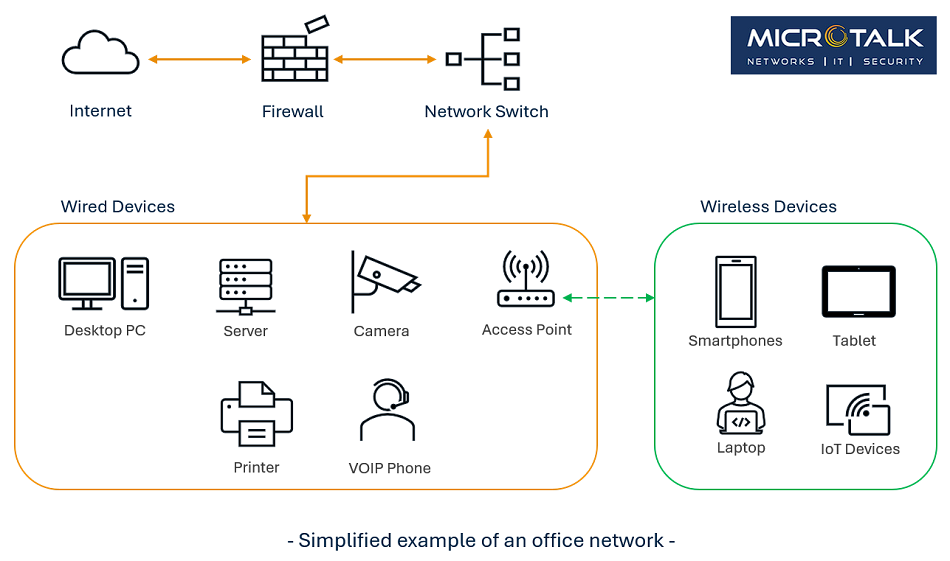
A properly planned office network helps distribute connectivity across employees, workstations, printers, servers and wireless devices.
A typical small-office network may use the following structure:
Key components include:
| Network component | Purpose |
|---|---|
| Modem / ONT | Connects the office to the ISP broadband service. |
| Router / Firewall | Manages internet routing and network security. |
| Gigabit network switch | Connects wired computers, printers, servers and other devices. |
| Wi-Fi access points | Provide wireless coverage in office areas. |
| Cat6 Ethernet cabling | Provides wired connectivity between network equipment and devices. |
| UPS | Provides temporary backup power for selected network equipment. |
| NAS / Server | Supports shared storage and internal business services where required. |
5. Wired Network vs Wi-Fi: Which Is Better for Office Use?
Both wired and wireless networks are useful in business environments. The right choice depends on employee mobility, building layout and application requirements.
| Feature | Wired Ethernet | Wi-Fi |
|---|---|---|
| Connection | Uses physical network cables. | Uses wireless radio signals. |
| Stability | Usually more predictable for fixed devices. | Can vary with signal quality and interference. |
| Mobility | Limited by cable connection. | Allows employees to move within coverage. |
| Installation | Requires structured cabling and ports. | Requires suitable access point placement. |
| Best suited for | Desktops, servers, printers and fixed workstations. | Laptops, smartphones, tablets and meeting rooms. |
A hybrid network using Ethernet for fixed devices and Wi-Fi for mobile devices is often a practical solution for offices.
6. How to Monitor Office Internet Performance
Regular network monitoring helps identify performance problems before they affect daily business operations.
Useful monitoring activities include:
- Recording internet download and upload speeds.
- Checking latency and packet loss.
- Monitoring router and switch status.
- Reviewing connected devices and bandwidth consumption.
- Checking Wi-Fi coverage in different office areas.
- Monitoring ISP outages and connection downtime.
- Reviewing firewall and network security logs.
For technical diagnosis, network administrators can use tools such as ping, tracert or traceroute, ipconfig and nslookup. These help identify whether a delay is occurring within the local network, DNS service or an external network path.
Further reading: Cisco – What is Network Troubleshooting?
7. Network Security and Performance
Network security is also important for maintaining reliable office connectivity. Unauthorised devices, compromised computers and poorly configured network equipment can create unnecessary traffic and security risks.
Follow these basic practices:
- Change default router and administrator passwords.
- Use strong Wi-Fi passwords and supported modern security settings.
- Update router and firewall firmware.
- Remove unknown or unauthorised devices.
- Use firewall rules to control unnecessary network traffic.
- Separate guest Wi-Fi from internal business systems where appropriate.
- Use suitable network segmentation for servers, employee devices and other equipment.
- Restrict access to network administration interfaces.
For more advanced security guidance, refer to the joint communications infrastructure hardening guidance.
8. Common Office Internet Problems and Their Solutions
| Problem | Possible cause | Recommended solution |
|---|---|---|
| Internet slow for everyone | Insufficient bandwidth, ISP issue or router overload. | Compare wired speed tests, inspect router and contact ISP. |
| Internet slow in one room | Weak Wi-Fi signal or obstacles. | Reposition access point or add a suitable access point. |
| Slow video calls | Limited upload capacity, latency or network congestion. | Check upload speed and prioritise business-critical traffic. |
| Slow file uploads | Low upload bandwidth or cloud backup activity. | Check upload capacity and schedule large transfers. |
| Some computers are slow | Device, driver, DNS or software issue. | Test affected devices individually. |
| Frequent disconnections | Router fault, ISP instability or damaged cable. | Inspect network equipment and broadband line. |
| Slow wired network | Cable, switch port or link-speed issue. | Check cable condition and negotiated Ethernet speed. |
9. When Should You Call a Professional Networking Technician?
Basic troubleshooting can solve many common internet problems. However, professional networking support may be necessary when:
- Internet speed remains low after basic checks.
- Several computers experience network problems simultaneously.
- The office has weak Wi-Fi coverage across multiple rooms or floors.
- Network switches, routers or access points need configuration.
- Employees experience repeated disconnections.
- The office needs new LAN cabling or network expansion.
- Business applications require stable connectivity and traffic management.
- Network security, segmentation or firewall configuration needs review.
A professional site assessment can help identify whether the business needs a better broadband plan, improved cabling, additional access points, upgraded equipment or a different network design.
10. Office Networking and IT Support by Virnobyte Private Limited
Virnobyte Private Limited provides IT services and networking-related solutions for offices, shops, small businesses and growing organisations. We help customers with network installation, connectivity troubleshooting and IT infrastructure requirements.
Our networking and IT services include:
- Office LAN installation and structured cabling.
- Wi-Fi router installation and configuration.
- Wireless access point installation and coverage planning.
- Network switch and router configuration.
- Network troubleshooting and connectivity support.
- Network expansion and cable management.
- Hardware and networking AMC services.
- IT infrastructure consulting and support for businesses.
- NAS, backup and storage network setup.
Virnobyte Private Limited has its head office in Pune, Maharashtra, provides services across Maharashtra, has a strong presence in Karnataka and Goa, and serves customers across Pan India. On-site service availability depends on the location and project requirements. Remote assistance and product supply may be arranged according to the requirement.
Experiencing Slow Internet in Your Office?
Get professional assistance for office networking, Wi-Fi setup, LAN installation, router configuration and IT infrastructure support.
Virnobyte Private Limited
Technology • Innovation • Trust
Head Office: Sadichha Complex, Sawtamali Temple Road, Jadhavwadi, Chikhali, Pune – 411062, Maharashtra, India
Phone: 8669883332
Email: info@virnobyte.com
Website: www.virnobyte.com
11. Frequently Asked Questions (FAQs)
1. Why is my office internet so slow?
Common causes include insufficient broadband bandwidth, too many connected devices, router limitations, Wi-Fi interference, faulty network cables and ISP problems. Compare wired and wireless speed tests to identify the source.
2. How can I increase internet speed in my office?
Test your connection, improve router placement, reduce unnecessary background downloads, use Ethernet for fixed workstations, optimise Wi-Fi coverage and upgrade your broadband plan if the available bandwidth is insufficient.
3. Why does office internet become slow during working hours?
Many employees may be using video meetings, cloud software, file sharing and downloads simultaneously. This can increase network congestion and consume available bandwidth.
4. Is a Wi-Fi router enough for a large office?
Not always. Larger offices may require multiple access points, managed switches and structured cabling. The network should be planned according to building layout, employee count and connected devices.
5. Does Ethernet provide better performance than Wi-Fi?
Ethernet generally provides more predictable connectivity for fixed devices because it is less affected by wireless interference. Wi-Fi is useful for mobile devices and areas where cabling is inconvenient.
6. Can too many devices slow down office internet?
Yes. Multiple devices sharing a limited broadband connection can increase congestion, particularly when they are performing video calls, large downloads or cloud backups.
7. How do I know whether the ISP or office network is causing slow internet?
Compare a wired speed test directly from the router with Wi-Fi tests. If both are slow, investigate the broadband service and router. If wired performance is good but Wi-Fi is poor, investigate wireless coverage and interference.
8. Does Virnobyte provide office networking support outside Pune?
Virnobyte Private Limited has its head office in Pune, Maharashtra, provides services across Maharashtra, has a strong presence in Karnataka and Goa, and serves customers across Pan India. On-site support depends on location and project requirements.
Conclusion
Slow internet in an office can result from several factors, including insufficient bandwidth, overloaded routers, poor Wi-Fi coverage, network congestion, damaged cables and ISP issues.
Start with a proper speed test, compare wired and wireless performance, inspect your network equipment and identify devices consuming excessive bandwidth. For larger offices, a professionally planned network with suitable routers, switches, access points and structured cabling can improve connectivity and reliability.
For office networking, Wi-Fi installation, LAN setup and IT support, contact Virnobyte Private Limited.