
Wi-Fi Not Working: Causes and Solutions
Learn why your Wi-Fi is not working and how to fix common problems such as slow internet, no connection, router issues, weak signals and device connectivity errors with simple troubleshooting tips.
By virnobyte team · · 13 min read

Wi-Fi Not Working: Causes and Solutions
Wi-Fi has become essential for homes, offices, shops and businesses. When your wireless connection stops working, you may experience slow internet, frequent disconnections, buffering, or a message saying that your device is connected but has no internet access.
The good news is that many Wi-Fi problems can be fixed with a few simple checks. This guide explains how to identify the cause and troubleshoot your connection step by step.
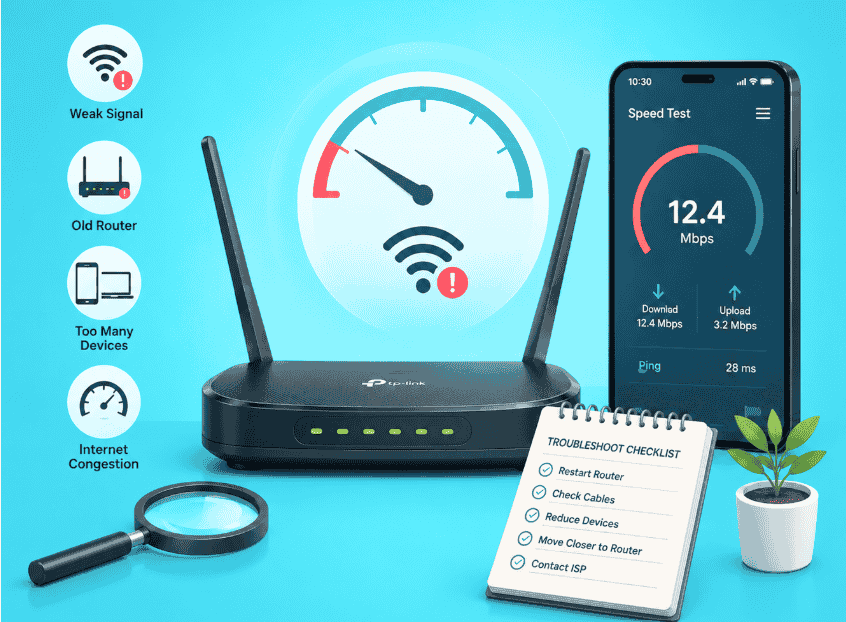
1. Common Signs of Wi-Fi Problems
Wi-Fi issues can appear in different ways. Identifying the exact symptom helps narrow down the cause.
- Wi-Fi is not connecting: Your phone or laptop cannot join the wireless network.
- Connected, no internet: Your device connects to the router but cannot access websites or online services.
- Slow Wi-Fi speed: Websites load slowly, downloads take longer, or videos keep buffering.
- Frequent disconnections: The wireless connection drops and reconnects repeatedly.
- Weak Wi-Fi signal: The signal becomes poor in certain rooms or areas of your office.
- Wi-Fi network not visible: Your device cannot find the network name.
- Some devices work, others do not: The problem may be limited to a particular device or its network settings.
2. Why Is My Wi-Fi Not Working? Common Causes
1. Router or modem problems
Your router or modem may temporarily stop responding because of a software issue, overheating, power interruption or hardware fault. Loose power and Ethernet cables can also interrupt the connection.
2. Internet service provider outage
Sometimes the Wi-Fi router is working correctly, but your broadband provider has a service interruption, line fault, maintenance activity or account-related issue. In this situation, your device may remain connected to Wi-Fi without internet access.
3. Weak wireless signal
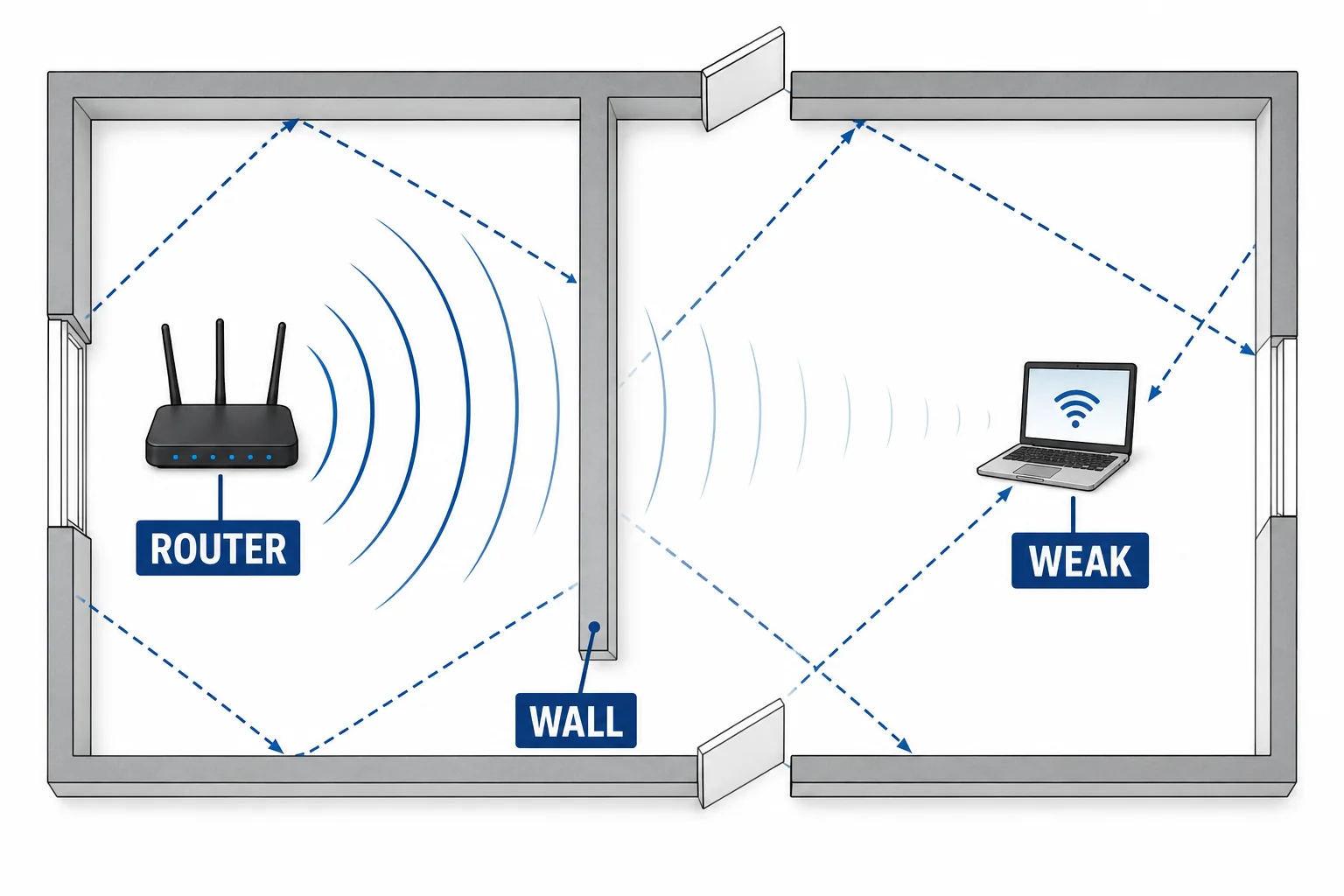
Distance from the router, thick walls, metal objects, floors and building layout can reduce signal strength. A router placed inside a cabinet or behind large furniture may also provide poor coverage.
4. Wireless interference
Nearby wireless networks and some electronic devices can affect Wi-Fi performance. In crowded apartment buildings and office spaces, several routers may compete for wireless channels.
5. Too many connected devices
Multiple devices performing video streaming, online meetings, cloud backups, gaming and large downloads can consume available bandwidth. The effect depends on your internet plan, router capacity and network activity.
6. Incorrect Wi-Fi password or security settings
An incorrect password, incompatible security configuration or saved old network credentials can prevent a device from connecting.
7. Outdated network drivers
Windows laptops and desktops rely on wireless network adapter drivers. A corrupted, outdated or incompatible driver may cause missing Wi-Fi options, unstable connections or connection failures.
8. Router firmware or hardware failure
Old firmware, damaged antennas, failing power adapters and ageing routers can cause repeated network problems. If restarting does not help and several devices experience the same issue, the router may need professional inspection.
3. How to Fix Wi-Fi Not Working: Step-by-Step Solutions
Solution 1: Restart your router and modem
Restarting network equipment can resolve temporary connection problems and allow the router to establish a fresh connection.
- Save your work and inform other users that the connection will be interrupted.
- Switch off the router and modem, if they are separate devices.
- Disconnect their power cables.
- Wait around 30 seconds before reconnecting.
- Power on the modem first and allow it to finish starting.
- Power on the router and wait for its status lights to stabilise.
- Reconnect your laptop or phone and test the internet.
Solution 2: Check the internet connection and cables
Inspect the connection between your modem, router and broadband line.
- Check whether the router power adapter is firmly connected.
- Ensure the incoming internet cable is connected to the correct WAN or Internet port.
- Check Ethernet cables for visible damage or loose connectors.
- Look for unusual warning lights on the modem or router.
- If your ISP uses fibre, check the optical network terminal (ONT) indicators and avoid bending or disconnecting the fibre unnecessarily.
If the internet or LOS indicator shows a fault, contact your broadband provider for line diagnostics. Indicator meanings vary by device and ISP.
Solution 3: Check Wi-Fi settings on your device
Make sure Wi-Fi is enabled and Airplane Mode is turned off. Select the correct network name and enter the password carefully.
On Windows 11, open Settings → Network & internet → Wi-Fi and confirm that Wi-Fi is switched on.
If the network was previously saved with an old password, choose the network, select Forget, and reconnect using the current password.
Solution 4: Test Wi-Fi on another device
Connect another phone, laptop or tablet to the same network.
- If all devices fail: Check the router, modem, broadband line or ISP service.
- If only one device fails: Check that device's Wi-Fi settings, network adapter, driver and software.
- If Wi-Fi works near the router but not farther away: Investigate signal coverage and router placement.
Solution 5: Move the router to a better location
Router placement has a major effect on wireless coverage. Keep the router in an open, central and elevated location whenever possible.
- Avoid placing it inside cupboards or closed cabinets.
- Keep it away from thick concrete walls and large metal objects.
- Do not hide it behind televisions or large furniture.
- Keep it away from sources of interference where practical.
- For multi-floor buildings, consider additional access points or a suitable mesh system.
Solution 6: Switch between 2.4 GHz and 5 GHz Wi-Fi
Many dual-band routers support both 2.4 GHz and 5 GHz wireless networks.
| Feature | 2.4 GHz | 5 GHz |
|---|---|---|
| Coverage | Often better for reaching farther rooms | Generally shorter range in the same environment |
| Speed | Usually lower maximum throughput | Can provide higher speeds with compatible devices |
| Interference | Often more crowded | May have less congestion, depending on the area |
| Suitable for | Basic browsing and devices farther away | High-bandwidth use near the router |
If your router broadcasts separate network names for each band, try the other band and compare performance. Actual speed and range depend on the router, client device, channel conditions and building layout.
Solution 7: Update the Wi-Fi driver on Windows
If Wi-Fi is missing or unstable on a Windows laptop, check the wireless network adapter driver.
- Right-click the Windows Start button.
- Open Device Manager.
- Expand Network adapters.
- Find your wireless network adapter.
- Right-click it and select Update driver.
- Follow the on-screen instructions.
- Restart the computer and test the connection.
You can also check Windows Update or download the correct driver from your laptop manufacturer's official support website. Confirm the exact laptop model and Windows version before installing a driver.
Solution 8: Run the Windows network troubleshooter
Windows includes network diagnostics that can identify certain connection problems.
- Open Settings.
- Select System → Troubleshoot → Other troubleshooters.
- Find the Network and Internet troubleshooter, if available on your Windows version.
- Select Run and follow the instructions.
Solution 9: Reset network settings
If ordinary troubleshooting does not work, a network reset may help. On Windows 11, go to Settings → Network & internet → Advanced network settings → Network reset.
Solution 10: Check for broadband or ISP issues
If the router is powered on but all devices show no internet, contact your ISP and ask them to check:
- Whether there is an outage in your area.
- Whether your broadband account and plan are active.
- Whether the fibre or broadband line has a fault.
- Whether the modem or ONT is receiving a valid connection.
- Whether the router is receiving an internet connection from the modem.
4. Wi-Fi Connected but No Internet: What Should You Do?
This message usually means your device has joined the local wireless network, but it cannot successfully reach the internet. The issue may be between the router and ISP, or it may be related to IP addressing, DNS or the individual device.
- Check whether other devices can access the internet.
- Restart the modem and router.
- Check the WAN or Internet status in the router settings.
- Confirm that the broadband service is active.
- On Windows, disconnect and reconnect to the Wi-Fi network.
- If only one Windows device is affected, run the network troubleshooter and check its IP configuration.
For advanced Windows troubleshooting, Microsoft documents commands such as ipconfig /release, ipconfig /renew and ipconfig /flushdns. These should be used carefully, preferably after basic checks and with administrator access where required.
Official guide: Microsoft – Fix Wi-Fi connection issues in Windows.
5. How to Fix Slow Wi-Fi Internet Speed
If Wi-Fi is connected but internet speed is very slow, follow these checks:
- Run a speed test near the router and compare it with a test in the problem area.
- Compare results on more than one device.
- Pause large downloads, cloud backups and unnecessary streaming.
- Check whether your broadband plan provides sufficient speed for the number of users.
- Try the 5 GHz band when you are close to the router and your device supports it.
- Check router placement and wireless interference.
- Use a wired Ethernet connection for a comparison test where possible.
- Contact your ISP if wired and wireless tests both show unusually low speeds.
Remember that the speed shown in a broadband plan is not necessarily the speed every wireless device will receive. Wi-Fi performance is affected by distance, obstacles, device capability and network congestion.
6. Wi-Fi Troubleshooting Checklist
| Problem | What to check | Suggested action |
|---|---|---|
| Wi-Fi not connecting | Password and Wi-Fi settings | Forget the network and reconnect |
| Connected, no internet | Modem, WAN connection and ISP | Restart equipment and contact ISP if needed |
| Slow Wi-Fi | Signal, congestion and broadband speed | Test near router and reduce unnecessary traffic |
| Frequent disconnections | Router stability, interference and drivers | Check firmware, placement and device drivers |
| Weak signal | Distance and physical obstacles | Improve placement or consider access points |
| Wi-Fi option missing | Adapter status and driver | Check Device Manager and manufacturer drivers |
| Only one device affected | Device settings and compatibility | Troubleshoot that device separately |
7. When Should You Contact a Wi-Fi or Networking Technician?
Basic troubleshooting is suitable for common connection issues. However, professional assistance may be required when:
- The router repeatedly restarts or overheats.
- The internet disconnects even after replacing or checking cables.
- Several devices experience repeated connection failures.
- Wi-Fi coverage is poor across multiple rooms or office floors.
- Your office needs structured LAN cabling, managed switches or multiple access points.
- Network equipment requires configuration, security checks or firmware maintenance.
- The problem may involve a damaged Ethernet port, network adapter or router hardware.
Do not open power adapters, routers or fibre equipment unless you are qualified to do so. Contact the ISP for broadband-line faults and a qualified technician for internal network or hardware problems.
8. How to Prevent Wi-Fi Problems in the Future
- Keep router firmware updated using the manufacturer's instructions.
- Use a strong Wi-Fi password and modern security settings supported by your devices.
- Change default administrator credentials.
- Place the router in a suitable, ventilated location.
- Use good-quality network cables and compatible networking equipment.
- Review connected devices and remove unknown devices.
- Plan additional access points for larger offices rather than relying on one router for every area.
- Schedule periodic network checks for business-critical connections.
9. Wi-Fi and Networking Support by Virnobyte Private Limited
Reliable internet connectivity is important for homes, shops, offices and growing businesses. Virnobyte Private Limited provides IT support and networking solutions for customers who need help with Wi-Fi connectivity, LAN installation, router configuration and network troubleshooting.
Our networking-related services include:
- Wi-Fi router installation and configuration.
- Office Wi-Fi setup and coverage planning.
- LAN networking and structured cabling.
- Router, switch and access point configuration.
- Network troubleshooting and connectivity support.
- Network expansion and cable management.
- Hardware and networking AMC support.
- IT infrastructure consulting for small and medium-sized businesses.
Virnobyte Private Limited has its head office in Pune, Maharashtra, provides services across Maharashtra, has a strong presence in Karnataka and Goa, and serves customers across Pan India. On-site service availability depends on location and project requirements; remote assistance and product supply may be arranged according to the requirement.
Need Help Fixing Your Wi-Fi or Office Network?
Contact Virnobyte Private Limited for networking support, Wi-Fi setup, LAN installation, router configuration and IT infrastructure assistance.
Virnobyte Private Limited
Technology • Innovation • Trust
Head Office: Sadichha Complex, Sawtamali Temple Road, Jadhavwadi, Chikhali, Pune – 411062, Maharashtra, India
Phone: 8669883332
Email: info@virnobyte.com
Website: www.virnobyte.com
10. Frequently Asked Questions (FAQs)
1. Why is my Wi-Fi connected but not working?
Your device may be connected to the router but the router may not have internet access. Check the modem, WAN cable, broadband service and ISP status. Test another device to identify whether the issue affects the whole network.
2. How do I fix Wi-Fi not working on my laptop?
Check that Wi-Fi is enabled and Airplane Mode is off. Forget and reconnect to the network, restart the router and laptop, run Windows network troubleshooting and check the wireless adapter driver.
3. Why does my Wi-Fi keep disconnecting?
Possible causes include weak signal, wireless interference, router firmware issues, power problems, network adapter drivers or ISP interruptions. Compare the connection on other devices and near the router.
4. Does restarting a Wi-Fi router fix internet problems?
Restarting can resolve temporary router or modem issues by establishing a fresh connection. It will not fix every problem, such as a damaged cable, ISP outage or faulty hardware.
5. Why is Wi-Fi slow in one room?
Walls, floors, distance and other obstacles can weaken the wireless signal. Try moving closer to the router, repositioning it or installing a suitable access point or mesh system.
6. Should I reset my router if Wi-Fi is not working?
Try restarting the router first. A factory reset erases saved settings and may require complete reconfiguration. Use it only when necessary and when you have the required ISP and router setup details.
7. When should I replace my Wi-Fi router?
Consider replacement if the router is unreliable, no longer receives security updates, cannot support your speed or device requirements, or has confirmed hardware problems. Check compatibility with your ISP before buying a replacement.
8. Can Virnobyte help with office Wi-Fi and LAN problems?
Virnobyte Private Limited provides networking-related support, including Wi-Fi setup, router configuration, LAN installation, structured cabling and network troubleshooting. On-site availability depends on location and project requirements.
Conclusion
Wi-Fi not working can be caused by router faults, ISP interruptions, weak wireless signals, interference, device settings or outdated network drivers. Start by restarting your modem and router, checking cables, testing another device and improving router placement. If the issue continues, use the appropriate device troubleshooting steps or contact your ISP or a qualified networking technician.
For office Wi-Fi installation, LAN networking and IT support, contact Virnobyte Private Limited.