
How Refurbished Laptops Are Tested Before Selling
Discover how refurbished laptops are tested before selling. Learn about processor, RAM, SSD, battery, display, keyboard, ports, software and hardware quality checks to ensure reliable performance.
By Virnobyte Team · · 18 min read
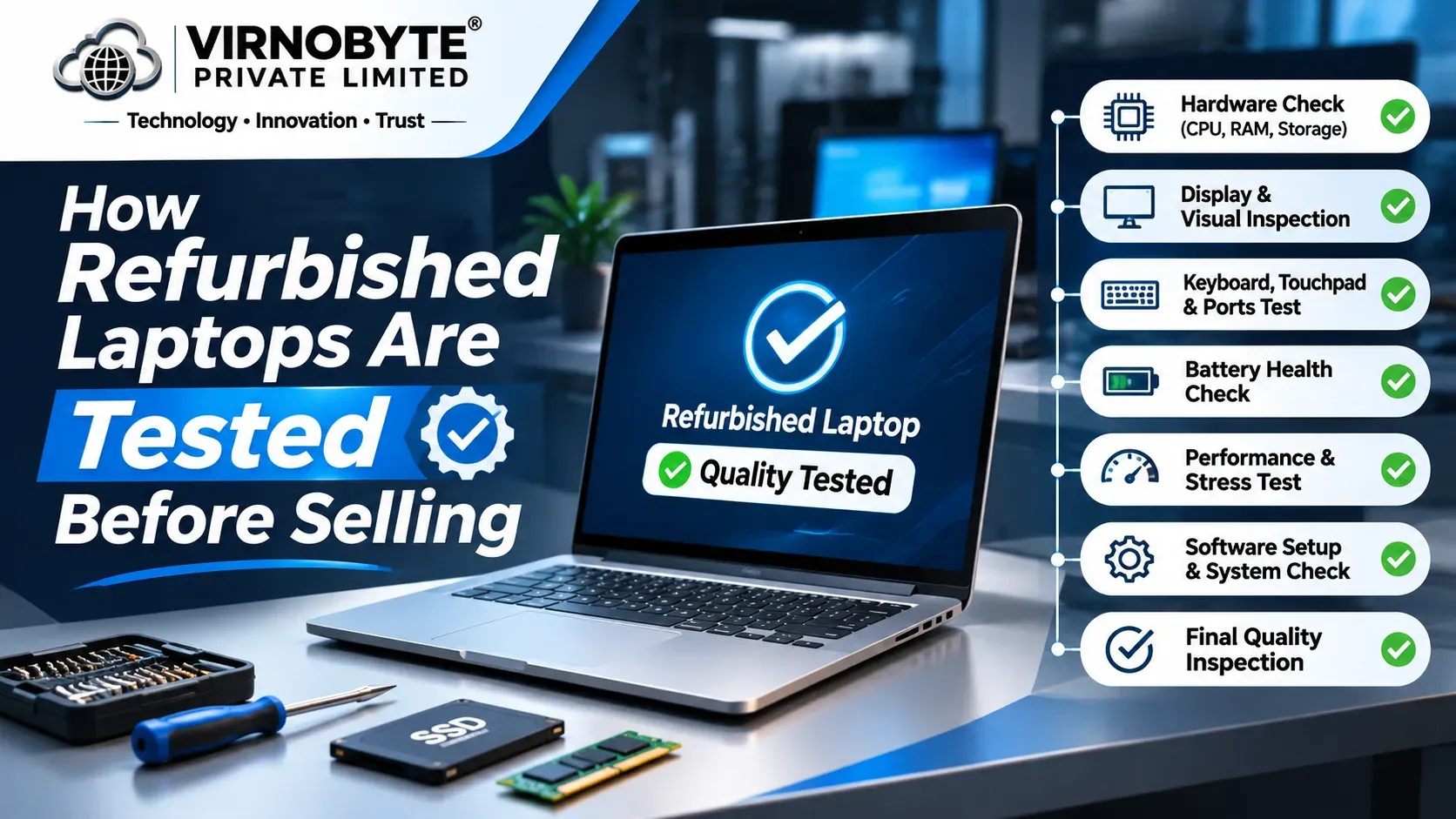
How Refurbished Laptops Are Tested Before Selling
Explore the inspection and testing process behind refurbished laptops, from processor and RAM checks to battery health, SSD performance, display quality and final quality control.
Buying a refurbished laptop can be a smart option for students, working professionals, businesses and home users who want a capable computer without paying the full price of a new device. However, one important question comes to mind before purchasing: How are refurbished laptops tested before selling?
A laptop may look clean from the outside, but its internal components could have hidden problems. The battery may have lost capacity, the SSD may be unhealthy, the keyboard may have faulty keys, or the cooling system may not work properly.
That is why proper inspection and testing are important before a refurbished laptop is offered for sale. A responsible refurbishment process should include physical inspection, hardware diagnostics, component testing, software checks and final quality control.

1. What Is the Refurbished Laptop Testing Process?
Refurbished laptop testing is a process of inspecting a previously owned laptop to understand its condition and identify components that need attention.
Depending on the seller's refurbishment standards, the process may include:
- Physical and cosmetic inspection
- Processor and motherboard checks
- RAM testing
- SSD or hard drive health checks
- Battery health assessment
- Display and graphics testing
- Keyboard and touchpad testing
- USB, HDMI and charging port testing
- Wi-Fi, Bluetooth, webcam and microphone checks
- Cooling fan and temperature testing
- Operating system and driver checks
- Final cleaning and quality inspection
2. Step One: Physical and Cosmetic Inspection
The first stage is checking the laptop's external condition. A technician inspects the body for visible damage, signs of rough handling and possible indications of previous repairs.
What is checked?
- Cracks, dents and scratches on the laptop body
- Display frame and screen bezel condition
- Hinges and screen opening mechanism
- Bottom cover and screws
- Keyboard and touchpad condition
- Rubber feet and ventilation openings
- Charging port and other external connectors
- Signs of liquid damage or corrosion
A laptop with a damaged hinge, cracked body or loose charging port may require repair before it is suitable for resale. Cosmetic wear should also be described honestly so the buyer understands the laptop's appearance.
Why is this inspection important?
External damage can sometimes indicate an internal problem. For example, a laptop that has suffered a strong impact may have damage to its display, hinges, connectors or motherboard. A physical inspection helps identify issues that software diagnostics cannot detect.
3. Step Two: Processor and Motherboard Testing

The processor (CPU) and motherboard are two important parts of a laptop. They affect overall performance, stability and the ability to operate other components.
Processor checks
- Verify the exact processor model and generation.
- Check whether the processor is correctly recognised by the operating system.
- Run suitable performance or stress tests where appropriate.
- Monitor processor temperature during testing.
- Look for unexpected shutdowns, freezes or performance drops.
Motherboard checks
- Check whether the laptop starts consistently.
- Inspect visible areas for corrosion or physical damage.
- Check charging and power behaviour.
- Test connected components and ports.
- Look for unexpected restarts or system instability.
A laptop should be tested under suitable operating conditions. Simply switching it on does not prove that the motherboard and processor are fully functional.
4. Step Three: RAM Testing
RAM, or Random Access Memory, helps a laptop run multiple applications. Faulty memory can cause system crashes, blue screen errors, freezing and unexpected restarts.
How is RAM tested?
- Check the installed RAM capacity.
- Verify the RAM type and supported speed where relevant.
- Confirm that the operating system detects the installed memory.
- Run a suitable memory diagnostic test.
- Check for memory errors and system instability.
Windows Memory Diagnostic is one built-in option. More advanced memory testing tools may also be used by technicians.
Recommended RAM for different users
| RAM | Typical Usage | General Guidance |
|---|---|---|
| 4GB | Very basic computing | Limited for modern multitasking |
| 8GB | Office work and browsing | Practical entry-level target |
| 16GB | Programming and multitasking | Good general-purpose target |
| 32GB | Heavy development and specialist applications | Useful for demanding workloads |
RAM requirements depend on the user's software and workload. A technician should also check whether the memory is upgradeable, especially in thin laptops with soldered RAM.
5. Step Four: SSD and Hard Drive Health Testing
Storage is another important component. A laptop with an unhealthy SSD or hard drive can experience slow performance, file errors, system crashes and boot problems.
During storage testing, a technician may check:
- SSD or hard drive detection
- Available storage capacity
- SMART health information
- Reported errors or warnings
- Read and write performance
- Unusual noises from mechanical hard drives
- Operating system boot behaviour
Tools used for storage testing
Utilities such as CrystalDiskInfo can display SMART information for supported drives. Other diagnostic tools may be used to check storage performance and errors.
Why is an SSD preferred?
Many refurbished laptops are upgraded with SSD storage because SSDs generally provide faster boot times and application loading than traditional mechanical hard drives.
For many everyday users, a 256GB or 512GB SSD can be a practical configuration. The right capacity depends on how much software and data the user needs to store.
6. Step Five: Battery Health Testing

The battery is one of the components that can lose performance through normal use and ageing. Even if a laptop works properly while connected to its charger, the battery may have reduced capacity.
Battery tests may include:
- Checking whether the battery is detected correctly.
- Comparing design capacity with full charge capacity.
- Checking battery cycle count when the device reports it.
- Testing charging and discharging behaviour.
- Checking for unexpected shutdowns.
- Inspecting the battery for swelling or physical damage.
How to generate a Windows battery report
A Windows battery report can be generated using Command Prompt.
Command:
powercfg /batteryreport
Windows creates an HTML report showing available battery information, including design capacity and full charge capacity when reported by the system.
For example, if the original design capacity is 50,000 mWh and the current full charge capacity is 35,000 mWh, the reported full charge capacity is approximately 70% of the design capacity.
This calculation helps estimate battery wear, but actual runtime still depends on workload, brightness, power settings and battery condition.
7. Step Six: Display and Graphics Testing
The display is one of the most frequently used parts of a laptop. A refurbished laptop should be checked for screen defects before being offered for sale.
Display inspection includes:
- Dead or stuck pixels
- White spots and dark patches
- Screen flickering
- Vertical or horizontal lines
- Uneven brightness
- Colour distortion
- Backlight problems
- Display resolution and refresh rate recognition
Graphics testing
The graphics processor (GPU) is responsible for displaying images and handling graphics-related tasks. A technician may verify that integrated or dedicated graphics are detected correctly and check for display glitches under suitable workloads.
Students and professionals who use AutoCAD, video editing software, 3D modelling applications or design tools should pay particular attention to GPU specifications and software requirements.
8. Step Seven: Keyboard and Touchpad Testing
A faulty keyboard or touchpad can make a laptop difficult to use. These components should be checked individually.
Keyboard inspection
- Test all alphabet and number keys.
- Check function keys and shortcut combinations.
- Test Enter, Shift, Ctrl, Alt and Spacebar.
- Check for sticky, loose or non-responsive keys.
- Test keyboard backlighting if available.
Touchpad inspection
- Check cursor movement.
- Test left and right clicks.
- Test supported multi-touch gestures.
- Check for delayed or irregular response.
A technician should also verify that the keyboard layout and touchpad drivers are working correctly.
9. Step Eight: USB, HDMI and Charging Port Testing
External ports are important for connecting accessories, projectors, external displays and storage devices. A laptop may work normally but still have one or more faulty ports.
Common port checks include:
- USB Type-A ports
- USB Type-C ports
- HDMI or DisplayPort output, where available
- Audio and headphone jack
- Ethernet port, if available
- SD card reader, if available
- Charging connector
USB ports can be checked using a compatible USB drive or accessory. Video output should be tested using a suitable external monitor or display.
10. Step Nine: Wi-Fi, Bluetooth, Webcam and Microphone Testing
Students, remote workers and business users rely on wireless connectivity and video communication. These functions should be tested before a refurbished laptop is sold.
Wi-Fi testing
- Confirm that the wireless adapter is detected.
- Connect to a Wi-Fi network.
- Check connection stability.
- Verify that the adapter driver is working.
Bluetooth testing
- Check whether Bluetooth is available.
- Pair a compatible Bluetooth device.
- Test basic connection stability.
Webcam and microphone testing
- Open the camera application and check video output.
- Test microphone input and recording.
- Check camera image quality and focus where supported.
- Verify that privacy shutters or camera switches are not obstructing the lens.
11. Step Ten: Cooling Fan and Temperature Testing

During normal operation, a laptop generates heat. Its cooling system uses fans, heat pipes and ventilation openings to control temperature.
Dust accumulation, blocked ventilation, worn fans or poor thermal contact can contribute to overheating.
Cooling system checks
- Check whether the fan operates when required.
- Listen for unusual fan noise.
- Inspect air vents for dust or obstruction.
- Monitor CPU and GPU temperatures under suitable workloads.
- Check for thermal throttling or unexpected shutdowns.
- Inspect cooling components where internal inspection is appropriate.
If cleaning or servicing is required, the technician may clean the cooling system and assess whether thermal paste or other components need attention.
12. Step Eleven: Operating System, Drivers and Software Testing
After hardware checks, the operating system and essential drivers should be inspected. A laptop with faulty drivers, an unstable operating system or incomplete installation may create problems for the next owner.
Software inspection includes:
- Checking operating system installation and activation status.
- Verifying important device drivers.
- Checking Device Manager for hardware errors.
- Testing basic system stability.
- Checking Wi-Fi, audio, camera and display drivers.
- Removing unnecessary previous-user accounts and personal data.
- Preparing the laptop for a new owner's setup.
Windows 11 compatibility
For laptops being sold in 2026, Windows compatibility is particularly important. Standard Windows 10 support ended on 14 October 2025. Buyers should check whether the exact laptop configuration meets Microsoft's official Windows 11 requirements.
These requirements include a supported processor, TPM 2.0, Secure Boot capability and other hardware conditions. Installing Windows 11 through an unsupported method does not make an older laptop officially compatible.
13. Step Twelve: BIOS, Security and Ownership Checks
A laptop may pass hardware tests but still have an ownership or security restriction. These checks are especially important for business-class refurbished devices.
Before resale, the seller should check:
- Whether a BIOS or firmware password is enabled.
- Whether the laptop is locked to a previous organisation.
- Whether Windows Autopilot or other organisation management enrollment applies.
- Whether previous user accounts and personal information have been removed.
- Whether the device is ready for a new owner's setup.
For a used MacBook, the previous owner's Apple Account and Activation Lock must be properly removed. Buyers should also ask about any organisation-level device management enrollment.
14. Step Thirteen: Cleaning and Refurbishment
Once the inspection and necessary repairs are completed, the laptop may go through a cleaning and refurbishment stage.
Depending on its condition, this may include:
- Cleaning the keyboard and touchpad.
- Cleaning the display using suitable materials.
- Removing dust from ventilation openings.
- Cleaning the laptop body and exterior.
- Cleaning internal cooling components where necessary.
- Replacing defective components where repair is appropriate.
- Checking the charger and accessories.
Cleaning improves presentation, but it should never be confused with a complete hardware inspection. A visually clean laptop can still have internal faults.
15. Step Fourteen: Final Quality Control Before Selling
Final quality control is the last stage before a laptop is approved for sale. The device should be checked again after any repairs, upgrades or cleaning work.
A final inspection may include:
- Power-on and restart testing.
- Operating system boot testing.
- Keyboard and touchpad verification.
- Display and connectivity checks.
- Battery and charging checks.
- Storage and memory verification.
- Checking the charger and included accessories.
- Confirming the listed processor, RAM and SSD specifications.
- Recording visible cosmetic defects.
- Confirming invoice and written warranty details.
Some sellers also prepare a testing report or checklist. Ask whether a report is available and what it covers.
16. Refurbished Laptop Testing Checklist
Here is a practical checklist that buyers can use when inspecting a refurbished laptop.
| Testing Area | What to Check | Importance |
|---|---|---|
| Physical condition | Body, hinges, screws and damage | High |
| Processor | Exact model, detection and stability | High |
| RAM | Capacity and memory errors | High |
| SSD / HDD | Health information and performance | High |
| Battery | Capacity, charging and physical condition | High |
| Display | Pixels, brightness and flickering | High |
| Keyboard | All keys and function buttons | High |
| Touchpad | Movement, clicks and gestures | Medium |
| Ports | USB, HDMI and charging | High |
| Connectivity | Wi-Fi and Bluetooth | High |
| Camera and audio | Webcam, speakers and microphone | Medium |
| Cooling | Fan, temperature and airflow | High |
| Software | OS, drivers and activation | High |
| Security | BIOS password and device management | High |
| Final QC | Boot, restart and overall functionality | High |
17. How Long Does Refurbished Laptop Testing Take?
The time required depends on the laptop's condition, the number of tests, the diagnostic process and whether repairs or component replacements are needed.
A basic inspection may be relatively quick, while more detailed testing can take longer. Battery assessment, memory diagnostics, storage checks and extended stability testing may require additional time.
If a laptop needs a replacement keyboard, battery, SSD or other component, the total refurbishment process will also depend on parts availability and repair requirements.
There is no universal testing duration for every refurbished laptop. A seller should explain which tests were completed rather than promising that every device follows the same fixed process.
18. How Can Buyers Identify a Properly Tested Refurbished Laptop?
Customers can take a few practical steps to understand whether a laptop has been inspected properly.
- Ask for the exact processor, RAM and SSD specifications.
- Request battery health information where available.
- Ask whether the SSD has been checked for health warnings.
- Test the keyboard, display, webcam and ports yourself.
- Check Windows activation and device management status.
- Ask whether the laptop has undergone hardware diagnostics.
- Request a purchase invoice and written warranty.
- Confirm the warranty coverage and claim process.
Do not rely only on labels such as "A Grade", "Premium Refurbished" or "Like New". Ask the seller what those terms mean and which tests support the description.
19. Frequently Asked Questions (FAQs)
1. Are refurbished laptops tested before selling?
Many responsible sellers inspect and test refurbished laptops before resale. However, the testing process varies between sellers. Ask for details of the actual checks performed.
2. What is checked in a refurbished laptop?
Common checks include the processor, motherboard, RAM, SSD, battery, display, keyboard, touchpad, ports, Wi-Fi, Bluetooth, cooling system and operating system.
3. How do I check the battery health of a refurbished laptop?
On Windows, run powercfg /batteryreport in Command Prompt. The report can show design capacity and full charge capacity when supported by the device.
4. How do I check whether a refurbished laptop SSD is healthy?
Use a suitable SMART monitoring utility, such as CrystalDiskInfo, to inspect available health information, errors and warnings. A good status does not guarantee future reliability.
5. Is a refurbished laptop as good as a new laptop?
Not necessarily. A refurbished laptop has previous usage history and may show wear. Its condition depends on the original device, inspection, repairs, replacement parts and seller's standards.
6. Does every refurbished laptop get a new battery?
No. Battery replacement policies differ between sellers. Ask whether the original battery is retained or replaced and request information about its current condition.
7. Can I test a refurbished laptop before buying it?
If buying in person, ask the seller whether you can inspect and test the laptop. Check its screen, keyboard, ports, Wi-Fi, battery, specifications and general operation.
8. What is the difference between used and refurbished laptops?
A used laptop is generally resold in its existing condition. A refurbished laptop may have undergone inspection, cleaning, repair or component replacement, but the exact process depends on the seller.
9. Do refurbished laptops come with a warranty?
Some refurbished laptops are sold with a warranty, but coverage varies. Confirm the duration, covered components, exclusions and claim process in writing.
10. What is the most important test before buying a refurbished laptop?
There is no single test that proves a laptop is fully reliable. Processor, RAM, storage, battery, display, cooling, ports, security and overall stability should all be considered.
20. Conclusion: Testing Makes a Difference
A refurbished laptop should be more than a previously used device with a clean exterior. Proper inspection and testing help identify problems, verify specifications and give customers a clearer understanding of the laptop's condition.
From processor and RAM checks to SSD health, battery capacity, display quality, keyboard, ports, cooling and software verification, every important area deserves attention.
Before buying, ask the seller about the testing process, inspect the actual device, verify its configuration and obtain written warranty details. A careful purchase decision can help you choose a refurbished laptop that suits your budget and daily requirements.
Looking for Refurbished Laptops in Pune?
Virnobyte Pvt. Ltd. provides computer and laptop-related solutions, including refurbished laptop options, laptop and desktop repair, hardware upgrades, accessories, networking and IT support.
Planning to buy a refurbished laptop for college, office work, programming or business use? Contact Virnobyte to enquire about currently available models, configurations and applicable warranty details.
VIRNOBYTE PVT. LTD.
Technology • Innovation • Trust
Phone: 8669883332
Email: info@virnobyte.com
Website: www.virnobyte.com
Address: Sadichha Complex, Sawtamali Temple Road, Jadhavwadi, Chikhali, Pune – 411062, Maharashtra.
Contact us to discuss your laptop requirements and enquire about available options.
Related Articles
- Best Refurbished Laptops in India
- How to Check a Refurbished Laptop Before Buying
- Things to Check Before Buying a Used Laptop
- Is Buying a Refurbished Laptop Safe in India?
- Refurbished Laptop vs Second-Hand Laptop: Difference
- Best Refurbished Laptops for College Students
- Best Refurbished Dell Latitude Laptops in India
- Best Refurbished HP EliteBook Laptops in India