
Computer Power Supply Problems and Solutions
Is your computer facing power supply problems? Discover common PSU issues, warning signs, troubleshooting steps and solutions to fix unexpected shutdowns, restarts and power failures.
By Virnobyte Team · · 11 min read
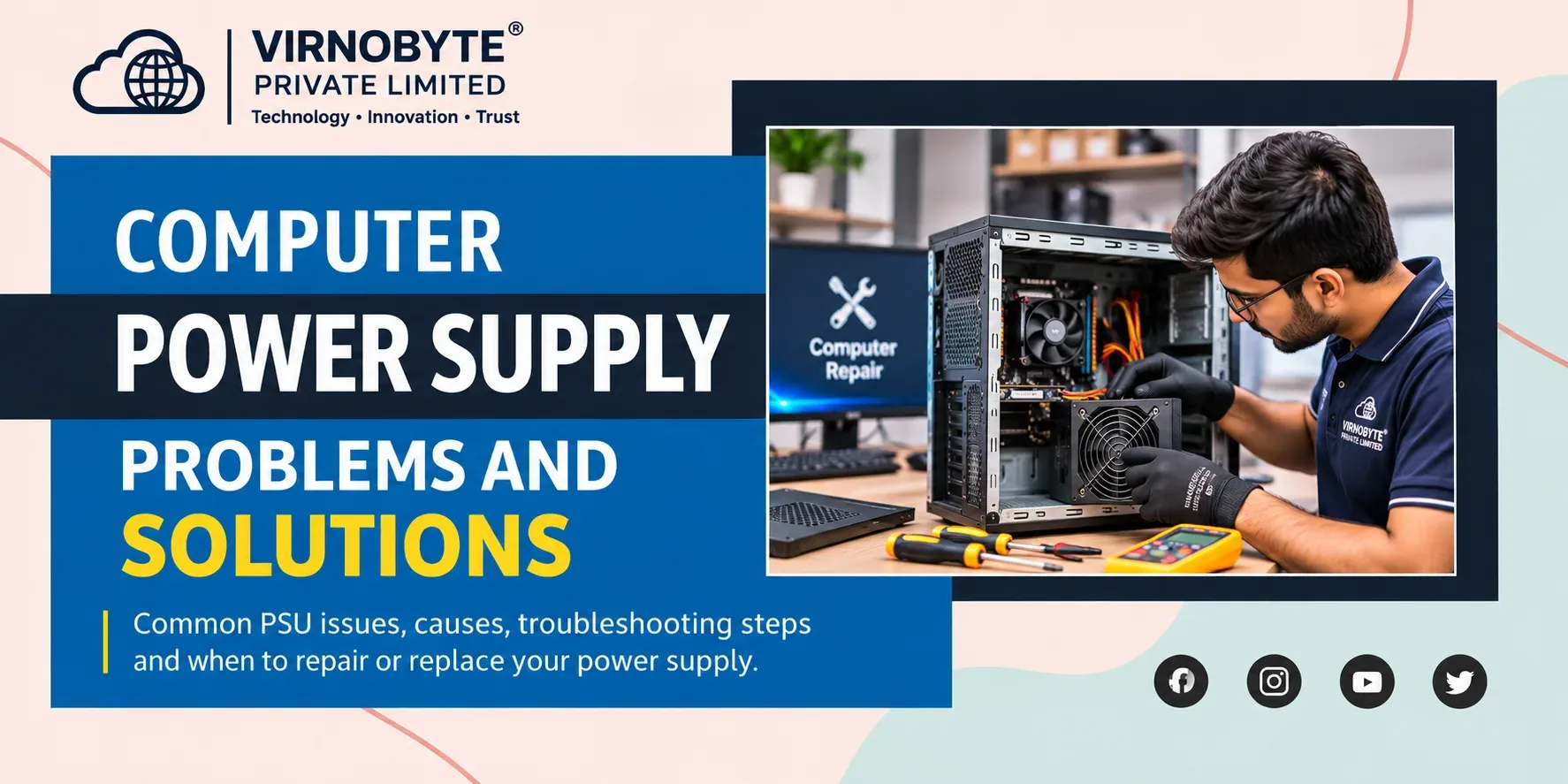
Computer Power Supply Problems and Solutions: Causes, Symptoms and Fixes
Is your desktop computer not turning on, restarting automatically or shutting down during gaming? A faulty power supply unit could be one possible reason. Learn how to identify PSU problems, troubleshoot common issues and choose the right solution.
A computer power supply is one of the most important components of a desktop system. It provides the electricity required by the motherboard, processor, graphics card, storage drives and cooling fans.
When the power supply develops a fault, your computer may not start, may shut down unexpectedly or may restart during demanding tasks. However, similar symptoms can also be caused by a faulty power cable, UPS, motherboard or overheating.
This guide explains common computer power supply problems and solutions, their warning signs, troubleshooting methods and preventive maintenance tips.

1. What Is a Computer Power Supply Unit (PSU)?
A Power Supply Unit, also known as a PSU or SMPS, converts electricity from the AC wall supply into regulated DC power that computer components can use.
Different components require different power connections. The PSU delivers the required power through dedicated cables and connectors.
Components powered by the PSU
- Motherboard: Supplies power to the main computer board.
- Processor (CPU): Receives power through a dedicated CPU connector.
- Graphics card (GPU): Some graphics cards require additional PCIe power connectors.
- Storage drives: SSDs and HDDs receive power through suitable connectors.
- Cooling fans: Cabinet fans and other connected cooling devices receive power.
- Other devices: Some internal controllers, pumps and accessories also require PSU power.
2. Common Signs of Computer Power Supply Problems
A faulty or unstable PSU can cause different symptoms. Understanding these signs can help you identify the possible source of the problem.
| Symptom | Possible Cause | Suggested Action |
|---|---|---|
| Computer does not turn on | Power cable, socket, PSU or motherboard issue | Check external power connections |
| Computer shuts down suddenly | PSU fault, overheating or unstable power | Check temperatures and power supply |
| Computer restarts randomly | Unstable power or another hardware fault | Arrange hardware diagnosis |
| Shutdown during gaming | High power demand, PSU limitation or overheating | Check GPU load and PSU capacity |
| Burning smell | Possible electrical or component damage | Switch off and unplug safely |
| Unusual buzzing or clicking | Fan or electrical issue | Get professional inspection |
Computer does not turn on
If you press the power button and nothing happens, the PSU may not be delivering power. However, a damaged cable, faulty wall socket, front-panel switch or motherboard can cause the same problem.
Computer shuts down automatically
Unexpected shutdowns can happen when a PSU is unstable or unable to support the system. Overheating and faulty hardware can also cause automatic shutdowns.
Computer restarts during gaming
Gaming increases processor and graphics card power consumption. If the power supply cannot reliably support the system, the computer may become unstable. Check the PSU requirements and system temperatures before replacing anything.
Burning smell or unusual noise
A burning smell, smoke, sparks or unusual electrical noise from the PSU area should be treated seriously. Stop using the computer and disconnect it from the power source if safe.
3. Main Causes of Computer Power Supply Problems
1. Faulty or ageing power supply
Electronic components can deteriorate over time. An ageing PSU may develop unstable output, fail to start or cause unexpected shutdowns.
2. Insufficient PSU wattage
A desktop with a powerful processor and dedicated graphics card may need more power than a basic office computer. An unsuitable PSU can cause instability under heavy workloads.
3. Poor-quality power supply
Very cheap or low-quality power supplies may not deliver stable power under demanding conditions. Choose a reputable unit with suitable protection features.
4. Loose or damaged power cables
A damaged AC cable or loose internal connector can interrupt power delivery. Inspect cables for visible damage and replace defective ones.
5. Dust accumulation and overheating
Dust can block the PSU's air intake and affect cooling. Excessive heat can contribute to hardware failure. Keep the cabinet clean and ensure proper airflow.
6. Electrical fluctuations
Unstable mains power, surges or problems with an extension board or UPS may affect computer operation. Consider suitable electrical protection for your setup.
7. Faulty UPS or extension board
Sometimes the PSU is working properly, but the UPS, extension board or wall socket is faulty. A suitable known-good power source can help identify the problem.

4. How to Troubleshoot Computer Power Supply Problems
Try these basic external checks before arranging a repair. Do not open the power supply or work on live electrical connections.
Step 1: Check the wall socket
- Check whether the wall socket is working.
- Test it with another suitable electrical device.
- Check whether the socket switch is turned on.
- Do not use a loose or damaged outlet.
Step 2: Inspect the power cable
- Check whether the power cable is firmly connected.
- Look for cuts, damaged insulation or bent connectors.
- If needed, try a known-good cable with the correct rating and connector.
- Never use a damaged cable.
Step 3: Check the rear PSU switch
Many desktop power supplies have a switch at the back. Check that it is set to ON, usually marked with the symbol I. The symbol O indicates OFF.
Step 4: Check the UPS or extension board
If your computer is connected through a UPS or extension board, check whether that device is functioning correctly. If safe and appropriate, test using a known-good wall outlet and suitable power connection.
Step 5: Disconnect unnecessary external devices
Switch off and unplug the computer before disconnecting unnecessary peripherals. Remove external drives, USB hubs and printers, then try starting the computer with only essential connections.
Step 6: Check for overheating
If the computer switches off after running for some time, overheating may be responsible. Check cabinet ventilation and have the CPU and GPU cooling systems inspected if necessary.
Step 7: Get the PSU tested professionally
If the external checks do not solve the problem, a technician can test the PSU using suitable equipment and check the computer with a known-good compatible power supply. This helps distinguish PSU faults from motherboard, GPU or other hardware problems.
5. How to Know Whether Your PSU Needs Replacement
Not every shutdown or restart means the power supply needs replacement. A proper diagnosis is important because motherboard, RAM, graphics card and overheating problems can produce similar symptoms.
A replacement may be necessary when testing confirms that:
- The PSU does not start or deliver power correctly.
- Its output is unstable or outside manufacturer specifications.
- The unit has visible damage or evidence of electrical failure.
- It cannot reliably support the computer's hardware requirements.
- The manufacturer recommends replacement after a confirmed fault.
Before purchasing a replacement, confirm the required form factor, physical dimensions, wattage, connectors and compatibility with the motherboard and graphics card.
6. How to Choose the Right Power Supply
Choosing the correct PSU is important for computer stability and long-term reliability. Do not select a power supply based only on its advertised wattage.
Important factors to consider
- Wattage: Meet the system manufacturer's recommendations and allow suitable headroom.
- CPU and GPU requirements: Check the recommended PSU capacity for your processor and graphics card.
- Connectors: Confirm the required motherboard, CPU and GPU power connectors.
- Form factor: Ensure the PSU fits your cabinet, such as ATX or another supported size.
- Efficiency: Consider an appropriate efficiency certification. Certification alone does not guarantee overall quality.
- Protection features: Look for over-voltage, under-voltage, over-current and short-circuit protection.
- Brand and warranty: Choose a reputable manufacturer and check its official warranty terms.

7. How to Prevent Computer Power Supply Problems
Regular maintenance and proper electrical practices can help reduce the risk of PSU-related problems.
- Keep the cabinet clean: Remove dust from filters and ventilation areas regularly.
- Maintain airflow: Keep the computer away from enclosed spaces that restrict ventilation.
- Use suitable electrical protection: Consider a properly rated UPS or surge protector.
- Avoid overloading: Do not exceed the capacity of electrical outlets, extension boards or UPS devices.
- Choose a quality PSU: Avoid unsuitable low-quality power supplies.
- Check cables: Replace damaged power cables and avoid loose connections.
- Check hardware compatibility: Review PSU requirements before upgrading your graphics card or other components.
- Maintain backups: Sudden power loss can cause data corruption. Back up important files regularly.
8. Can a Faulty Power Supply Damage Other Components?
Yes. A seriously faulty or poorly designed power supply can potentially damage connected computer components. Unstable output, electrical faults or inadequate protection may affect the motherboard, graphics card, storage drives and other hardware.
However, not every PSU failure damages other components. The result depends on the type of failure and the protection features of the unit.
If you suspect a PSU fault, stop using the computer until it has been inspected. Avoid repeatedly switching it on to see whether it works.
9. When Should You Contact a Computer Repair Technician?
Basic external checks are useful, but internal power supply diagnosis should be handled by someone with suitable knowledge and equipment.
Contact a computer repair technician if:
- Your desktop does not turn on after checking external power connections.
- The computer shuts down repeatedly without warning.
- Your system restarts during gaming or demanding work.
- You notice a burning smell, sparks or smoke.
- You suspect a faulty PSU, motherboard or internal power connector.
- You need help selecting and installing a compatible replacement PSU.

10. Frequently Asked Questions
1. What are the common symptoms of a faulty computer power supply?
Common symptoms include a computer that does not turn on, unexpected shutdowns, random restarts, instability during gaming and unusual electrical smells or sounds. Other hardware faults can cause similar symptoms.
2. Can a faulty PSU cause a computer to restart automatically?
Yes. An unstable or failing PSU can cause unexpected restarts. Overheating, faulty RAM, motherboard issues and software problems can also cause automatic restarts.
3. How do I know if my computer power supply is dead?
If the computer shows no signs of power after checking the wall socket, cable and PSU switch, the PSU may have failed. A technician should test it before confirming the diagnosis.
4. Can a low-wattage PSU cause computer shutdowns?
Yes. If a power supply cannot reliably meet the computer's power requirements, the system may become unstable or shut down during demanding tasks.
5. Why does my computer turn off while gaming?
Gaming increases CPU and GPU power demand. A PSU that cannot support the system, overheating or another hardware problem may cause shutdowns.
6. Should I repair or replace a faulty PSU?
For most users, replacing a faulty PSU with a compatible, good-quality unit is the safer and more practical option. Internal PSU repairs should only be performed by appropriately qualified professionals.
7. Is it safe to open a computer power supply?
No. A PSU can retain dangerous electrical charge even after unplugging. Do not open its casing or touch internal circuitry.
8. Does a PSU fan not spinning mean the power supply is faulty?
Not necessarily. Some modern power supplies use zero-RPM or semi-passive fan modes, where the fan remains off under low loads. Check the manufacturer's specifications.
9. Can a UPS cause desktop power problems?
Yes. A faulty, overloaded or incompatible UPS may interrupt power or cause instability. Check its condition, load capacity and compatibility.
10. Can I use any power supply in my desktop computer?
No. Check the PSU's form factor, dimensions, wattage, connectors and compatibility with your motherboard, processor and graphics card before purchasing.
Conclusion
Computer power supply problems can cause anything from a desktop that refuses to start to unexpected shutdowns during demanding work. Checking the power cable, wall socket, UPS and PSU switch is a good starting point. If the issue continues, professional diagnosis can help determine whether the PSU or another component is responsible.
Always choose a reliable, compatible power supply and avoid opening the PSU yourself. Regular cleaning, suitable electrical protection and proper maintenance can also help keep your desktop computer running reliably.
Need Help with Desktop Computer Power Supply Problems?
Is your desktop computer not starting, restarting automatically or shutting down during use? Virnobyte Pvt. Ltd. provides computer hardware troubleshooting and desktop repair support. Contact us to enquire about PSU inspection, replacement and related computer hardware issues.
Virnobyte Pvt. Ltd.
Technology • Innovation • Trust
Phone: 8669883332
Email: info@virnobyte.com
Website: www.virnobyte.com
Address: Sadichha Complex, Sawtamali Temple Road, Jadhavwadi, Chikhali, Pune – 411062, Maharashtra.