
Laptop Battery Draining Fast: How to Fix It
Is your laptop battery draining fast? Discover common causes, battery-saving tips and practical solutions to improve laptop battery life and performance.
By Virnobyte Team · · 11 min read

Laptop Battery Draining Fast? Causes and How to Fix It
Does your laptop battery drop from 100% to 30% in a short time? Do you need to keep your charger connected throughout the day? Fast battery draining can affect productivity, work and everyday laptop usage.
Discover the common reasons behind laptop battery drain, practical Windows settings to improve battery life, and signs that your laptop battery may need replacement.
A laptop is designed to provide portability, allowing you to work, study, browse the internet and attend online meetings without constantly connecting it to a power source. However, when the battery starts draining unusually fast, using the laptop away from a charger becomes difficult.
Some battery problems are caused by high screen brightness, background applications, heavy software or incorrect power settings. In other cases, the battery may have lost its original capacity because of age and repeated use.
Before purchasing a replacement battery, it is important to understand why the laptop is losing power quickly. This guide explains how to identify the problem and what you can do about it.

1. Why Is Your Laptop Battery Draining So Fast?
There is no single reason for fast battery drain. The cause may be related to software, hardware, battery condition or the way the laptop is being used.
Laptop batteries lose capacity as they age and go through charging cycles.
A bright display can consume a significant amount of battery power.
Applications running continuously can use processor, memory and network resources.
Games, video editing and other demanding applications can increase power consumption.
Performance-focused power settings may use more energy than necessary.
High operating temperatures can affect battery performance and long-term battery health.
USB devices, external drives and other connected equipment may consume additional power.
Unusual background activity or system problems can increase power consumption.
2. How to Check Your Laptop Battery Health
Before changing settings or replacing the battery, check its current condition. Windows provides a built-in battery report that can help you understand the battery's original design capacity and its current full-charge capacity.
Generate a battery report in Windows
- Click the Windows Start button.
- Search for Command Prompt.
- Right-click Command Prompt and select Run as administrator.
- Type the following command:
powercfg /batteryreport
- Press Enter.
- Windows will generate a battery report and show the file location.
- Open the generated HTML file in your browser.
Understand the battery report
| Battery report term | What it means |
|---|---|
| Design Capacity | The battery's original rated capacity. |
| Full Charge Capacity | The capacity the battery can currently hold when fully charged. |
| Cycle Count | The number of equivalent full charge cycles, if reported by the device. |
| Battery Usage | Information about how the battery has been used over time. |
For example, if a battery originally had a design capacity of 50,000 mWh but its current full-charge capacity is 30,000 mWh, it can now store approximately 60% of its original rated capacity.
This is an illustration, not a universal replacement threshold. Actual battery condition should also be assessed using the manufacturer's diagnostics and the laptop's behaviour.
3. How to Fix a Laptop Battery Draining Fast
Try these practical steps to reduce unnecessary power consumption. Menu names may vary slightly depending on your Windows version and laptop model.
Fix 1: Reduce screen brightness
Your laptop display is one of the components that uses battery power. Keeping brightness unnecessarily high can reduce runtime.
- Open Windows Settings.
- Select System and then Display.
- Find the Brightness control.
- Reduce brightness to a comfortable level.
Use only the brightness you need for your surroundings.
Fix 2: Enable Battery Saver or Energy Saver
Windows includes power-saving features that help reduce background activity and unnecessary energy consumption.
- Open Settings.
- Select System.
- Open Power & battery.
- Find Energy saver or Battery saver, depending on your Windows version.
- Turn it on or configure it to activate automatically at a chosen battery level.
Fix 3: Change the power mode
Running your laptop in a high-performance mode all the time may use more power than necessary.
- Open Settings.
- Go to System and select Power & battery.
- Find the Power mode option.
- Choose Best power efficiency when longer battery life is more important than maximum performance.
Choose Balanced when you need a compromise between performance and battery usage.
Fix 4: Close unnecessary background applications
Some applications continue running even when you are not actively using them. This can increase power consumption.
- Press Ctrl + Shift + Esc to open Task Manager.
- Check the Processes section.
- Look for applications using unusually high CPU or GPU resources.
- Close applications you recognise and are not using.
Do not end unfamiliar Windows system processes simply because they use resources. Some are required for normal operation.
Fix 5: Reduce screen and sleep timeout
If your display remains switched on when you are away from your laptop, it continues using power.
- Open Settings.
- Select System and then Power & battery.
- Open Screen, sleep & hibernate timeouts.
- Choose a shorter screen-off time when running on battery.
- Set a suitable sleep time when the laptop is inactive.
Fix 6: Turn off Wi-Fi and Bluetooth when not needed
Wireless connections can consume power. If you are working offline and do not need wireless connectivity, turn off Wi-Fi or Bluetooth.
If you do not need any wireless connection, Airplane mode may also help reduce power consumption.
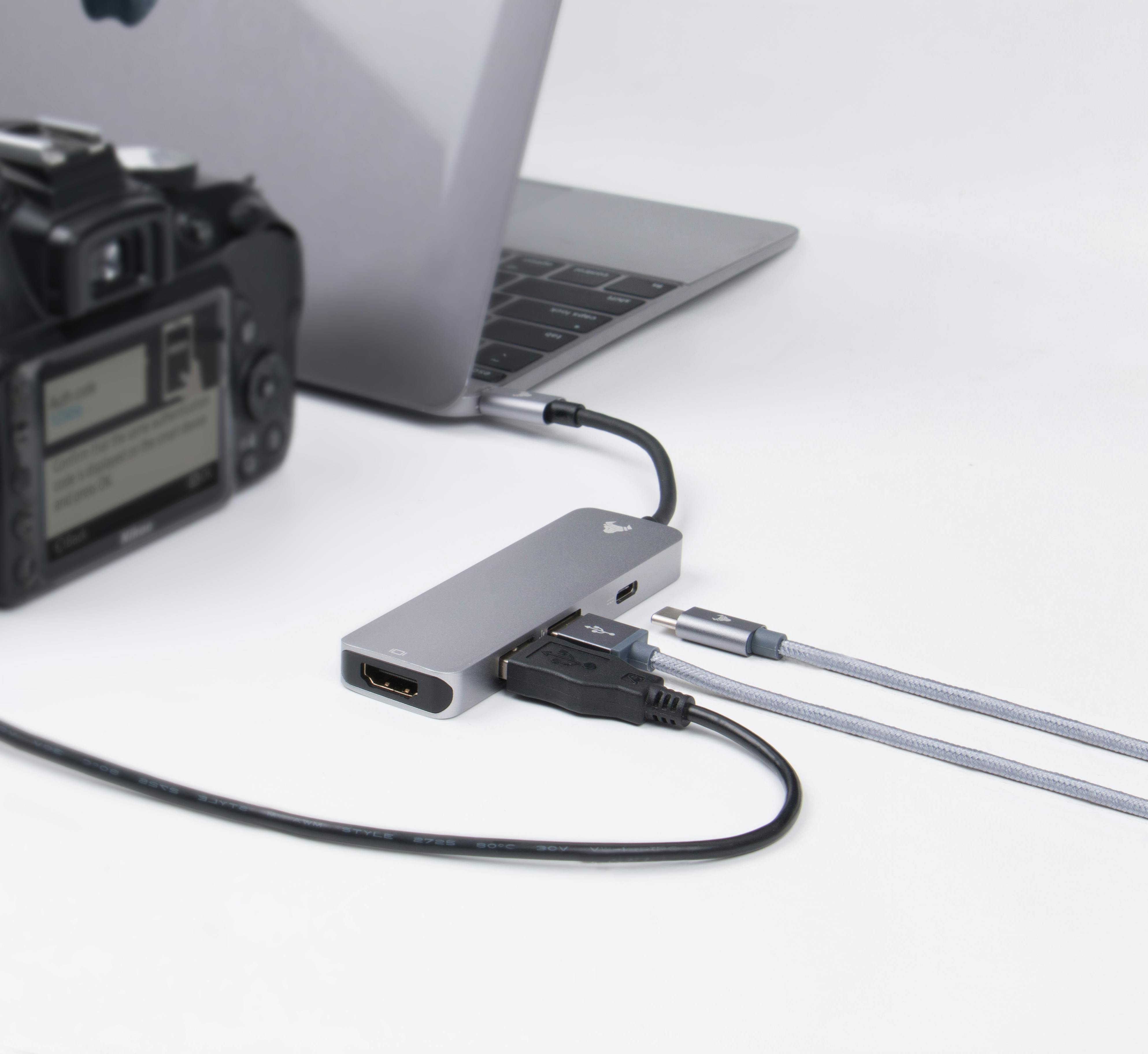
Fix 7: Disconnect unused USB devices
External hard drives, USB accessories, mobile phones and other connected devices may draw power from the laptop.
- Disconnect devices you are not using.
- Remove unused USB storage devices safely.
- Check whether battery consumption improves.
Fix 8: Check for software and driver updates
Operating system issues or poorly behaving drivers can sometimes contribute to unusual power consumption.
- Open Windows Settings.
- Select Windows Update.
- Check for available updates.
- Install relevant updates and restart the laptop.
- Check your laptop manufacturer's support page for model-specific BIOS and driver updates.
Only install BIOS updates intended for your exact laptop model, and follow the manufacturer's instructions. Keep the laptop connected to a reliable power source during a BIOS update.
4. Does Your Laptop Battery Need Replacement?
Power-saving settings can reduce energy consumption, but they cannot restore capacity that a worn-out battery has permanently lost.
Consider a professional battery inspection if you notice the following symptoms:
- The battery percentage drops unusually quickly even during light usage.
- The laptop switches off unexpectedly while showing remaining battery charge.
- The battery report shows substantially reduced full-charge capacity.
- The laptop runs normally only when connected to its charger.
- The operating system or manufacturer diagnostics report a battery fault.
- The battery does not charge correctly or shows unusual charging behaviour.
5. How to Improve Laptop Battery Life in Daily Use
Good daily habits can help reduce unnecessary power consumption and support long-term battery care.
Avoid keeping the display at maximum brightness when it is not needed.
Use a power-saving mode for browsing, reading and office tasks.
Use a hard, flat surface and keep ventilation openings clear.
Reduce unnecessary background applications and demanding processes.
Follow the manufacturer's charging and adapter recommendations.
Review battery health periodically and investigate sudden changes.
6. Common Laptop Battery Myths
Myth 1: You must drain the battery to 0% before charging
This is not necessary for modern lithium-ion laptop batteries. Repeatedly allowing the battery to become completely empty is not a recommended everyday charging habit.
Myth 2: Keeping a laptop plugged in always damages the battery
Charging behaviour depends on the laptop's battery management system. Many modern laptops include charging management features. Follow the manufacturer's recommendations, especially if your device offers a battery charge limit or battery health mode.
Myth 3: Battery-saving software can restore an old battery
Power-saving settings can reduce energy consumption, but they cannot restore the original physical capacity of an aged battery.
Myth 4: Every fast-draining battery needs replacement
Not always. High brightness, background processes, gaming, performance settings and software issues can also contribute to fast battery drain. Diagnosis should come before replacement.
7. When Should You Visit a Laptop Repair Technician?
If your battery continues draining quickly after you have checked power settings and background applications, the problem may require hardware diagnosis.
A technician can inspect the battery, charging adapter, charging port and power-related components. They can also help determine whether the battery needs replacement or whether another fault is affecting power consumption.
A proper diagnosis is important because replacing a battery without identifying the actual problem may not solve the issue.
8. Laptop Battery and Repair Services in Pune – Virnobyte
If your laptop battery is draining unusually fast, not charging correctly or causing unexpected shutdowns, professional inspection can help identify the cause.
Virnobyte Pvt. Ltd. provides laptop and desktop repair and computer support services in Chikhali, Pune. Our services include hardware troubleshooting, laptop repair, SSD and RAM upgrades, software support, networking solutions and IT support for businesses.
Whether you are experiencing poor battery backup, charging problems or suspected battery deterioration, contact Virnobyte to enquire about diagnosis and service availability.
Customers from Chikhali, Jadhavwadi, Moshi, Duddulgaon, Bhosari and nearby Pimpri-Chinchwad areas can contact us for computer service enquiries.
Is Your Laptop Battery Draining Too Quickly?
Contact Virnobyte for laptop troubleshooting and repair enquiries in Pune.
VIRNOBYTE PVT. LTD.
Phone: 8669883332
Email: info@virnobyte.com
Website: www.virnobyte.com
Address: Sadichha Complex, Sawtamali Temple Road, Jadhavwadi, Chikhali, Pune – 411062, Maharashtra.
Technology • Innovation • Trust
9. Frequently Asked Questions
Why is my laptop battery draining so fast?
Common reasons include an aged battery, high screen brightness, background applications, heavy software, performance settings and excessive heat.
How can I make my laptop battery last longer?
Reduce screen brightness, enable Energy Saver, close unnecessary applications, shorten screen timeout and choose an efficient power mode.
How do I check laptop battery health in Windows?
Open Command Prompt as administrator and run powercfg /batteryreport. Open the generated HTML report to review design capacity and full-charge capacity.
Can a laptop battery be repaired?
Battery repair is not generally a safe or appropriate DIY task. Depending on the fault, a technician may recommend replacing the battery with a compatible unit.
Why does my laptop battery drain even when it is switched off?
Possible reasons include incomplete shutdown, sleep or standby behaviour, connected devices, firmware settings or battery deterioration. Check the shutdown settings and manufacturer power options, and arrange diagnosis if the drain continues.
How long should a laptop battery last?
Battery runtime varies considerably depending on the laptop model, battery capacity, age, screen, workload and power settings. Compare your current runtime with the manufacturer's specifications and the laptop's previous performance.
Does high temperature affect laptop battery life?
Yes. Excessive heat can affect lithium-ion battery performance and accelerate long-term battery ageing. Keep the laptop's cooling vents clear and avoid using it on soft surfaces that block airflow.
Should I replace my laptop battery if it drains quickly?
Only after checking its condition and ruling out unnecessary power consumption or charging problems. A battery report and professional inspection can help determine whether replacement is appropriate.
Conclusion
A laptop battery draining fast can be caused by everyday power consumption, software issues, heat or natural battery ageing. Start by checking battery health, reducing brightness, enabling power-saving settings and closing unnecessary background applications.
If the battery continues losing charge unusually quickly, or the laptop shuts down unexpectedly, arrange a professional inspection before purchasing a replacement battery.
For laptop repair and computer support enquiries in Pune, contact Virnobyte Pvt. Ltd.