
Things to Check Before Buying a Used Laptop
Learn the essential things to check before buying a used laptop in India. Explore processor, RAM, SSD health, battery life, display, keyboard, warranty and seller verification tips to avoid costly mistakes.
By Virnobyte Team · · 14 min read
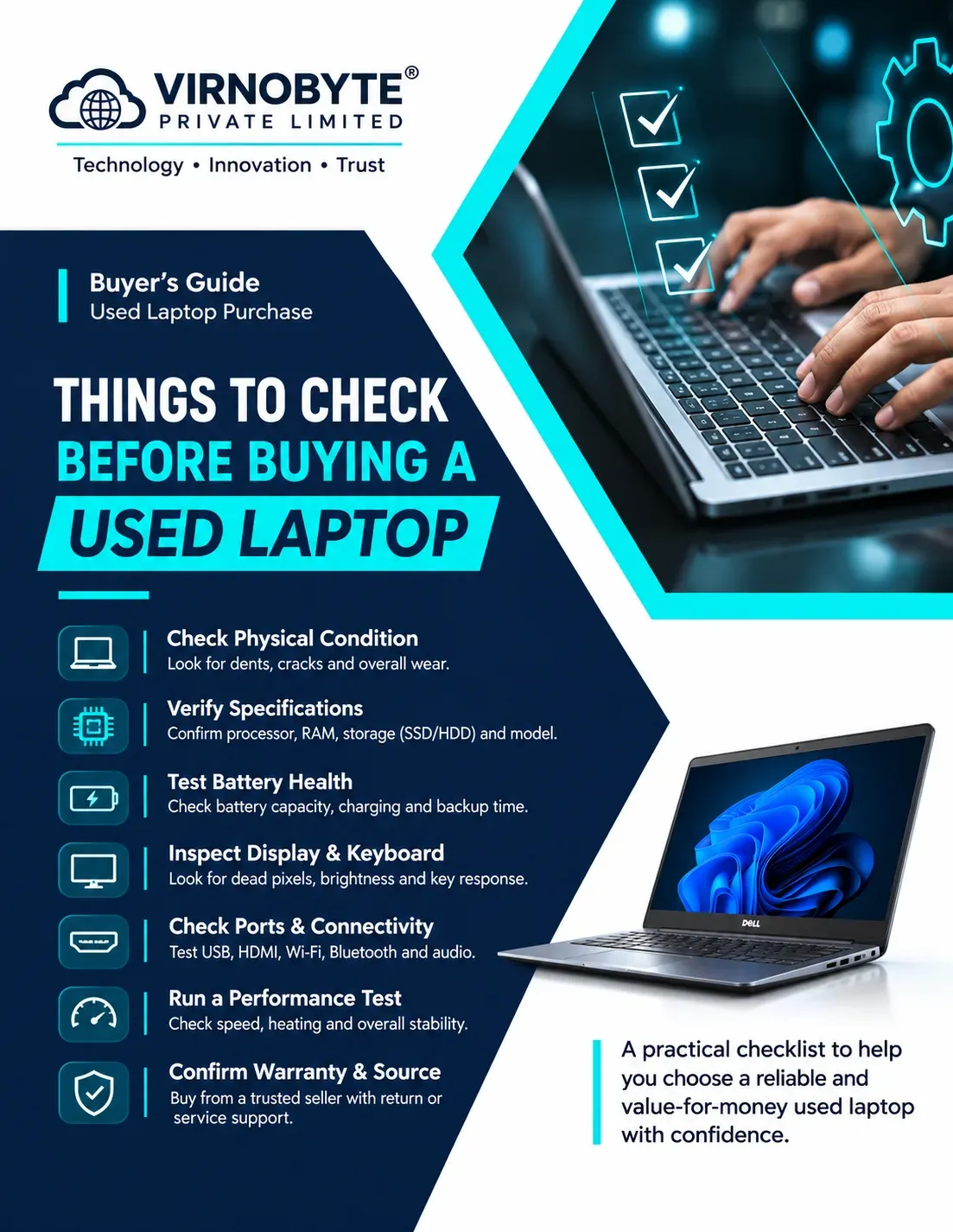
Things to Check Before Buying a Used Laptop
A practical checklist to inspect laptop performance, battery health, storage, display, keyboard and seller reliability before making your purchase.
Buying a used laptop is a good option if you want to save money while getting a computer for studies, office work, business or everyday use. Many people in India choose second-hand laptops because they can find popular brands such as Dell, HP and Lenovo at lower prices than new models.
However, buying a used laptop without proper inspection can lead to unexpected expenses. A laptop may look clean but have a weak battery, damaged display, faulty charging port or slow storage drive.
Before making payment, you should inspect the laptop carefully and test its important components. In this guide, we explain the 20 important things to check before buying a used laptop in India.

Inspect the laptop carefully before deciding to purchase it.
1. Check the Laptop Brand and Model
Start by identifying the exact laptop brand and model. Do not select a laptop only because it has a popular brand name.
Popular brands in the used laptop market include:
- Dell Latitude and Inspiron series
- HP EliteBook, ProBook and Pavilion series
- Lenovo ThinkPad, IdeaPad and ThinkBook series
- ASUS VivoBook and ZenBook series
- Acer Aspire and TravelMate series
For regular office and professional use, business laptop ranges such as Dell Latitude, HP EliteBook and Lenovo ThinkPad are worth comparing. However, the exact model, condition and specifications matter more than the brand alone.
2. Check the Processor and Generation
The processor is one of the most important components because it affects how smoothly your laptop runs applications.
Check the complete processor name and model number instead of looking only at labels such as Core i3, Core i5 or Core i7.
For example, two Intel Core i5 processors from different generations can have significantly different performance and power efficiency.
How to check the processor in Windows
- Turn on the laptop.
- Open Settings.
- Select System.
- Click About.
- Find the Processor details.
You can also press Windows + R, type msinfo32 and press Enter to open System Information.
3. Check RAM Capacity and Upgrade Options
RAM helps your laptop handle multiple applications at the same time. Insufficient RAM can make a computer feel slow when you open several browser tabs or applications.
| RAM | Typical Usage | Buying Advice |
|---|---|---|
| 4GB | Basic tasks and older software | Limited for modern multitasking |
| 8GB | Browsing, documents and online meetings | A practical starting point for everyday use |
| 16GB | Multitasking, programming and office applications | Good option for many professional users |
| 32GB or more | Heavy workloads and specialised applications | Consider if your software requires it |
Also check whether the RAM is upgradeable. Some laptops have soldered RAM, which cannot be upgraded easily.
4. Check SSD or Hard Disk Health
Storage affects boot time, application loading and file access. Many older laptops originally came with traditional hard disk drives (HDDs), while newer configurations commonly use SSDs.
An SSD generally provides faster everyday performance than a traditional HDD.
Before purchasing, check:
- Whether the laptop has an SSD or HDD.
- Available storage capacity.
- SSD health and SMART status.
- Whether Windows detects the drive correctly.
- Whether there are unusual noises from a mechanical hard drive.
You can use a trusted SMART monitoring tool, such as CrystalDiskInfo, to inspect supported storage drives. Review health indicators and error warnings rather than relying only on a single percentage.
5. Check Battery Health and Backup
Battery condition is one of the most important checks when buying a used laptop. Since the battery has already been used, its capacity may have reduced over time.
A laptop with poor battery health may work normally while connected to a charger but provide very little backup when unplugged.
How to generate a Windows battery report
- Turn on the laptop and open Command Prompt.
- Type the following command.
powercfg /batteryreport- Press Enter.
- Windows will generate a battery report and show its saved location.
- Open the report in your browser.
- Compare Design Capacity and Full Charge Capacity.
For example, if the original design capacity is 50,000 mWh and the current full charge capacity is 35,000 mWh, the battery has around 70% of its original capacity remaining.
Also test the laptop while unplugged. Battery backup depends on brightness, workload, battery age and power settings, so a short test cannot guarantee its full runtime.

Check the battery, charger and overall laptop condition before buying.
6. Inspect the Laptop Display
A damaged display can be expensive to replace, depending on the laptop model and screen type.
Carefully inspect the screen for:
- Dead or stuck pixels.
- Vertical or horizontal lines.
- Flickering or random brightness changes.
- White spots or pressure marks.
- Cracks or scratches.
- Uneven brightness or colour problems.
Open a plain white image and a dark image to make display problems easier to notice. Adjust the brightness and gently change the screen angle to check for flickering.
7. Test the Keyboard and Touchpad
Check every keyboard key, including function keys, arrow keys, Enter, Shift, Ctrl and the spacebar.
Open Notepad and type a few sentences to check whether all keys respond correctly.
Also test:
- Touchpad movement and clicking.
- Two-finger scrolling.
- Right-click functionality.
- Touchpad gestures, if supported.
- Keyboard backlight, if available.
Do not ignore sticky, missing or unresponsive keys. Keyboard replacement costs vary depending on the laptop model.
8. Check Laptop Hinges and Body Condition
Physical condition can tell you a lot about how a laptop has been used. Inspect the body carefully, especially the display hinges and corners.
Look for:
- Cracks near the hinges.
- Loose or stiff hinges.
- Broken plastic panels.
- Missing screws.
- Deep scratches or dents.
- Signs of liquid damage or corrosion.
- Damaged rubber feet.
Open and close the display gently. It should move smoothly without unusual cracking sounds or excessive looseness.
9. Test All USB and Other Ports
Ports are important for connecting external devices such as keyboards, mice, printers, monitors and storage drives.
Check the following wherever available:
- USB-A ports.
- USB-C ports.
- HDMI or DisplayPort.
- Headphone and microphone jack.
- Ethernet port.
- SD card reader.
- Charging port.
Carry a USB drive or mouse when inspecting the laptop. Test the ports instead of assuming they work because they look undamaged.
10. Check Wi-Fi, Bluetooth and Webcam
Connect the laptop to a Wi-Fi network and browse a website. Check whether the wireless connection remains stable.
Also test Bluetooth by connecting a compatible device. Open the Camera application to test the webcam and use a recording or meeting application to check the microphone and speakers.
11. Check Laptop Heating and Fan Noise
Some used laptops may have dust accumulation, blocked air vents or cooling system problems. These issues can cause overheating and unexpected shutdowns.
During inspection:
- Listen for unusual fan noise.
- Check whether air comes out of the cooling vents.
- Look for excessive heating during normal tasks.
- Check whether the laptop freezes or shuts down unexpectedly.
- Confirm that the fan does not make grinding or rattling sounds.
A laptop becoming warm during use is normal. However, excessive heat, repeated shutdowns or unusual fan noise should be investigated.
12. Check the Laptop Charger
Always inspect the charger supplied with the laptop. An incorrect or poor-quality charger can cause charging problems or damage the device.
Check:
- Whether the charger is compatible with the laptop model.
- Whether the charging cable has cuts or exposed wires.
- Whether the adapter becomes unusually hot.
- Whether the laptop charges consistently.
- Whether the charging connector is loose.
Ask the seller whether the charger is original or compatible. If it is a replacement, confirm its specifications and suitability for the laptop.
13. Check Windows Activation and Software
Make sure the laptop has a properly activated operating system and that the installed Windows edition is suitable for your needs.
To check activation:
- Open Windows Settings.
- Go to System.
- Select Activation.
- Check the activation status.
Also check whether unnecessary software, suspicious applications or unknown administrator accounts are installed. A fresh, legitimate operating system installation can help you start with a clean system.
14. Check BIOS Password and Ownership Locks
This is an important check that many buyers overlook. Some business laptops may have BIOS administrator passwords or organisation management restrictions.
Before purchasing:
- Restart the laptop and check whether BIOS or UEFI settings are accessible.
- Ask the seller to confirm there is no unknown administrator password.
- Check whether the laptop is enrolled in organisation management.
- Confirm that the device is not reported lost or stolen.
- Ask for a proper invoice and ownership confirmation.
For a MacBook, confirm that the previous owner's Apple Account has been removed and Activation Lock is disabled. Also check for organisation or mobile device management enrollment.
15. Check the Laptop's Serial Number
Find the serial number on the laptop body, BIOS or system information screen. Compare it with the available purchase documentation and manufacturer support information.
You can use the manufacturer's official support website to identify the model and check available product information. Warranty status may vary depending on the device's history and region.
16. Check the Invoice and Warranty
Never ignore purchase documentation when buying a used laptop from a shop or online seller.
Ask for:
- A proper purchase invoice.
- Seller's business details.
- Laptop model and configuration.
- Serial number, where available.
- Written warranty terms, if offered.
- Warranty exclusions and claim procedure.
- Return or replacement policy.
Remember that private second-hand sales may not include a seller warranty. Do not assume that a used laptop automatically has a valid manufacturer warranty.
17. Check the Seller's Reputation
The seller is just as important as the laptop. A reliable seller should answer your questions and allow reasonable inspection before payment.
Before purchasing:
- Check Google reviews and customer feedback.
- Verify the seller's business address and contact information.
- Ask how the laptop was inspected.
- Ask about any replaced components.
- Confirm the warranty and return conditions.
- Compare the price with similar models.
Be cautious if the seller refuses to let you test the laptop, avoids questions about its history or pressures you to make immediate payment.

Choose a seller who provides clear product details and reasonable inspection support.
18. Check the Laptop's Price
Compare the asking price with similar models having the same processor, RAM, storage, display and condition.
Do not compare laptops only by their brand or processor category. A newer laptop with an i5 processor may perform better than an older i7 model, depending on the exact processors.
Consider the cost of any additional work that may be needed, such as:
- Battery replacement.
- SSD replacement or upgrade.
- RAM upgrade.
- Charger replacement.
- Keyboard or display repair.
A laptop with a lower purchase price may become more expensive after repairs. Compare the total expected cost before deciding.
19. Test the Laptop Before Making Payment
Never pay the full amount without testing the actual laptop, especially when buying from a local seller.
Spend enough time checking basic functions and running normal applications. Restart the laptop, connect to Wi-Fi, test the charger and use it on battery power.
Check whether:
- Windows starts without errors.
- Applications open normally.
- The laptop does not freeze frequently.
- The display remains stable.
- The battery charges correctly.
- The laptop does not shut down unexpectedly.
20. Check Whether the Laptop Meets Your Requirements
Finally, choose a used laptop based on your actual needs. A laptop suitable for browsing and documents may not be suitable for video editing, 3D design or gaming.
| Your Requirement | What to Look For |
|---|---|
| Students | SSD, sufficient RAM, good battery and reliable keyboard |
| Office work | Comfortable display, stable performance and webcam |
| Programming | Suitable processor, 16GB RAM where possible and SSD |
| Graphic design | Good display, sufficient RAM and compatible graphics hardware |
| Video editing | Strong processor, suitable GPU, RAM and fast storage |
| Gaming | Dedicated graphics where required and effective cooling |
Used Laptop Buying Checklist
Save this checklist and use it when inspecting a laptop at a computer shop or meeting a private seller.
- Brand and exact model verified
- Processor model and generation checked
- RAM capacity and upgrade options checked
- SSD or HDD condition checked
- Battery health report reviewed
- Display tested for lines and dead pixels
- Keyboard and touchpad tested
- USB and other ports tested
- Wi-Fi, Bluetooth and webcam tested
- Speakers and microphone tested
- Fan noise and heating checked
- Charger compatibility confirmed
- Body and hinges inspected
- Windows activation checked
- Operating system compatibility verified
- BIOS and ownership locks checked
- Serial number verified
- Invoice requested
- Warranty and return terms understood
- Seller reputation checked
- Final price compared with similar models
Used Laptop vs Refurbished Laptop: What Is the Difference?
People often use the terms used laptop and refurbished laptop interchangeably, but they are not exactly the same.
| Feature | Used Laptop | Refurbished Laptop |
|---|---|---|
| Previous ownership | Usually previously owned | Previously owned, returned or used |
| Inspection | Depends on the seller | May undergo inspection or testing |
| Repair history | May not be documented | May include repairs or replacement parts |
| Warranty | Not always available | Depends on the refurbisher |
| Condition | Varies from seller to seller | Varies according to refurbishment process |
One important point: the word refurbished does not automatically guarantee that every component has been replaced or tested to the same standard. Always ask what the seller's refurbishment process includes.
Frequently Asked Questions (FAQs)
1. What is the first thing to check before buying a used laptop?
Start by checking the exact model, processor, RAM, storage and physical condition. Then test the battery, display, keyboard, ports and operating system.
2. How do I check the battery health of a used laptop?
Open Command Prompt and run powercfg /batteryreport. Compare the Design Capacity with the Full Charge Capacity in the generated report.
3. Is an 8GB RAM laptop good for everyday use?
Yes. An 8GB RAM laptop can be suitable for browsing, documents, email and basic office work. For heavier multitasking, programming and demanding applications, 16GB may be more suitable.
4. Should I buy a used laptop with an HDD?
You can, but an SSD generally provides faster performance. Check whether the laptop supports an SSD upgrade and include the upgrade cost in your budget.
5. Is it safe to buy a used laptop without a warranty?
It involves more risk because you may have limited support if a fault appears after purchase. If you consider buying without a warranty, inspect the device thoroughly and understand the seller's return conditions.
6. Which brands are good for used laptops?
Dell, HP and Lenovo have popular business laptop ranges. Compare the exact model, processor, configuration, condition and serviceability rather than selecting by brand alone.
7. Can I use a used laptop for office work?
Yes. A properly working laptop with a suitable processor, SSD and sufficient RAM can handle many office tasks, including documents, spreadsheets, email and online meetings.
8. Should I test a used laptop before payment?
Absolutely. Test the actual laptop, including its display, battery, keyboard, touchpad, ports, Wi-Fi, charger and basic performance before making payment.
9. How do I avoid buying a stolen or locked laptop?
Ask for an invoice and ownership confirmation. Check for unknown BIOS passwords, organisation management restrictions and account locks. Avoid devices with unclear ownership history.
10. Is buying a used laptop better than buying a new laptop?
A used laptop can be more affordable, but it may have an older battery, hardware wear and limited warranty. A new laptop offers unused hardware and generally more predictable warranty support. Choose according to your budget and requirements.
Conclusion
Buying a used laptop can be a practical way to save money, but only when you inspect the device carefully. Do not make your decision based only on appearance, brand name or processor label.
Check the processor generation, RAM, SSD health, battery backup, display, keyboard, ports, cooling system and operating system. Also verify the seller, invoice, ownership and warranty conditions.
Taking these precautions before payment can help you avoid unexpected repair costs and choose a laptop that meets your requirements.
Looking for a Used or Refurbished Laptop in Pune?
Virnobyte Pvt. Ltd. provides laptop and desktop repair, hardware upgrades, IT support and enquiries for new and refurbished laptops.
Contact us to discuss your laptop requirements and enquire about currently available models, configurations, pricing and applicable warranty terms.
Virnobyte Pvt. Ltd.
Technology • Innovation • Trust
Address: Sadichha Complex, Sawtamali Temple Road, Jadhavwadi, Chikhali, Pune – 411062, Maharashtra
Phone: 8669883332
Email: info@virnobyte.com
Website: www.virnobyte.com